What should you look for when buying?
Choose your backup destination and recovery method first, then assess network coverage, access permissions and any equipment you need.
| What to consider |
What should you check? |
Who is this important for? |
| Recoverable backups |
Check that the backup software supports your chosen destination on each computer. Microsoft describes using a network location with File History; Apple lists a suitable NAS with Time Machine over SMB. |
I want to be able not only to view files, but also to restore them if they are lost or an error occurs; around 40% of consumers prioritise being able to recover their files. |
| Access to work files |
Check sharing permissions and network segmentation, and test access from a device that should not have permission. If necessary, discuss storing work data with your employer or client. |
If other family or guest devices use the same network, I want to protect my work files; around 30% of consumers prioritise keeping work and personal files separate. |
| Connection where you work |
Test the connection between your computer and storage where backups are made. The Consumers’ Association also recommends checking your router’s position before buying extra networking equipment. |
I already have a backup destination, but want my computer to be able to reach it from my desk; around 20% of consumers prioritise network coverage in that area. |
| Simple setup |
Plan where to put your router, storage and any additional equipment, and check your provider’s connection settings. ACM ConsuWijzer provides information on using your own router. |
I want to avoid adding more devices and management tasks than necessary; an estimated 10% of consumers mainly want a simple setup. |
Joybuy products
These products are networking options for a setup with a separate backup destination, for home coverage or for mobile Wi-Fi. A router feature alone does not confirm that your backup software supports the chosen destination. When buying, also check the exact model and applicable EU radio equipment requirements.
 No image available
TP-Link Deco BE68 (2-pack)
The product description lists wired connections for a NAS; also check that the NAS and backup software are compatible with your computers.
Set of 2 units.
View at Joybuy
 No image available
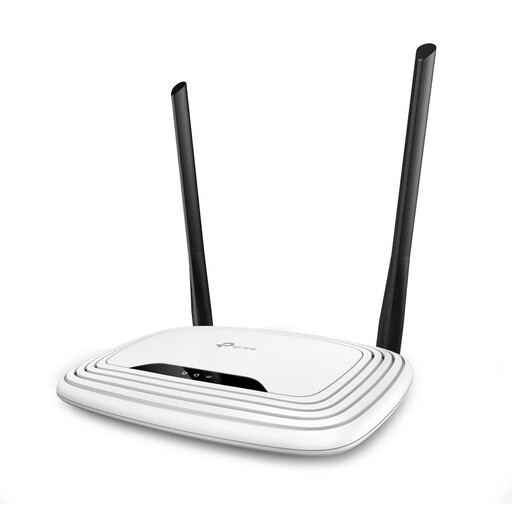
TP-Link TL-WR841N
If you are considering this router for a shared household, check that the network connection and access to your separate backup destination meet your needs.
Fast Ethernet; single-band (2,4 GHz).
View at Joybuy
 No image available
TP-Link Deco E4 (3-pack)
This mesh system could suit a household looking to spread Wi-Fi across several units; the backup destination must separately be compatible with the software you use.
Dual-band (2,4 GHz/5 GHz); Wi-Fi 5 (802.11ac); 3-pack.
View at Joybuy
 No image available
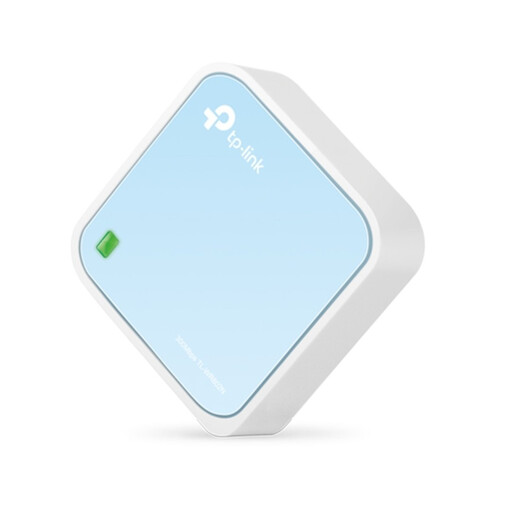
TP-Link TL-WR802N V4
This router is a networking option, not confirmation of a suitable backup destination; check in advance how the storage will connect to your computer.
View at Joybuy
 No image available
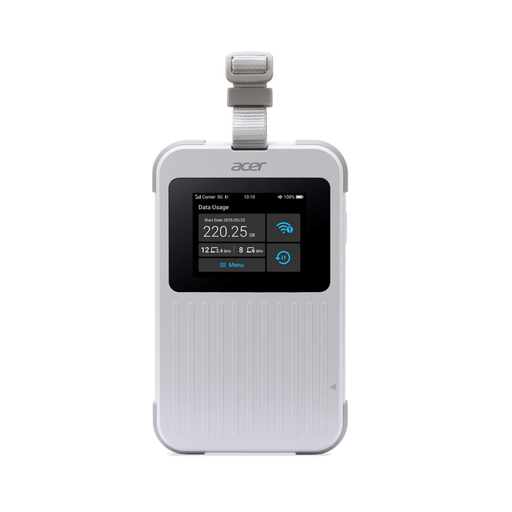
Acer Connect M6E Portable MiFi Router
This portable model is designed for mobile Wi-Fi; do not treat it as a replacement for a fixed backup destination at home.
The product name lists 5G, Wi-Fi 6E, dual-band, Nano SIM, SIMO and support for up to 32 devices. It also lists 1 GB; check exactly what this refers to.
View at Joybuy
Frequently asked questions
Is a USB port on the router enough for a Time Machine backup?
No. A USB port alone does not prove that the destination is suitable. Apple Support lists a NAS that supports Time Machine over SMB as a possible network destination; check the documentation for the destination you choose. ASUS warns that, from macOS 26 onwards, you cannot create new Time Machine backups on USB storage connected to the RT-AX86U Pro.
How do you set up a backup to a network location on Windows?
First, make sure you have access to a network location, then select it in File History. Microsoft Support explains how to choose the location and restore a file version; test the restore before relying on your setup.
How can you avoid making a router backup your only copy?
Keep another copy elsewhere and regularly check that you can restore files. The Digital Trust Center recommends keeping backups in more than one location and testing that you can restore them.
Can you store work documents on a personal network drive?
That depends on the documents and your agreement with your employer or client. The Dutch Data Protection Authority recommends using a secure working environment where possible and discussing the issue if one is not available.
Can you choose your own router in the Netherlands?
ACM ConsuWijzer explains your right to choose a router, but a provider may refuse an insecure device. Ask for the connection settings you need and check the applicable EU requirements for the exact model.


