Choose a router with USB file sharing if you want to share a drive across your home network, but first check that the sharing method and sign-in work with all your computers and phones. If Wi-Fi is particularly weak where you work, first look at where your current router is positioned and whether you could add another Wi-Fi access point. If you’re buying a new router, also check that it’s compatible with your modem and internet connection.
Who might benefit from a router for sharing project files?
Households with different devices
You want to open the same project folder on, for example, a computer and a phone. Compare the local sharing method and sign-in process with the capabilities of each device. TP-Link and Apple Support explain how to access files on a local network.
Home workers with weak Wi-Fi
File sharing already works, but the connection where you work is unreliable. First, look at the coverage and positioning of your equipment. Which? also discusses ways to improve Wi-Fi at home.
Households with restricted-access projects
You want to control who can open shared folders and keep your router up to date. Check accounts, folder permissions and updates. ASUS and VeiligInternetten explain what to consider when managing access and maintaining your router.
What should you look for when choosing?
Router with USB file sharing
A good fit if: you want to use an external drive as a shared folder on your home network, and your devices can access the local service provided.
Bear in mind: a USB port alone doesn’t confirm that the sharing method and sign-in will work with your devices.
Keep your current router and improve Wi-Fi
A good fit if: file sharing already works, but the connection where you work isn’t good enough.
Bear in mind: first, check where coverage is weak. If you add Wi-Fi access points, their positioning and how they connect to each other still matter.
Use your own router with your internet connection
A good fit if: you need different router features and know which connection and settings your provider requires.
Bear in mind: a built-in DSL feature offers little benefit if you’re only using the device behind an existing modem. ACM ConsuWijzer says that a provider can’t require you to use a particular brand or model, but you should still check the requirements for your connection.
| What to consider |
What should you check? |
Who is this most relevant for? |
| Access from different devices |
Check the local sharing method, sign-in and compatibility with the computers and phones you use. TP-Link explains access via SMB or FTP for routers with the relevant USB feature; check the exact model version. |
If I want to open the same project folder on different devices, I need to know whether each device can access the service and sign in. Around 36% of consumers prioritise access from different devices. |
| Wi-Fi where you work |
First, check the connection where you work and compare repositioning your equipment with adding a Wi-Fi access point or replacing your router. Which? discusses router placement and ways to improve Wi-Fi reception. |
If I mainly need to open files somewhere with weak Wi-Fi, I first want to know whether coverage is the problem. Around 29% of consumers prioritise reliable coverage. |
| Restricting access |
Check accounts, folder permissions and updates. ASUS explains accounts and folder permissions; Microsoft warns about the security risks of SMBv1. |
If not everyone should be able to open the same project folders, I want to be able to check who has access without having to use an outdated SMB setting. Around 21% of consumers prioritise restricted access. |
| Using the network at the same time |
Assess network ports, Wi-Fi specifications and storage sharing separately. Stated Wi-Fi specifications don’t measure file transfer speeds in your home. Synology lists network features and a USB port for the RT6600ax. |
If several people in my household use files and devices at the same time, I want to check both the network connections and storage sharing. Around 14% of consumers prioritise simultaneous use. |
Pitfalls to avoid when sharing project files
-
Focusing only on the USB port
A port alone doesn’t tell you which file-sharing service is available or how computers and phones sign in.
Check the sharing settings for the exact model and test representative files on the devices you use.
-
Enabling an outdated SMB setting to force access
Microsoft warns that SMBv1 has significant security risks.
First, check which secure SMB settings your router and devices support. Don’t disable security features to force compatibility.
-
Buying a faster router to fix a coverage problem
A shared folder won’t fix weak Wi-Fi where you work. Repositioning your router or adding a Wi-Fi access point may also help; Which? discusses these options.
First, check where the connection is poor, then compare repositioning your router, adding a Wi-Fi access point and replacing the router.
Brands to consider for this choice
TP-Link
TP-Link says the Archer AX73 has a USB feature for sharing storage. The manufacturer explains how to access it locally from computers and phones on routers with this feature.
- TP-Link lists one USB 3.0 port for the Archer AX73.
- Check which sharing method and sign-in work with your devices for the exact hardware and firmware version.
ASUS
The RT-AX86U Pro specifications list USB ports. ASUS explains how to use Samba Server and set up accounts and folder permissions.
- The model and support information explain the available USB and folder access features.
- An ASUS help page mentions SMBv1 as part of a Windows 10 step. Microsoft strongly advises against SMBv1, so don’t follow that step as setup advice without checking first.
FRITZ!
For the FRITZ!Box 7690, the manufacturer explains how to set up connected USB storage as a network drive on computers on your home network.
- The manufacturer also describes using the router with a suitable fibre modem or ONT.
- The built-in DSL feature isn’t needed if you’re only using the model behind an existing modem. Check the settings for your connection.
Synology
Synology lists a USB port and options for setting up separate networks for the RT6600ax.
- The network setup may be relevant if you’re also looking to create separate networks as well as share files.
- A port or network feature doesn’t tell you what transfer speeds your project workflow will achieve. Check the service and devices you need separately.
Joybuy product picks for Wi-Fi coverage
The Deco and mesh products below are designed to improve Wi-Fi at home. Assess their storage and sharing features separately before choosing a model for shared project files.
 Image unavailable
TP-Link Deco BE68 2-Pack
A mesh system may suit you if you want to improve Wi-Fi in several parts of your home. Check separately that its storage and sharing features meet your needs.
The product name specifies a set of two Deco units.
Joybuy
 Image unavailable
TP-Link Deco M4 (3-Pack), Dual-Band Wi-Fi 5 (2.4 GHz/5 GHz, 802.11ac)
This mesh system may suit you if you want to improve Wi-Fi in different parts of your home. Also check the local file-sharing service and access from your devices.
The product name specifies three units, dual-band, 2.4 GHz/5 GHz and Wi-Fi 5 (802.11ac).
Joybuy
 Image unavailable
Huawei eKit OptiX FG736 BE3600 Dual-Band WiFi 7 Mesh Router
This mesh router is worth comparing if you’re considering a mesh solution for Wi-Fi. Check separately that it’s compatible with your connection and supports your preferred way of sharing files.
The product name specifies BE3600, dual-band and WiFi 7.
Joybuy
 Image unavailable
Huawei eKit OptiX FG630 AX3000 Dual-Band WiFi 6 Mesh Router
This mesh router is worth comparing if you’re looking for a mesh solution for Wi-Fi. Also check that the file-sharing service and connection work with your devices and network.
The product name specifies AX3000, dual-band and WiFi 6.
Joybuy
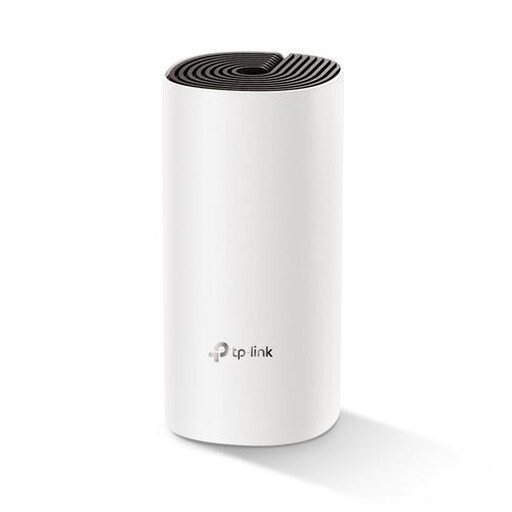 Image unavailable
TP-Link Deco M4 (1-Pack), Dual-Band Wi-Fi 5 (2.4 GHz/5 GHz, 802.11ac), 2 Ethernet ports
This option may suit you if you’re looking for a single Deco unit. Check that the pack size provides the Wi-Fi coverage you need, and assess file sharing separately.
The product name specifies one unit, dual-band, Wi-Fi 5 (802.11ac) and 2 Ethernet ports.
Joybuy
Frequently asked questions
Can my iPhone open a shared project folder on my home network?
Yes. The iPhone Files app can connect to a file server using a local hostname or network address. Also check that the router’s service and sign-in work on your iPhone; the phone’s capabilities alone don’t confirm that this particular setup will work. Apple Support explains how to connect to a server using Files.
What should I check if my Windows computer won’t open the shared drive?
First, check the router settings, account details and supported SMB features. Microsoft strongly advises against SMBv1. If you’re having problems with SMB signing, Microsoft recommends updating or replacing the server rather than disabling security.
How do I maintain my own router?
Check for firmware updates through the management app or manufacturer, and enable automatic updates if possible. You should also keep a separate backup of important project files; shared access isn’t a substitute for one. VeiligInternetten includes updates as part of router security.
Can I use my own router in the Netherlands?
Yes. According to ACM ConsuWijzer, a provider can’t require you to use a particular brand or model. Check which settings and requirements apply to your connection.
Who can help if a router I’ve bought breaks down too soon?
In the Netherlands, the seller is responsible under the legal guarantee if a product is faulty. According to ACM ConsuWijzer, this guarantee doesn’t have a fixed two-year limit; it depends on what you could reasonably expect from the product.


