Who is this relevant to?

A household with several people watching at once

You watch on one or more screens while other devices use the internet. First, test your connection, then check whether the Wi-Fi struggles when several devices are in use at the same time. The Wi-Fi Alliance describes Wi-Fi 6 features designed for networks with many devices active simultaneously.

Viewers in different rooms

You watch through walls or on another floor and want to know whether your existing router provides coverage there. The Consumers’ Association recommends checking the connection where you actually use it; router placement or additional Wi-Fi points may also be part of the solution.

A user with equipment from their internet provider

You want to keep your existing connection and find out whether an additional device can work as an access point, or whether a router can be connected behind your modem. Check the ports and operating modes supported by the exact version.

What should you look for when choosing?

Keep your existing router

Choose this when: you don’t yet know whether the connection or the Wi-Fi is causing the problem, or when moving the router would bring the signal to the viewing area.

Trade-off: you don’t need to replace a device straight away, but moving it won’t solve a lack of capacity in your existing equipment.

One router or wired access point

Choose this when: your internet connection is fast enough and one well-placed Wi-Fi point reaches all your viewing areas.

Trade-off: Wi-Fi 6 can handle traffic from multiple devices at once, but older devices won’t benefit from all its improvements. Also check how it connects to your provider’s equipment.

Multiple Wi-Fi points or mesh

Choose this when: coverage from a single well-placed point is insufficient in several viewing areas.

Trade-off: additional points need power and a reliable connection to each other. Ethernet backhaul may be an option if you have network cables in place.

What to consider What to check before buying Who is this important to?
Watching at the same time Count the number of separate streams and test your connection using a cable first. Then test it in the viewing areas. Netflix recommends 5 Mbps for one of its own 1080p streams and 15 Mbps for one of its own 4K streams; these figures don’t necessarily apply to other streaming services. If several screens are streaming at once, I want to know whether my internet connection and Wi-Fi can handle it. Around 40% of consumers put simultaneous use first.
Coverage in the viewing area Test the rooms where you watch and first try moving your existing Wi-Fi point. Then decide whether you need an additional wired point or a mesh system. When I watch in another room or on a different floor, reception there is my top priority. Around 30% of consumers focus mainly on coverage when making their choice.
Connection to your existing equipment Check the type of equipment supplied by your provider, the available Ethernet ports and the operating modes supported by the exact model. I want the new solution to work with the modem and cables I already have. For around 20% of consumers, this is the top priority.
Guest access Check whether the version has a guest network and how you can manage firmware updates and settings yourself. If guests connect their own devices, I want to be able to manage access carefully. Secure sharing is the top buying priority for around 10% of consumers.

Common buying mistakes

  • Assuming the highest AX speed is the internet speed available to every screen

    The speed of your internet connection and the wireless connection in your viewing area are two different things. A high speed printed on the product packaging doesn’t show which one is causing the problem.

    First, test your connection using a network cable, then check the Wi-Fi in your viewing areas while using a similar number of devices at the same time.

  • Choosing one router for areas with persistent weak coverage

    Adding coverage across several rooms calls for a different solution from supporting multiple devices around a single Wi-Fi point.

    Test each room to see where the connection is weak, then work out where additional points could go and how they would connect to one another.

  • Assuming the model name confirms you’re buying the right version

    Hardware versions, the number of mesh points and operating modes can vary. A similar model name alone doesn’t confirm that the version and connection are right for your needs.

    Check the number of points, ports, hardware version and markings on the specific version.

Brands to compare

TP-Link

TP-Link offers both the standalone Archer AX55 and the Deco X50 mesh range for this choice: two different solutions for a single Wi-Fi point and coverage from multiple points, respectively.

  • TP-Link says the Archer AX55 has Wi-Fi 6 and OFDMA; Ethernet backhaul is an option with the Deco X50.
  • These are manufacturer specifications, not a guarantee of streaming quality or coverage in a particular home. For the Deco, check the number of points and hardware version.

ASUS

The RT-AX58U is an example of a standalone Wi-Fi 6 router that, according to ASUS, can also work as an access point.

  • ASUS specifies one Gigabit WAN port and four Gigabit LAN ports.
  • ASUS lists different processors for V1 and V2. Check the hardware version and don’t assume these versions are identical.

FRITZ!

FRITZ! describes the FRITZ!Box 4060 as a standalone tri-band Wi-Fi 6 router for use with a separate modem, with options to expand within its own mesh system.

  • According to FRITZ!, this model has a 2.5 Gigabit WAN port and three Gigabit LAN ports.
  • Extra features and ports don’t automatically make this model necessary for watching a single theatre performance stream.

Products available at Joybuy

This selection includes standalone Wi-Fi routers and mesh systems for simultaneous use and coverage in several viewing areas. Check that the specific version carries the required CE marking; the Dutch Authority for Digital Infrastructure says this marking is mandatory for equipment to which the requirement applies.

ASUS RT-AX52 AX1800 AiMesh router

ASUS RT-AX52 AX1800 AiMesh router

A standalone router to compare if one Wi-Fi point can reach your viewing areas.

AX1800; dual-band (2.4 GHz / 5 GHz); Gigabit Ethernet; AiMesh.

Joybuy

TP-Link Deco X50 mesh system with 3 units

TP-Link Deco X50 (3-pack)

A mesh system to compare if you want Wi-Fi in several viewing areas.

Three units; dual-band (2.4 GHz / 5 GHz); Wi-Fi 6 (802.11ax).

Joybuy

Huawei eKit OptiX FG736 BE3600 dual-band Wi-Fi 7 mesh router

Huawei eKit OptiX FG736 BE3600 dual-band Wi-Fi 7 mesh router

A mesh router to compare if you’re looking for a mesh solution for several connected devices.

BE3600; dual-band; Wi-Fi 7.

Joybuy
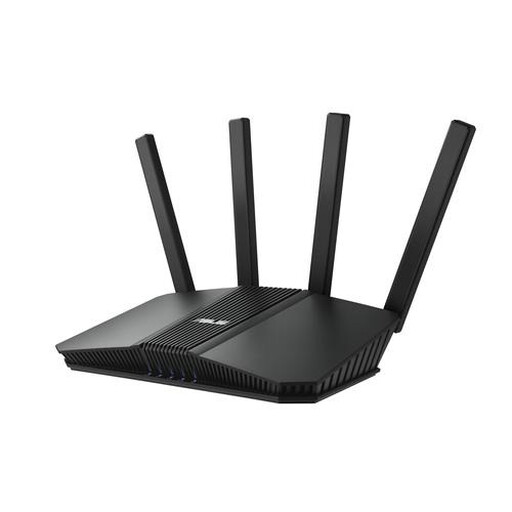
ASUS RT-BE82U BE6500 dual-band wireless router

ASUS RT-BE82U BE6500 router

A standalone router to compare if you want to connect fixed devices by cable while several other devices use Wi-Fi.

BE6500; dual-band (2.4 GHz / 5 GHz); 2.5 Gigabit Ethernet.

Joybuy

ASUS RT-AX52 Pro AX3000 dual-band router

ASUS RT-AX52 Pro AX3000 router

A standalone router to compare if one Wi-Fi point needs to serve several devices at once.

AX3000; Gigabit Ethernet; dual-band (2.4 GHz / 5 GHz).

Joybuy

Frequently asked questions

Do you automatically need a new router if several people are watching?

No, not necessarily. First, test your internet speed using a cable, then check the connection at the screens. One shared screen doesn’t automatically mean that everyone present is using their own video stream; viewers using their own devices may, however, start separate streams.

Where should you put a Wi-Fi point for watching a performance?

First, try a higher, more central spot outside the meter cupboard, then test the connection where you watch. Walls, ceilings and distance can affect reception. If coverage is still weak there, you could compare adding another point.

Can you choose your own router in the Netherlands?

Yes. According to ACM ConsuWijzer, you have the right to choose your own router. Check how your device should connect to your provider’s equipment and which settings are required. Replacing a router connected to a provider’s modem is different from replacing the modem itself.

Which product rules apply to a Wi-Fi router in the Netherlands?

The Dutch Authority for Digital Infrastructure says equipment must carry the required CE marking. Cybersecurity requirements have also applied to radio equipment covered by the relevant rules since 1 August 2025 when it is placed on the market; which requirements apply depends on the device. So check the specific version and its markings, not just the model name.

Does a two-year manufacturer’s warranty mean your statutory guarantee ends after two years?

No. According to ACM ConsuWijzer, the Dutch statutory guarantee depends on what you could reasonably expect from the product under normal use; there is no fixed two-year period. Contact the seller if something goes wrong.
