Start with your upload connection, then check the Wi-Fi in the places where calls happen at the same time. Microsoft Learn and the Zoom Technical Library identify bandwidth and network load as factors in video calls, while Microsoft Support recommends placing your router centrally and keeping it clear of obstacles such as walls. A centrally placed router is more likely to suit a compact studio. For workspaces spread across different areas, extra Wi-Fi access points and where you place them matter. Shared guest traffic is only a reason to consider more advanced management if someone is responsible for managing the network. Before buying, check your provider’s settings and the CE marking and applicable RED 3.3 requirements for the exact model.
Who is this relevant to?
A studio with simultaneous video calls
If several people are on calls at the same time, check whether upload capacity, Wi-Fi load or the internet connection is affecting them. Microsoft Learn and the Zoom Technical Library outline the network and bandwidth requirements for video calls.
A studio with workspaces spread across different areas
If calls mainly drop out in other rooms or behind walls, router placement and Wi-Fi coverage at those workspaces are important. Microsoft Support recommends a central location, with as few walls and ceilings as possible between the router and your device.
A studio with shared guest traffic
If employees and visitors use the same connection, it may be important to separate guest traffic and be able to investigate network issues. Ubiquiti lists network segmentation and traffic management as features of the Dream Router 7.
What to consider when buying
Microsoft Learn and the Zoom Technical Library identify available bandwidth as a factor in video calls. Microsoft Support also recommends considering router placement and walls. Test your connection and Wi-Fi while several people are using them at once before deciding what equipment you need.
| What to consider |
What to look for when buying |
Who this matters to |
| Reliable video calls |
Test upload speeds and call quality while several colleagues are on calls; check the WAN connection and available network diagnostics. |
If several colleagues are on calls at once, I want to know whether the upload connection can cope before replacing the router. Around 40% of consumers say call stability is their top priority. |
| Coverage in workspaces |
Test the connection in every place where calls take place, and check that any extra Wi-Fi access points are compatible and can be positioned appropriately. |
If workspaces are in other rooms or behind walls, I want reliable coverage there, not just a high speed on paper. Around 30% of consumers put coverage in every workspace first. |
| Managing a shared network |
Check the features available on the exact model for guest access, segmentation, updates and fault monitoring. |
If guests and employees use the same network, I want to manage their access and investigate problems. Around 20% of consumers say network management is their top priority. |
| Connection and installation |
Ask your business internet provider for the connection settings and check whether you’ll still need a modem or other connection equipment. |
If I choose my own equipment, I want to know how it will work with my existing connection and who will manage it. Around 10% of consumers put ease of connection and maintenance first. |
Common pitfalls
-
Confusing advertised Wi-Fi speed with available upload bandwidth
A router’s high speed rating doesn’t show how much upload bandwidth is available during simultaneous calls. Microsoft Learn and the Zoom Technical Library identify bandwidth as a factor in video calls.
Test your existing internet connection while several colleagues are on calls before deciding that a new router is the answer.
-
Choosing a router based on its stated range
Distance and walls can reduce Wi-Fi coverage in individual workspaces. Microsoft Support recommends placing the router centrally and minimising obstacles between the router and your device.
Test the connection where calls take place, then decide whether a centrally placed router will be enough or whether you need to extend your coverage.
-
Assuming every router can replace your provider’s modem
Connections and required settings vary. The ACM outlines the conditions for choosing your own modem, but that doesn’t mean every router will automatically work with every provider’s connection.
Ask your business internet provider which connection settings apply and whether you’ll still need separate connection equipment.
Brands to consider
TP-Link
According to the Dutch product specifications, the Archer AX72 Pro is a standalone dual-band Wi-Fi 6 router with a 2.5 Gbps WAN/LAN port.
- TP-Link Netherlands lists EasyMesh support for this model, which is useful if you want to extend your Wi-Fi coverage.
- These specifications don’t show how the router performs during simultaneous calls in a studio.
ASUS
According to ASUS’s specifications, the RT-AX88U Pro has separate 2.5 Gbps WAN and LAN ports, plus four gigabit LAN ports.
- The listed ports are worth checking if you want to connect fixed workspaces by cable.
- Port specifications don’t measure call quality, so also check the model and connections you need.
FRITZ!
According to FRITZ!, the FRITZ!Box 7690 combines a DSL modem with Wi-Fi and can also work as a router behind an existing connection.
- The manufacturer lists Wi-Fi 7 on 2.4 and 5 GHz, with the option to extend coverage using Wi-Fi access points.
- A built-in DSL modem is only useful if it suits your connection. Check the exact model and your provider’s requirements.
Ubiquiti
The Dream Router 7 combines Wi-Fi with gateway features, making it worth considering for a studio that wants to manage its network.
- Ubiquiti lists VLAN-based segmentation, traffic management and fault reporting for this model.
- These features require management and setup. Stated capacity and coverage aren’t measurements taken in your studio.
Products at Joybuy
This selection focuses on routers and mesh systems for studios with workspaces spread across different areas. Before buying, check your provider’s requirements and the CE marking and applicable RED 3.3 requirements for the exact model.
 No image available
TP-Link Deco BE68 (2-pack)
A mesh system with two units to consider if your workspaces are spread across several areas.
The product description lists tri-band Wi-Fi 7, mesh and Multi-Link Operation.
The listed features alone don’t tell you how stable video calls will be in your studio.
View at Joybuy
 No image available
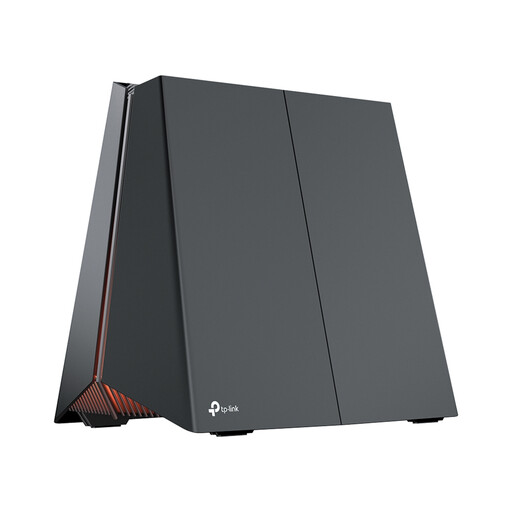
TP-Link Archer GE550
A router to consider if you’re looking into extending coverage to other workspaces. Check that its listed features suit your network setup.
The product description lists tri-band Wi-Fi 7, a 5 Gbps WAN port and three 2.5 Gbps LAN ports.
It also lists Multi-Link Operation, QoS and EasyMesh extension.
View at Joybuy
 No image available
TP-Link Archer GE230
A router to consider if you want to connect fixed workspaces and may need to extend your Wi-Fi coverage.
The product description lists Wi-Fi 7, one 10 Gbps port and one 2.5 Gbps port.
EasyMesh is listed as an extension option. Check which setup will work with your existing equipment.
View at Joybuy
 No image available
TP-Link Deco XE75 (3-pack)
A mesh system with three units to consider if you need Wi-Fi coverage in different areas.
The product description lists tri-band Wi-Fi 6E and QoS.
It also lists guest access, WPA3 and three gigabit Ethernet ports per unit.
View at Joybuy
Frequently asked questions
Will a faster router always fix video calls that keep dropping out?
No. Test both your upload connection and Wi-Fi where calls take place while several people are using them at once. If the problem is with your internet connection, replacing only the router won’t fix it.
Where should you place the router in your studio?
Start with a central spot in relation to your workspaces, and minimise the number of walls and ceilings between the router and your device. Microsoft Support recommends these placement measures. Then test the connection wherever calls take place and consider adding Wi-Fi access points if dead zones remain.
Can a studio in the Netherlands choose its own modem or router?
Yes. According to the ACM, you can choose your own equipment even with a business internet contract, provided it meets safety requirements and doesn’t harm the network. Ask your provider for the connection settings and keep your equipment up to date.
Which product markings and requirements should you check for a router?
Check that the exact model has the applicable CE marking. The Dutch Authority for Digital Infrastructure (Rijksinspectie Digitale Infrastructuur) outlines this requirement for radio equipment placed on the European market. From 1 August 2025, applicable RED 3.3 cybersecurity requirements also apply to certain internet-connected radio equipment on the EU market. The requirements depend on the device’s features and how it processes data.


