Who is this relevant for?

People making video calls on different floors

You want to know whether there’s a usable connection at every workspace. Google Meet Help recommends using an Ethernet connection where possible, so test the Wi-Fi in the places where you actually make calls too.

Households with several people using the network at once

If several people are making video calls and using other devices at the same time, check both your broadband connection and the Wi-Fi at each workspace. TP-Link lists OFDMA for the Archer AX55, but a stated router feature doesn’t tell you how good call quality will be in your home.

People who want to keep their provider’s router

You may want to extend your existing network rather than replace the router. ACM ConsuWijzer explains your freedom to choose your own router; TP-Link describes an access point mode for Deco that can be used alongside an existing router.

What should you look for when choosing?

A standalone Wi-Fi router

Choose this option if: one suitable router location can provide coverage to your workspaces.

Bear in mind: one transmitter won’t automatically fix a weak signal behind walls or between floors. TP-Link lists OFDMA for the Archer AX55, but that alone doesn’t tell you how strong the signal will be at your workspace.

Mesh with multiple Wi-Fi points

Choose this option if: one router location can’t provide good coverage to your workspaces and you want Wi-Fi in several areas.

Bear in mind: you’ll need to position the points and plan how they connect. TP-Link describes Ethernet backhaul as a way for connected Deco units to exchange data over a network cable.

Keeping your existing router

Choose this option if: your existing router will continue to handle your internet connection and you mainly want to extend your Wi-Fi.

Bear in mind: in Deco access point mode, the existing router continues to assign IP addresses, among other things. TP-Link notes that some Deco router features aren’t available in this mode.

What to consider What should you check? Who is this important for?
Coverage at workspaces Test where you make calls and compare one router location with multiple points. Check whether you can run a cable between floors. If I work on different floors, I want coverage wherever I make calls before buying extra devices. Around 36% of consumers say coverage at their workspace is their top priority.
Video calls at the same time Test your upload connection and its stability while several people are online. If possible, try connecting a computer by cable. When several people in my household make calls at once, I want to know whether the connection itself stays stable, rather than relying only on a stated Wi-Fi speed. For around 29% of consumers, supporting simultaneous calls is the top priority.
Compatibility with your provider’s equipment Decide which device will remain the router and check whether the new system has a suitable access point mode. Ask your provider for the settings you need, if necessary. If I want to keep my provider’s router, I want to extend my Wi-Fi without replacing the existing setup incorrectly. An estimated 21% of consumers prioritise keeping their existing network setup.
Management and the complete setup Check which firmware updates and features are available in the mode you’ve chosen. Work out how many Wi-Fi points and how much cabling, if any, you’ll need. Anyone who is mainly concerned with management, maintenance and the complete setup will want to know in advance which features they can use. Around 14% of consumers say these considerations are their top priority.

Pitfalls to avoid

  • Assuming the stated Wi-Fi speed is the speed of every video call

    Your connection at the workspace, latency and stability all play a part. A high stated wireless speed doesn’t prove that your internet connection is stable enough.

    Test the connection where you make calls and, if possible, compare it with Ethernet before deciding based on a speed figure.

  • Placing a mesh point where it can barely get a signal itself

    A wireless connection between mesh points still depends on the signal along the route between them.

    Plan where to put each point and check whether you can connect the units using Ethernet.

    Your chosen setup may require a different position or extra cabling.

  • Treating an access point, router and modem as if they were the same device

    They can play different roles in your connection. If you keep your provider’s router, setting things up incorrectly could mean extra configuration work.

    Before you buy, decide which device will remain the router and check which operating mode and provider settings you’ll need.

Brands to consider

TP-Link

The Archer AX55 is a standalone Wi-Fi 6 router, while the Deco X50 is an expandable mesh system. They’re different solutions, not interchangeable versions of the same product.

  • TP-Link lists OFDMA for the Archer AX55 and optional Ethernet backhaul for Deco X50 units.
  • These features don’t guarantee coverage in every home. Also check how many units are included in the set you choose.

ASUS

The RT-AX58U is a standalone Wi-Fi 6 router which, according to ASUS, offers features including guest access and expansion options through AiMesh.

  • ASUS lists access point and AiMesh modes, as well as four Gigabit LAN ports, for this model.
  • The specifications distinguish between V1 and V2 processors, so check which version is on offer.

FRITZ!

According to the manufacturer, the FRITZ!Box 4060 is a router that connects to a separate modem and can use mesh within the FRITZ! system.

  • FRITZ! lists one 2.5 Gigabit WAN port and three Gigabit LAN ports.
  • The router won’t automatically replace a separate modem; also consider whether you need extra mesh points.

NETGEAR

NETGEAR Support describes the Orbi RBK352 as a Wi-Fi 6 mesh system with one router and one satellite.

  • According to NETGEAR, the set includes one Orbi router and one Orbi satellite.
  • The set’s contents don’t predict how well it will cover your home.

Products at Joybuy

This selection includes standalone routers for situations where one well-positioned router is enough, and mesh systems with multiple Wi-Fi points for workspaces in different areas.

ASUS RT-AX52 AX1800 dual-band Wi-Fi 6 router

ASUS RT-AX52 AX1800 dual-band Wi-Fi 6 router

A standalone router for situations where one router location can reach your workspaces.

The product information lists dual-band Wi-Fi 6, OFDMA and MU-MIMO. To add multiple Wi-Fi points, you’ll need to expand the system with AiMesh-compatible routers.

View at Joybuy

TP-Link Deco X50 Wi-Fi 6 mesh system, 3-pack

TP-Link Deco X50 Wi-Fi 6 mesh system (3-pack)

A mesh system with multiple units for workspaces in different areas; the set doesn’t guarantee specific coverage in your home.

The product information lists three Gigabit ports per unit, OFDMA and MU-MIMO. TP-Link states that Ethernet backhaul between Deco units is optional.

View at Joybuy
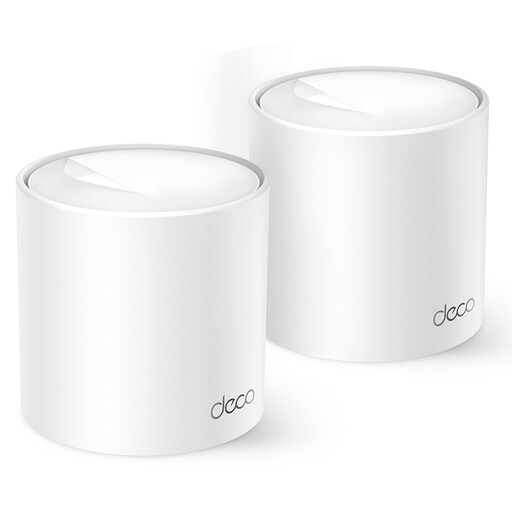
TP-Link Deco X10 Wi-Fi 6 mesh system with two units

TP-Link Deco X10 Wi-Fi 6 mesh system (2 units)

A mesh system with two units for workspaces in more than one area; choose their positions based on the connection in your home.

The product information lists two Gigabit Ethernet ports per unit, OFDMA and MU-MIMO.

View at Joybuy

TP-Link Deco XE75 tri-band Wi-Fi 6E mesh system with three units

TP-Link Deco XE75 tri-band Wi-Fi 6E mesh system (3 units)

A mesh system with three units for situations where you need Wi-Fi in several areas; the number of units in the set doesn’t determine the coverage in your home.

The product information lists tri-band on 2.4, 5 and 6 GHz, and Wi-Fi 6E.

View at Joybuy

TP-Link Deco X50 Wi-Fi 6 mesh system, 2-pack

TP-Link Deco X50 Wi-Fi 6 mesh system (2-pack)

A mesh system with two units for workspaces in different areas; check where the units can connect in your home.

The product information lists OFDMA, MU-MIMO and optional Ethernet backhaul between Deco units.

View at Joybuy

Frequently asked questions

How can I tell whether a new router will fix choppy video calls?

Compare Wi-Fi with a wired connection at the same workspace. Google Meet Help also recommends checking available bandwidth and latency. If your broadband connection itself is unstable, a higher stated Wi-Fi speed doesn’t prove that a new router will solve the problem.

Can I use mesh alongside my internet provider’s router?

For Deco, TP-Link describes an access point mode that works alongside an existing router. That router continues to assign IP addresses, among other things. Check which Deco features are available in this mode and how to connect the units.

Can I connect my own router in the Netherlands?

According to ACM ConsuWijzer, you’re free to choose your router. A provider may refuse to allow your own device under certain conditions if it’s unsafe or causes damage to the network. If you’re connecting it directly, ask your provider for the settings you need.

How can I keep my own router secure?

Before buying, check where firmware updates for the exact model are available, and install them when offered. ACM ConsuWijzer highlights the importance of updates for network security and personal data.
