Who is this guide for?

Attending live online lessons

You want to follow your lesson without interruptions to the audio, video or shared content. Microsoft Support recommends, among other things, placing your router centrally and minimising the number of walls and ceilings between the router and your device.

Student with a study space outside Wi-Fi range

You take lessons in a room or on a floor where the existing signal is weak. In this case, your choice will mainly depend on where you can place the equipment, whether a wired connection is possible and whether you need multiple Wi-Fi access points.

Household with several people online at once

You want to keep other devices connected while you’re in a lesson. Zoom Technical Library provides general guidance on bandwidth use, so consider both your home connection and the connection available from your provider.

What should you look for when choosing?

Keep your existing router

Choose this when: coverage is already sufficient where you take lessons and you want to check the router’s position, cabling or internet connection first.

Bear in mind: repositioning your router won’t always solve poor Wi-Fi coverage elsewhere.

One standalone Wi-Fi router

Choose this when: your study space is within good range of a centrally placed device and you want to replace or improve your existing Wi-Fi or router features.

Bear in mind: distance and walls can limit coverage in a study space further away. Also check which operating mode you need.

Mesh system with multiple access points

Choose this when: a single router doesn’t provide enough coverage in another room or on another floor, and you can place multiple access points where they’re needed.

Bear in mind: a mesh system means more equipment. If you can run cables between access points, take that option into account.

What to consider What to look for when buying Who is this most relevant to?
Following lessons without interruptions Test the connection where you take lessons and check whether a suitable ethernet connection is possible. I want to be clearly heard during lessons and follow shared content without interruptions. Around 36% of consumers say uninterrupted lessons are their top buying priority.
Coverage where you take lessons Test the connection in the place where you take lessons and check whether there’s space, a power socket and, if needed, cabling for additional access points. If my study space is in another room or on another floor, I want to know whether the signal there is strong enough. Around 29% of consumers prioritise coverage where they take lessons.
Using the internet at home at the same time Check which devices are active at the same time, what your lesson device supports and whether your provider’s connection is suitable. I want to be able to use other devices at home during a lesson too. Around 21% of consumers say simultaneous network use is their top buying priority.
Connections and extra features Decide whether you’re replacing your provider’s router or adding Wi-Fi. Check the supported mode and any subscription terms for extra services. If you’re looking for a simple setup and manageable costs, you’ll want to know which device handles the router functions and whether extra services are sold separately. Around 14% of consumers prioritise connections and additional services.

Common pitfalls

  • Assuming a high Wi-Fi speed guarantees uninterrupted lessons

    The connection where you take lessons, the distance, walls and your internet connection all affect video calls and content sharing. A new router won’t automatically fix a problem with your provider’s connection.

    Test the connection where you take lessons and first check whether the issue is with Wi-Fi or your internet line.

  • Buying mesh access points without planning how they’ll connect

    How mesh access points connect to each other and to your existing router affects how you set them up. A wired connection between access points can be more stable than wireless backhaul.

    Check where you can place the access points, whether ethernet cabling is possible and which features will remain available in your preferred operating mode.

    A mesh setup may need extra cabling and power sockets. In access point mode, some gateway features you want may no longer be available.

  • Assuming all security features will remain included

    TP-Link offers additional HomeShield services with separate subscriptions. The features and terms depend on the service you choose.

    Before buying, check which features are included with the exact product version and what subscription terms apply.

    Some additional services may require a HomeShield subscription.

Brands to compare for this type of setup

TP-Link

The Archer AX55 is a standalone dual-band Wi-Fi 6 router, while the Deco X50 is a Wi-Fi 6 mesh system for situations where multiple access points may be useful.

  • TP-Link lists gigabit ports for the Archer AX55 and optional ethernet backhaul for the Deco X50.
  • Check which gateway features are unavailable in access point mode and whether the HomeShield features you want require a subscription.

ASUS

The RT-AX58U is a standalone Wi-Fi 6 router with an access point mode, among other features.

  • ASUS lists four gigabit LAN ports and several operating modes for the RT-AX58U.
  • The processor specifications differ between V1 and V2. In access point mode, NAT and this device’s firewall are disabled by default, so decide in advance which device will handle these tasks.

FRITZ!

The FRITZ!Box 4060 is a Wi-Fi 6 network router designed to connect behind a modem, with additional telephony and mesh features.

  • FRITZ! lists a 2.5-gigabit WAN port and three gigabit LAN ports.
  • You may not need the additional features for a single online lesson. Check that the model is suitable for the type of modem your connection requires.

Joybuy products for your online study space

This selection includes standalone routers and mesh systems for an online study space that may be within or outside the range of a single router.

ASUS ZenWiFi BD4 dual-band Wi-Fi 7 mesh system, 2-pack

ASUS ZenWiFi BD4, 2-pack

A mesh option for a study space that needs extra Wi-Fi coverage.

Features include dual-band Wi-Fi 7 (802.11be), two 2.5-GbE ports and MLO support. The product description also mentions a wired backhaul option.

View at Joybuy

ASUS RT-AX52 AX1800 dual-band Wi-Fi 6 router

ASUS RT-AX52 AX1800

A standalone router for a study space within range of a single device.

Features include dual-band Wi-Fi 6 with OFDMA and MU-MIMO. The specifications list gigabit ethernet ports for a wired connection.

View at Joybuy

TP-Link Deco X50 dual-band Wi-Fi 6 mesh system, 3-pack

TP-Link Deco X50, 3-pack

A mesh system with multiple access points for a study space elsewhere in your home.

Features include dual-band Wi-Fi 6 (802.11ax) and gigabit ethernet ports on each unit.

View at Joybuy

Huawei eKit OptiX FG736 BE3600 dual-band Wi-Fi 7 mesh router

Huawei eKit OptiX FG736 BE3600

A mesh router for a shared workspace with Wi-Fi 7 devices, or for expanding a mesh setup.

The product title lists dual-band Wi-Fi 7. The description mentions multiple units that can use the same network name.

View at Joybuy
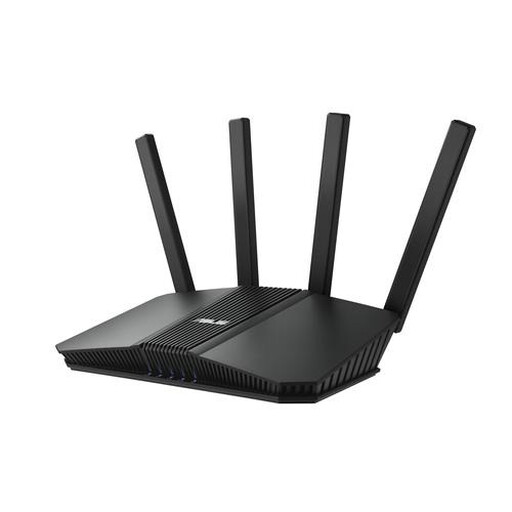
ASUS RT-BE82U BE6500 dual-band Wi-Fi 7 router

ASUS RT-BE82U BE6500

A standalone router for a study space within range of a single router.

The product title lists dual-band Wi-Fi 7, while the description mentions ethernet ports and OFDMA.

View at Joybuy

Frequently asked questions

Should you buy a router straight away if your online lessons keep dropping out?

No. First, test the connection where you take lessons and check your upload and download speeds. Also try moving the router to a more central spot or using a wired connection. A new router won’t automatically fix a problem with your internet line.

Can a mesh system work with your existing provider’s router?

Yes, you can connect the main unit of a compatible mesh system to your existing router with a cable. TP-Link describes both router and access point modes for Deco. In access point mode, some gateway features are no longer available in the Deco app. Check how your chosen model works and which features are available.

Can you choose your own router in the Netherlands?

Yes, ACM ConsuWijzer states that you’re allowed to choose your own router. A provider may refuse a device under certain conditions if it’s unsafe or could damage the network. Connecting it directly may require provider settings. If you have fibre, also check whether your connection uses PTP or PON.

What extra costs and warranty rights should you check?

Check whether the extra network security or parental controls you want require a separate subscription. In the Netherlands, consumer purchases are also covered by a legal guarantee based on what you could reasonably expect from the product. This isn’t automatically limited to the manufacturer’s warranty period.
