What should you look for when choosing?
First, check the connection in the places where you’ll use it and the requirements of the services you use. Then choose between one central Wi-Fi access point, extra mesh nodes or a cable for the screen.
| What to consider |
What to look for |
Who should pay extra attention? |
| Simultaneous use |
Check upload and download speeds where you make calls and stream; compare them with the requirements of the services you use. |
If I want to make video calls while the screen is in use, I prioritise a stable connection for both activities. Around 36% of this group prioritise simultaneous calls. |
| Coverage in multiple locations |
Assess coverage by the screen and in the places where you make calls; check where extra nodes can go and whether they can be connected by cable. |
When the screen and call location are far apart, I want adequate coverage in both places. Around 29% of this group prioritise coverage in multiple locations. |
| Wiring the screen |
Check whether the screen or playback device has a usable Ethernet port and whether you can run a cable to the router or a mesh node. |
If I want to connect the shared screen without using Wi-Fi, I also check whether there’s a cable route and a spare LAN port. Around 21% of this group prioritise a wired connection for the screen. |
| Connection and management |
Find out whether the router will sit behind existing provider equipment or connect directly; check the settings and update support required. |
When I manage a shared network, I want to know in advance how the new router will connect and be updated. Around 14% of this group prioritise connection, support and updates. |
Speed requirements vary between services. Netflix recommends 15 Mbps or more for one 4K stream; Zoom specifies 2.6 Mbps upload and 1.8 Mbps download for a 720p group call. These are recommendations for those services, not a universal minimum speed for every combination of users and activities.
Routers and mesh systems on Joybuy
This selection includes standalone routers and mesh systems for a shared screen, with options for multiple Wi-Fi nodes or wired connections.
 No image available
ASUS ZenWiFi BD4 Dual-Band Wi-Fi 7
A mesh option to consider if you need multiple Wi-Fi nodes.
Dual-band (2.4 GHz / 5 GHz); Wi-Fi 7 (802.11be).
View on Joybuy
 No image available
ASUS RT-AX52 AX1800 AiMesh router
A standalone router to consider if one central Wi-Fi access point suits your space.
Dual-band (2.4 GHz / 5 GHz); Gigabit Ethernet.
View on Joybuy
 No image available
TP-Link Deco X50 3-Pack Wi-Fi 6
A mesh pack with multiple units to consider if the screen and call locations need Wi-Fi in different parts of your home.
3-pack; dual-band (2.4 GHz / 5 GHz); Wi-Fi 6 (802.11ax).
View on Joybuy
 No image available
Huawei eKit OptiX FG736 BE3600 Dual-Band Wi-Fi 7 Mesh Router
A mesh router to consider if you’re looking for a mesh setup.
Dual-band; Wi-Fi 7.
View on Joybuy
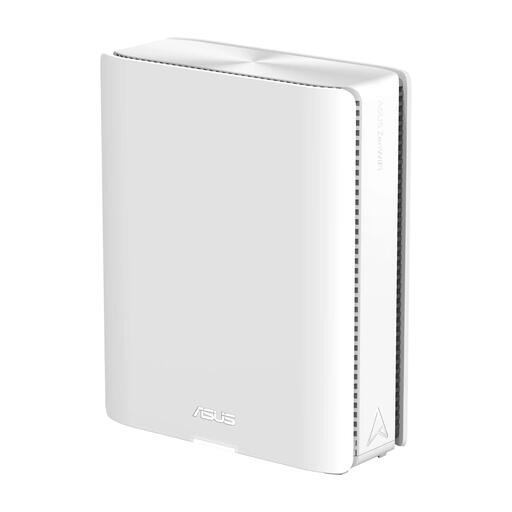 No image available
ASUS ZenWiFi BQ16 Quad-Band Wi-Fi 7
A mesh router to consider if you’re looking for a mesh network and want to connect the screen by cable.
Quad-band (2.4GHz/5GHz-1/5GHz-2/6GHz); Wi-Fi 7 (802.11be).
View on Joybuy
Frequently asked questions
Do I automatically need Wi-Fi 7 for a shared screen and video calls?
No, not necessarily for this type of use. First check coverage, the upload and download speeds of your internet connection, and the screen’s connection options. The Wi-Fi 6 models mentioned here and newer models have not been tested against one another for real-world performance.
What internet speed should I check for streaming and video calls?
Compare the requirements of the services you actually use, and look at upload and download speeds separately. For example, Netflix recommends 15 Mbps or more for one 4K stream; Zoom specifies 2.6 Mbps upload and 1.8 Mbps download for a 720p group call. These are service-specific figures, not a universal minimum speed for all simultaneous users.
How do I connect my own router if I already have a modem from my provider?
First, find out whether the new router will sit behind your existing device or connect directly to the network connection. Your provider may give you specific settings for a direct connection; according to ACM ConsuWijzer, the type of connection can also matter with fibre broadband. Check the instructions for your connection before replacing any equipment.
Who keeps a router I’ve bought myself secure?
When setting it up, check how firmware updates work and make sure they’re installed. ACM ConsuWijzer highlights the importance of updates for your own device; VeiligInternetten recommends enabling automatic updates if possible.
Can I choose my own router in the Netherlands, and what happens if it develops a fault?
According to ACM ConsuWijzer, you have the right to choose your own router, although a provider may refuse a device, for example, if it’s unsafe. For a consumer purchase, your statutory rights are separate from any manufacturer’s warranty: if a product used normally breaks sooner than you could reasonably expect, the retailer must offer an appropriate solution.


