You don’t automatically need a different router to share a presentation from multiple devices. First, check whether the source device and the receiving device can find each other over your current Wi-Fi. If it works near the router but not where you’re presenting, look at the router’s position, a wired access point or mesh. A separate router is enough if one well-placed transmitter can do the job.
Who is this choice relevant to?
Households where the screen doesn’t appear
You want to present from a phone, tablet or computer, but the receiving device can’t be found. Google Cast Help and Apple Support highlight the importance of using a compatible receiving method and ensuring the devices involved are connected to the network.
Households with weak Wi-Fi where they present
Presentations work near the router, but the connection is unreliable where the screen is. Compare the router’s position with the option of adding a wired access point or multiple Wi-Fi points.
Households that keep devices and guests separate
You want guests to be able to present without giving them access to your entire home network. Check which receiving device they need to find and what access the guest network restricts.
What should you look for in a router for presentations?
Keep your current router
Choose this option when: Wi-Fi works where you’re presenting, but Cast or AirPlay can’t find the receiving device.
Bear in mind: you may need to adjust network settings or permissions; don’t disable guest isolation without good reason.
One separate router or wired access point
Choose this option when: one better-positioned transmitter can reach the presentation area, or you can run a network cable to it.
Bear in mind: one transmitter won’t necessarily provide good coverage through walls or on another floor. Also check how the device connects to your provider’s equipment.
Mesh with multiple Wi-Fi points
Choose this option when: coverage is poor in several areas and you can position the points so they have a good connection to each other.
Bear in mind: mesh requires extra equipment, power sockets and installation; adding another point won’t fix a network isolation issue.
Whichever option you choose, first check that your presentation method and network settings are compatible with the receiving device. Then consider whether Wi-Fi coverage calls for a different setup.
| What to consider |
What to look for when buying |
Who this matters to |
| Finding the receiving device |
Check that the source device and screen support the same receiving method and use the right network. Google Cast Help also highlights local network permissions and AP or client isolation. |
If I want to present from my phone or computer, I want the screen to appear as a receiving device. Around 36% of consumers put device discovery first. |
| Wi-Fi where you present |
Compare the connection by the screen with the one near the router. Consider where an access point or mesh point could go and whether a wired connection is possible. |
If the presentation area is further from the router, I want a usable connection there without adding unnecessary points. Around 29% of consumers put coverage in that area first. |
| Connecting to your home network |
Work out what role your provider’s equipment plays and check whether an additional router or mesh system can work in access point mode. If you’re replacing equipment, ask for the connection settings if needed. |
If I want to keep using my provider’s existing equipment, I want to know in advance how the new Wi-Fi will connect to it. Around 21% of consumers make this their main priority. |
| Guest access |
Decide whether guests need to present themselves and check how the guest network restricts access to local devices. Test your chosen settings with the receiving device. |
If guests should be able to present but not access private devices, I want to manage that access carefully. Around 14% of consumers put guest access first. |
Buying pitfalls
-
Assuming faster Wi-Fi will make an undiscoverable screen appear
A fast Wi-Fi connection won’t automatically help Cast or AirPlay find the receiving device. The receiving method, networks in use and access settings also play a part.
Test device discovery and your presentation method before comparing routers by speed.
This helps you avoid buying a router that won’t fix the connection between your devices.
-
Choosing mesh without considering where the points will go
The position of the mesh points and the connection between them help determine whether the presentation area gets coverage. Tweakers notes that a wired connection between satellites can be more stable than a wireless one.
Check where the points can go and, where possible, compare this option with a wired access point.
Depending on your setup, you may need extra Wi-Fi points, power supplies or cabling.
-
Assuming a secure guest network will also let guests access the screen
A guest network that restricts access to the local network may prevent a guest from finding the presentation receiver. ASUS, for example, describes this restriction for the RT-AX58U’s guest network.
Decide who needs to be able to present, then test your chosen guest network settings with the screen.
Brands to consider
TP-Link
TP-Link offers both separate routers, such as the Archer AX55, and mesh products, including the Deco X50.
- TP-Link lists dual-band Wi-Fi 6 for the Archer AX55 and describes access point mode for Deco when used alongside an existing router.
- Some Deco router features aren’t available in access point mode. This product information doesn’t prove that a presentation receiver will be discoverable on your network.
ASUS
ASUS offers separate routers such as the RT-AX58U and mesh products such as the ZenWiFi BD4, available in packs of one, two or three points.
- ASUS lists access point mode for the RT-AX58U, as well as a guest network that restricts access to the local network. For the BD4, ASUS lists Wi-Fi 7 and access point mode.
- Older devices won’t automatically gain the features of a newer Wi-Fi version. Also check how many mesh points are included in the version you’re considering.
FRITZ!
The FRITZ!Box 4060 is designed to be used behind a separate cable, DSL or fibre-optic modem.
- According to FRITZ!, this model has a 2.5-gigabit WAN port and three gigabit LAN ports.
- These connections alone don’t mean this router can replace a fibre-optic or cable modem. First work out what role your existing provider equipment plays.
NETGEAR
NETGEAR describes the Orbi RBK763S as a Wi-Fi 6 mesh system with one router and two satellites.
- According to NETGEAR, the package includes one year of Armor.
- The stated capacity and coverage aren’t measurements taken in your home. Check whether you need three points and what the costs are after the included period.
Joybuy products for home Wi-Fi
This selection includes separate routers and mesh systems for home Wi-Fi. Use your presentation area and existing network to decide which type suits your setup.
 No image available
TP-Link Deco BE68 (2-pack)
A mesh system for anyone who wants to spread Wi-Fi around their home from multiple points.
The product description lists tri-band Wi-Fi 7 and a set of two points.
Joybuy
 No image available
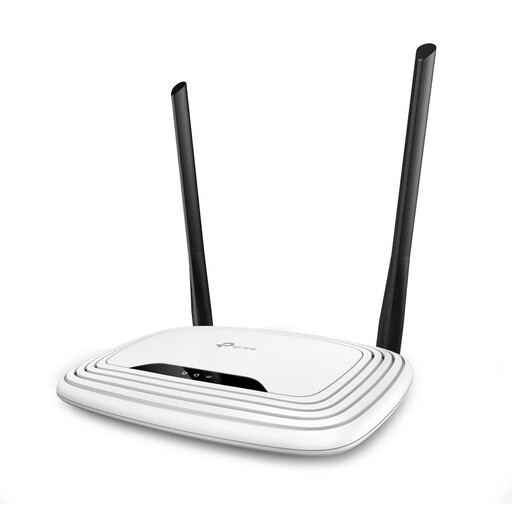
TP-Link TL-WR841N Fast Ethernet, single-band 2.4 GHz, white
A separate router to compare if you’re looking for a straightforward home network setup.
The product description lists Wi-Fi 4 on 2.4 GHz and four Fast Ethernet LAN ports at 10/100 Mbit/s. Check that these connections suit your devices and network setup.
Joybuy
 No image available
TP-Link Deco E4 (3-pack), dual-band Wi-Fi 5 (802.11ac)
A mesh system with three points to compare if you want Wi-Fi in several areas of your home.
The product description lists dual-band Wi-Fi 5 (802.11ac) and Ethernet ports with a maximum speed of 100 Mbit/s. Check that this suits your wired devices.
Joybuy
 No image available
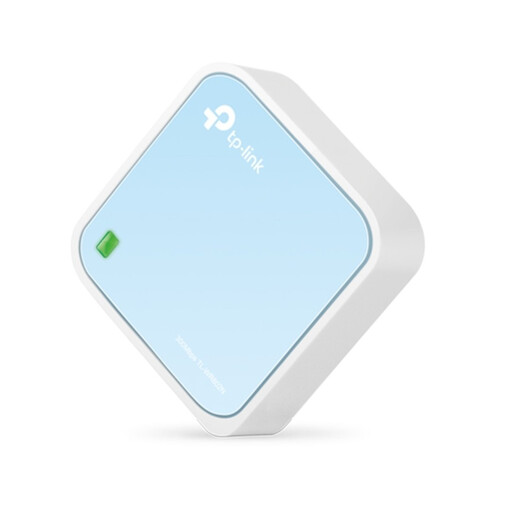
TP-Link TL-WR802N V4
A compact separate router to compare for use at home or in a small office.
The product description lists Wi-Fi 4 on 2.4 GHz and one network port with wired speeds of up to 100 Mbit/s. Check that the port suits your connection.
Joybuy
 No image available
ASUS RT-AX52 AX1800
A separate router to compare if you’re looking for a Wi-Fi 6 network that, according to the product description, can be expanded with AiMesh routers.
The product description lists dual-band Wi-Fi 6 and AiMesh expansion. Check that any additional equipment is compatible with the setup you want.
Joybuy
Frequently asked questions
Do all devices need to support exactly the same Wi-Fi version?
No. According to the Consumentenbond, devices with an older Wi-Fi version can still connect to Wi-Fi 6, but they won’t benefit from its improvements. Also check that the source device and screen receiver support the same presentation method.
What should you check if Cast or AirPlay can’t find the screen?
First, check that the receiving device supports your chosen method and that the devices involved are using the right network. Google Cast Help also highlights local network permissions and AP or client isolation. For AirPlay, Apple Support recommends connecting devices to the same Wi-Fi network, among other things.
How can you find out whether the problem is with the router or the internet connection?
Compare the connection where you’re presenting with a speed test on a computer connected to your home network by a network cable. The Consumentenbond recommends a wired connection for a speed test; this lets you compare your internet connection with the Wi-Fi experience in that area.
Can you use your own router in the Netherlands?
Yes. According to ACM ConsuWijzer, you’re free to choose your router. If you use your own equipment, the relevant connection requirements still apply. Ask your provider for the settings you need to connect your device.
What warranty applies if a router is faulty in the Netherlands?
The Dutch government states that you have statutory rights if a product is faulty, and that the Netherlands has no fixed statutory warranty period of two years. Any manufacturer’s warranty is an additional arrangement and doesn’t replace those statutory rights.


