What should you consider when choosing?
First decide whether scrolling, hand comfort or a setup that suits your desk space matters most. Then check the connection and features of the specific model.
Productivity mouse
Best for: scrolling through recipes, sources and tables, or using customisable buttons.
Bear in mind: check that the shape suits your hand and that any customisation software works on your computer.
Vertical mouse
Best for: anyone who prioritises hand fit and a different hand position during longer editing sessions.
Bear in mind: check your hand size and choose the right left- or right-handed version. A vertical shape does not guarantee freedom from discomfort.
Trackball
Best for: anyone who wants to control the pointer without moving the device across the desk.
Bear in mind: the ball takes some getting used to; also check the connection and any software requirements.
| What to consider |
What to look for |
Who should pay extra attention? |
| Hand comfort |
Check your hand size, preferred hand and whether you can use the mouse comfortably close to your body. |
If I edit recipes for long periods, I want a shape that suits my hand and preferred hand; around 36% of consumers say hand comfort is their top priority. |
| Document navigation |
Consider whether you’ll actually use vertical or horizontal scrolling and customisable buttons; check software compatibility. |
If I often switch between recipes and sources, I want to navigate quickly without paying for features I don’t need; around 29% of consumers say navigation is their top priority. |
| Connection and space |
Check Bluetooth, available USB ports and the space next to your keyboard. |
At a compact desk, I want to know whether the mouse will fit my available space and work with my computer; around 21% of consumers say connectivity and workspace are their top priorities. |
| Power and accessories |
Check the power supply, included accessories and which features you need. |
If I’m mainly looking for straightforward operation, I don’t want to choose features or accessories that don’t suit how I use it; around 14% of consumers prioritise simplicity and running costs. |
Joybuy mice for working with recipes
This selection of Joybuy products includes standard productivity mice and vertical mice for scrolling, customisable controls and a comfortable fit while you work with recipes.
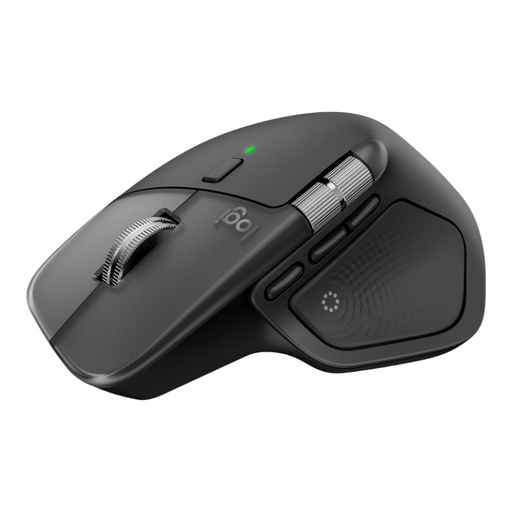 Image unavailable
Logitech MX Master 4 for Mac, Space Black
Suited to anyone who often scrolls vertically and horizontally when editing long recipes.
The product information lists MagSpeed scrolling, a separate thumb wheel for horizontal scrolling and eight programmable buttons. The product title lists Mac, iPad and Windows; according to the product information, it can connect via Bluetooth or a Logi Bolt USB-C receiver.
View at Joybuy
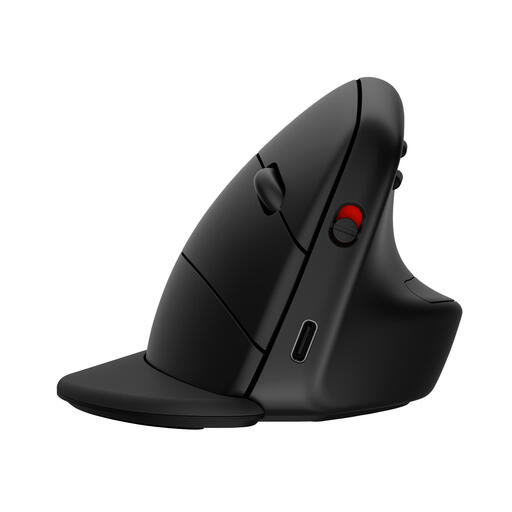 Image unavailable
HP 925 Ergonomic Vertical Mouse
Suited to anyone looking for a vertical mouse who wants to switch between multiple devices.
The product information lists Bluetooth 5.3, an included dongle, USB-C charging, a detachable wrist rest and connections to up to three devices.
View at Joybuy
 Image unavailable
Dell Pro Compact Silent Mouse MS355
Suited to anyone looking for a compact mouse for a home workspace.
The product information lists silent operation, scrolling and automatic switching between RF and Bluetooth connections. Sensitivity can be adjusted up to 4020 DPI, according to the product information.
View at Joybuy
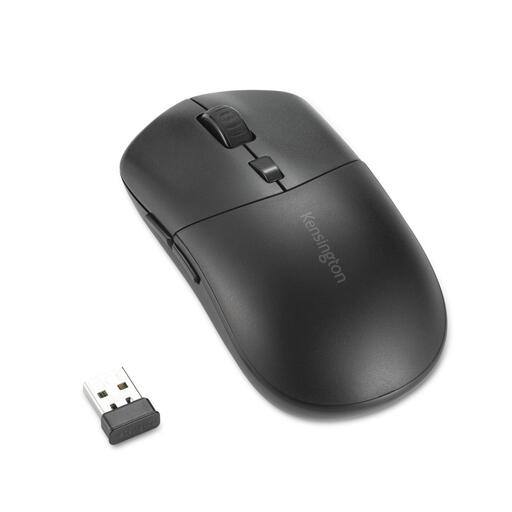 Image unavailable
Kensington MY430 EQ Rechargeable Mouse
Suited to anyone who wants to customise navigation buttons and values quiet operation.
The product information lists six customisable buttons and quiet buttons. It can connect to up to three devices via Bluetooth or a USB-A receiver, according to the product information; it charges via USB-C.
View at Joybuy
 Image unavailable
Logitech Lift Vertical Ergonomic Mouse, Graphite
Suited to anyone looking for a vertical mouse for a small to medium-sized right hand.
The product information lists Bluetooth or a USB receiver, SmartWheel scrolling and four customisable buttons.
View at Joybuy
Frequently asked questions
What should you check before connecting the mouse?
Check whether your computer has Bluetooth or the required USB connection, and whether its operating system is supported. Separate software may be needed to customise buttons; the HP 480 Comfort uses Bluetooth, while the wired Kensington Orbit has a USB connection.
How can you stay comfortable during long editing sessions?
Arboportaal recommends alternating screen work with tasks that don’t require a screen and changing your working posture regularly. This doesn’t mean that a particular mouse model will prevent discomfort; if you start to experience problems, also consider how your workspace is set up.
Which accessories and power options should you check?
Check what’s included in the box and how the specific version is powered. HP lists an included AA battery for the 480 Comfort; Logitech states that the USB-C cable is not included with the rechargeable MX Ergo S.
What are your rights when buying a mouse online in the Netherlands?
For a standard online consumer purchase, ACM ConsuWijzer says you generally have a statutory cooling-off period of up to 14 days after delivery, subject to legal exceptions. If the product is faulty, the seller is responsible for the statutory guarantee; a manufacturer’s warranty does not replace it.
Is a particular mouse model legally required for a home workspace?
Dutch government guidance doesn’t specify a particular mouse model. Employees are subject to rules on safe screen work and alternating it with other tasks or a break; these rules don’t necessarily apply to someone working on a recipe collection purely for personal use.


