If you mainly scan individual receipts and want to put the device away when you’re finished, a slim scanner with manual feed is a good fit. If you regularly process batches, consider a model with an automatic document feeder (ADF). As well as storage dimensions, compare the space the scanner takes up when in use, the receipt sizes it supports and its connectivity. For digital storage, the scan must be an accurate and complete copy, and authenticity features must be retained, as advised by the Dutch Tax and Customs Administration.
Who are these scanners suitable for?
Anyone scanning individual receipts at a small desk
Epson Netherlands describes the ES-60W as a mobile scanner with Wi-Fi and a battery. Plustek lists USB power and a slim design for the MobileOffice S410 Plus; with this model, also check that your operating system is supported.
Anyone regularly processing batches of receipts
Product information from Brother, Canon and ScanSnap lists automatic feeding for the ADS-1300, imageFORMULA R10 and iX1300. Also compare how much room the scanner needs when the feeder or tray is open.
Anyone scanning in different workplaces
Consider the combination of power, connectivity and output. Epson lists Wi-Fi and a battery for the ES-60W; connectivity options and scan destinations vary by model.
What should you look for in a receipt scanner?
Slim scanner with manual feed
Best for: Anyone who mainly scans individual receipts and wants to put the device away when it’s not in use.
The trade-off: Feeding receipts individually involves more handling when you have a lot to scan; also check the minimum paper size.
Scanner with automatic document feeder
Best for: Anyone who regularly processes several compatible sheets in a row.
The trade-off: The scanner may need more room when in use than it does when packed away, and not every receipt will feed smoothly as part of a batch.
When scanning receipts in a small workspace, the main considerations are how much room you have, how much manual feeding you’re willing to do and how you’ll find your scans later.
| What to consider |
What to look for |
Who this matters to |
| Space when in use and in storage |
Compare the dimensions with the scanner closed and open, the paper path and the space needed for output. |
If I want to keep my small desk clear, I need to be able to put the scanner away afterwards and still have enough room to use it. Around 33% of consumers prioritise this need for space. |
| Processing batches of receipts |
Check the feed method, supported paper sizes and the condition of your receipts. |
When I have batches to scan regularly, I want to feed fewer sheets one by one and check that my receipt sizes will fit through the feeder. Around 27% of consumers prioritise batch processing. |
| Power and connectivity |
Check whether you want to connect via USB, Wi-Fi or another listed option, and what power source is required. |
When working in different places, I need connectivity and power options that suit my setup. Around 20% of consumers prioritise power and connectivity. |
| Finding and storing scans |
Compare file output and any searchability features; check that each scan is complete. |
If I need to find receipts later, I want to store files logically and check that each scan is complete. Around 20% of consumers prioritise archiving. |
Common mistakes when choosing a receipt scanner
-
Comparing only the dimensions when closed
A scanner may take up more room in use than it does in storage. Canon lists separate dimensions for the imageFORMULA R10 with its tray closed and open.
Measure the space available with the feeder and output in use, then compare it with the dimensions in both configurations.
-
Assuming the stated feeder capacity works for every batch of receipts
Canon lists an ADF capacity for the R10 based on 80 g/m² paper, and also specifies document limits. That capacity doesn’t automatically mean the scanner can handle small, crumpled or mixed receipts.
Check your receipts’ sizes and condition against the document limits for the exact model.
-
Assuming a scan means you can automatically discard the original
The Dutch Tax and Customs Administration sets requirements for accurate and complete copies, the retention of authenticity features and the ability to check digitally stored receipts.
Check your scan and archiving process before deciding what to do with the paper original.
-
Not checking what you need for your setup
Brother lists an adapter kit and output tray as separate accessories for the ADS-1300.
Check which parts are included with the version you’ve chosen and whether the power supply and output options suit your workspace.
Brands to compare
Epson
The WorkForce ES-60W is a mobile option for scanning individual receipts when you have little desk space to spare.
- Epson lists Wi-Fi, a battery and ScanSmart output to formats including PDF and JPG for the ES-60W.
- If you scan lots of receipts in a row, weigh up the manual feed against a model with an automatic document feeder.
Brother
The ADS-1300 is an automatically fed document scanner powered via USB-C.
- Brother lists double-sided scanning and a 20-sheet feeder.
- Brother lists an adapter kit and output tray as separate accessories; check which parts you need for your setup.
Canon
The imageFORMULA R10 combines portability with automatic feeding and USB power.
- Canon lists double-sided scanning and a 20-sheet feeder.
- Canon gives dimensions with the tray both closed and open. Measure the space you’ll need while scanning; don’t base your choice on storage dimensions alone.
ScanSnap
The iX1300 is a desktop option for anyone looking to combine multi-sheet feeding with file features.
- ScanSnap’s official product information lists a 20-sheet A4 feeder, double-sided scanning and output to formats including searchable PDF.
- Check that its dimensions and operation suit the space available and your archiving process.
Plustek
The MobileOffice S410 Plus is a slim, USB-powered option for manually feeding documents alongside a computer.
- Plustek lists dimensions of 295 × 50 × 40,5 mm and a minimum paper size of 74 × 52 mm.
- According to Plustek, standard support covers Windows 7 to 11; Linux compatibility is listed for system integrators only. Check the system requirements before buying.
Epson scanners at Joybuy
This Epson range includes portable scanners for feeding sheets individually, as well as models with automatic document feeders for batches. Compare the space you need, receipt sizes and connectivity with the way you work.
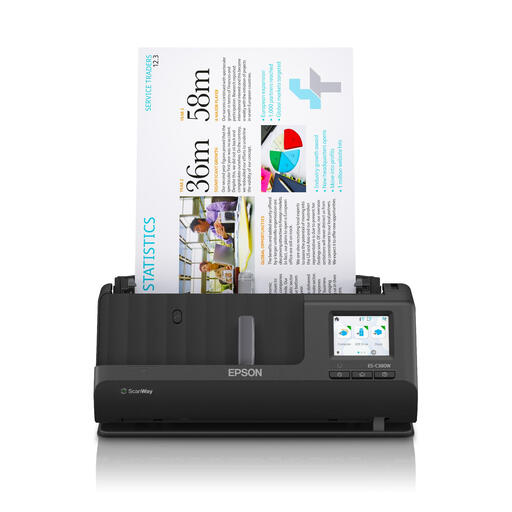 Image unavailable
Epson ES-C380W ADF and sheet-fed scanner, 600 x 600 DPI, A4, black
Ideal if you want to scan automatically fed documents in a small workspace.
Product information lists Wi-Fi and automatic double-sided scanning. The scanner has ADF and sheet-fed input.
View at Joybuy
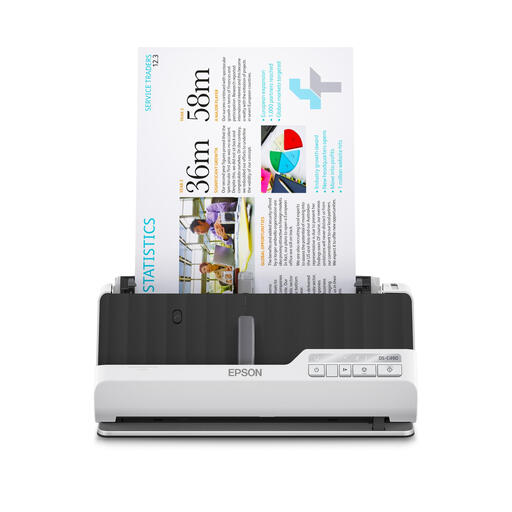 Image unavailable
Epson DS-C490 ADF and sheet-fed scanner, 600 x 600 DPI, A4
Ideal if you want to process several documents in a row and have enough room for a larger scanner.
Product information lists a 100-sheet ADF and automatic double-sided scanning. Its stated dimensions are 495 × 360 × 217 mm and it weighs 9,8 kg; check that it will fit on your desk.
View at Joybuy
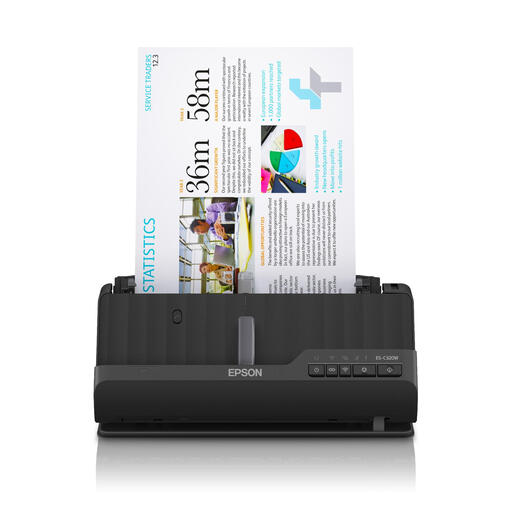 Image unavailable
Epson ES-C320W ADF and sheet-fed scanner, 600 x 600 DPI, A4, black
Ideal if you want to feed documents and scan over Wi-Fi in a compact workspace.
Product information lists Wi-Fi, automatic double-sided scanning and a U-shaped paper path. Compare the space you have and your receipt sizes with the scanner’s requirements.
View at Joybuy
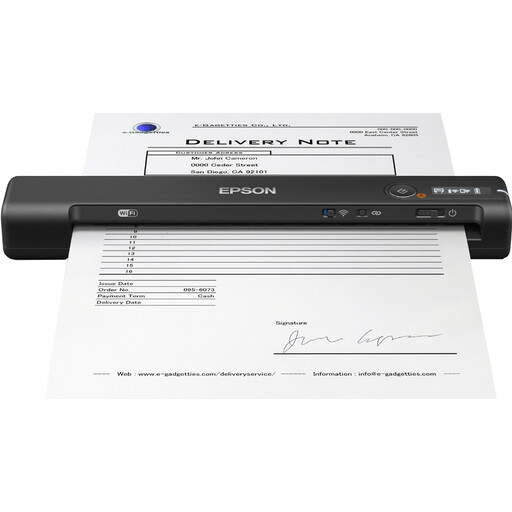 Image unavailable
Epson WorkForce ES-60W handheld scanner, 600 x 600 DPI, A4, black
Ideal if you mainly scan individual receipts and want a portable device you can use in different places.
Product information lists Wi-Fi, USB power and a rechargeable battery. Compare these connectivity options with where and how you plan to use it.
View at Joybuy
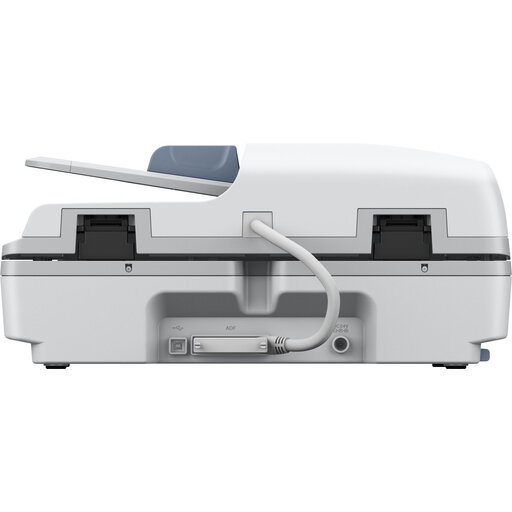 Image unavailable
Epson WorkForce DS-6500 Power PDF
Ideal if you want to process several documents and prefer automatic feeding to a handheld model.
Product information lists a 10-sheet ADF and automatic double-sided scanning. Check that its dimensions and setup will suit your desk.
View at Joybuy
Frequently asked questions
As a Dutch business owner, can I throw away paper receipts after scanning them?
Only if you meet the requirements for digital storage. The Dutch Tax and Customs Administration requires, among other things, an accurate and complete copy of the original and the retention of authenticity features. So scanning alone doesn’t automatically mean it’s safe to dispose of the paper receipt.
How long must scanned business receipts remain accessible?
According to the Dutch Tax and Customs Administration, digital records must remain available for inspection within a reasonable period. The applicable retention period depends on the rules that apply to your records; check which period applies to your circumstances.
How can I stop my small desk becoming cluttered when I start scanning?
Measure the space needed for feeding and output with the tray open, too. Canon lists the R10 as measuring 285 × 95 × 40 mm with the tray closed; compare the space it needs in use with the room you have available.
What should I check when setting up a scanner with automatic feeding?
Check the connectivity and supported paper sizes for the exact model. Brother lists an adapter kit and output tray as separate accessories for the ADS-1300; check which parts you need for your setup.
Is a searchable PDF the same as a correctly recorded business expense?
No. A searchable PDF can make a file easier to find, but it doesn’t replace checking that the scan is complete or that the expense has been correctly recorded in your accounts. The Dutch Tax and Customs Administration has requirements for digitally stored receipts, so check both your scan and your own records.


