Choose a scanner based on how you plan to scan: USB is enough if each user connects a computer, while a shared network workflow is better suited to independent scanning with user accounts and destinations. Then check that the paper path can handle your receipts and that the scanner has enough room when in use. The Dutch Tax and Customs Administration says that a digital copy of business records must be accurate and complete, and retain its authenticity features.
Who is this for?
A team with shared scan destinations
Several users need to send receipts to the right record-keeping system and restrict access to files. The Dutch Data Protection Authority stresses that organisations must prevent unauthorised access to personal data.
Someone handling a variety of receipts
As well as standard sheets, you scan small, long or delicate receipts and need to choose a paper path that suits the material. Epson and Plustek describe different options for unusual media on specific models or versions.
A team with limited desk space
The scanner has a permanent place that several people share. Epson says the ES-C320W has a U-turn path that does not increase its footprint while scanning.
What should you consider when choosing?
| What to consider |
What to look for |
Who it matters to |
| Destinations and access |
Check whether the scanner can scan independently, which destinations are available and how users gain access. |
When I work with colleagues, I want each scan to reach the right user and remain inaccessible to unauthorised people. Around 33% of consumers put correct routing and access management first. |
| Different types of receipts |
Compare the supported sizes and paper path for the exact model, and check scans before archiving them. |
When dealing with receipts in different sizes, I want to check that every scan is complete and legible. Around 27% of consumers prioritise handling a variety of receipts. |
| Space while in use |
Check how much room the input and output trays need when open, not just the scanner’s own dimensions. |
At a small shared desk, I want to use the scanner without making the workspace impractical. Space is the top buying priority for around 20% of consumers. |
| Connection and operation |
Check computer compatibility, power requirements and the steps needed to save files in the right records folder. |
If I’d rather connect a computer than set up a network workflow, I want to know what each user needs to do every day. Around 20% of consumers prioritise a straightforward computer-based workflow. |
Common pitfalls
-
Assuming Wi-Fi means access is restricted
A wireless connection does not automatically give users their own access rights or scan destinations.
If receipts contain personal data, check accounts, authentication and destinations separately.
-
Throwing receipts away as soon as they’ve been scanned
The Dutch Tax and Customs Administration says that a digitally stored copy must be accurate and complete, and that authenticity features must be retained.
Check legibility, completeness and archiving before deciding whether you can dispose of the paper original.
-
Assuming ADF capacity guarantees it can handle every receipt
The number of sheets an automatic document feeder can hold does not, by itself, tell you whether a scanner is suitable for small, long or delicate receipts.
Check the size limits and paper path for the exact model, and review each scan before archiving it.
Brands to consider
Epson
Different models are designed for compact scanning setups or for independent scanning with user management.
- Epson says the ES-C320W has a U-turn path and a straight-through option; the DS-790WN supports accounts and authentication.
- These features vary by model. Wi-Fi alone does not confirm user rights or restricted destinations.
Brother
The ADS-1300 is a USB-C model, while the ADS-1800W adds Wi-Fi and a touchscreen.
- Brother lists a 20-sheet automatic document feeder for both models mentioned.
- The ADS-1800W’s wireless features are not available on the ADS-1300. Also check which connections and accessories are compatible with the version you choose.
Canon
The imageFORMULA R30 is designed for small or shared workspaces where users connect their own computer.
- Canon lists built-in software and a 60-sheet automatic document feeder.
- This setup requires a connected computer, so it works differently from scanning independently to a network destination.
Plustek
The eScan A350 range may be worth considering if you need to handle long receipts and send scans to network destinations.
- Plustek says the eScan series supports documents up to 28 inches long.
- User permissions for jobs are described for the Enterprise version; check whether the features are included with the exact model and package.
Joybuy products
This selection focuses on compact Epson sheet-fed scanners for a shared desk, with limited space and different scanning workflows in mind.
 No image available
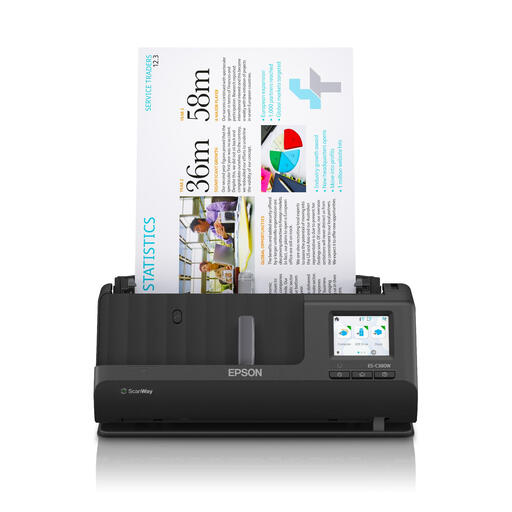
Epson ES-C380W ADF document scanner, A4, 600 × 600 dpi, black
Suitable for a shared workspace where scans need to go to network destinations without relying on a dedicated PC workflow.
Specifications: A4, ADF, 600 × 600 dpi, black.
Joybuy
 No image available
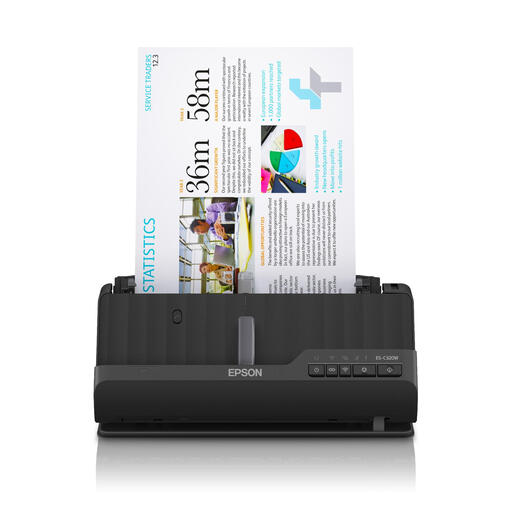
Epson ES-C320W ADF document scanner, A4, 600 × 600 dpi, black
Suitable for a compact scanning area where users need to handle different types of media.
Specifications: A4, ADF, 600 × 600 dpi, black. Epson describes this model as having a U-turn path and a straight-through path for items such as passports and booklets up to 5 mm thick.
Joybuy
Frequently asked questions
Can you throw away paper business receipts after scanning them?
Only if the digital copy meets the requirements for record-keeping. The Dutch Tax and Customs Administration says it must be accurate and complete, and that authenticity features must be retained. Check this before disposing of the original.
How long must a Dutch business keep digital records?
The Dutch Tax and Customs Administration generally requires businesses to keep records for 7 years; a 10-year retention period applies to records relating to immovable property. The retention period still applies after scanning.
How do you set up a scanner on a shared desk?
Set a scan destination and access rights for each user, then check where each scan goes. If receipts contain personal data, make sure access is appropriately restricted; the Dutch Data Protection Authority stresses the need to prevent unauthorised access.
Which accessories should you check for a Brother ADS scanner?
Check whether you need an adapter and output tray for the exact model. Brother lists these accessories for the ADS-1300 and ADS-1800W; check which parts are included with the version you’re considering.


