
Receipt administrator
You want to be able to find and check amounts, dates and complete receipts later. In that case, the quality of the saved scan matters more than scan speed alone.


If you only scan the occasional receipt and have little dedicated workspace, a compact USB scanner may be practical. If you regularly process piles of receipts or invoices, compare models with an automatic document feeder (ADF), but check that they can handle your receipt sizes. Either way, make sure the entire receipt is saved legibly and check where the files are stored.
You want to be able to find and check amounts, dates and complete receipts later. In that case, the quality of the saved scan matters more than scan speed alone.
You collect receipts and invoices throughout the week and prefer to process them all in one session. The feeder and the option to scan both sides can affect how you work.
You scan a few individual receipts at a shared desk and put the scanner away afterwards. Pay attention to its size, USB connection and where files are stored.
Choose this when: you scan receipts occasionally, have limited desk space and can connect a laptop or PC while scanning.
Trade-off: a compact USB model is easy to store, but an automatic feed mode does not necessarily mean it has an ADF for a stack of documents.
Choose this when: you regularly process several receipts or invoices in one session and want to put the device away afterwards.
Trade-off: a stated sheet capacity does not necessarily mean that narrow, crumpled or mixed receipts will feed reliably without preparation.
First, choose based on how often you scan and how many documents you process per session. Then decide how you’ll check and store your scans.
| What to consider | What should you check? | Who is this important for? |
|---|---|---|
| Complete, easy-to-find scans | Check the full image, including the edges, date and amount, and make sure you can find the file again later. | If I need to check business receipts later, I want the entire receipt to remain legible when saved. Around 33% of consumers prioritise complete, verifiable scans. |
| Several documents per session | Compare the stated ADF capacity with your usual stack, and separately check whether your small, thin or damaged receipts can be fed through it. | If I regularly process receipts and invoices, I want to spend less time feeding documents in one by one. Around 25% of consumers prioritise batch processing. |
| Limited space and connectivity | Measure the space available during use and storage; check the USB connection, computer compatibility and required software. | At a shared desk, I want to be able to set up, connect and put away a scanner without needing a permanent scanning space. Around 25% of consumers are particularly concerned about limited workspace. |
| Where shared scans are stored | Find out where files are stored and who can access them. If an external party processes personal data on behalf of the school, the Dutch Data Protection Authority (Autoriteit Persoonsgegevens) states that a data processing agreement is required. | If scans are shared or contain personal data, I want to know in advance who can view them. Around 17% of consumers prioritise control over storage and access. |
For the Epson WorkForce ES-50, Epson describes an automatic feed mode for scanning pages consecutively. Canon and Brother specify a 20-sheet ADF capacity for the imageFORMULA R10 and ADS-1300. These descriptions do not mean the same thing.
Compare the stated feed capacity and compatible media rather than relying on the word ‘automatic’.
Without a suitable feeder for stacks, processing larger batches may involve more manual work.
For business receipts stored digitally, the Dutch Tax and Customs Administration requires, where the relevant rules apply, an accurate and complete reproduction of the original, including its authenticity features.
Check the scan visually, paying particular attention to the edges, date, amount and any reverse side.
If part of the receipt is missing, you may have to spend time rescanning it or making manual corrections.
If scans contain personal data, it matters who has access and where the files are stored. The Dutch Data Protection Authority explains that a data processing agreement is required when an external party processes personal data on behalf of an organisation.
Before using a shared computer or an external scan destination, agree where scans will be stored and who will have access.
These examples relate to the models and product ranges mentioned; they are not an assessment of every scanner made by each brand.
Epson lists the mobile WorkForce ES-50 for USB-connected workspaces, as well as the DS-C490 for different document types and paper paths.
Canon describes the imageFORMULA R10 as a portable, USB-powered scanner for documents including receipts, and for use in a classroom.
Brother describes the ADS-1300 as a compact scanner with USB-C power and a 20-sheet ADF.
Joybuy product options for digitising individual receipts and other documents, with models offering manual or automatic feeding.
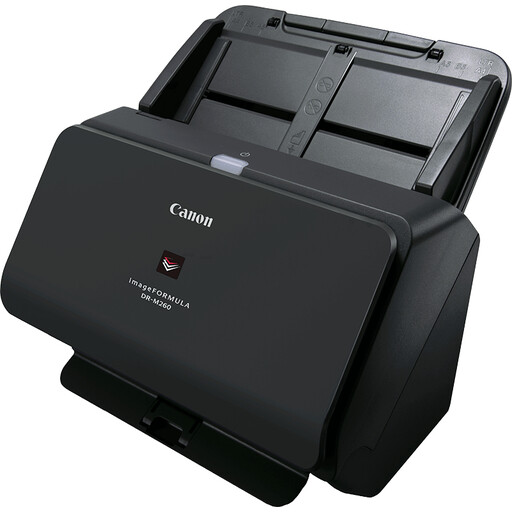 No image available
An A4 sheet-fed scanner for digitising documents.
The product title specifies 600 × 600 DPI.
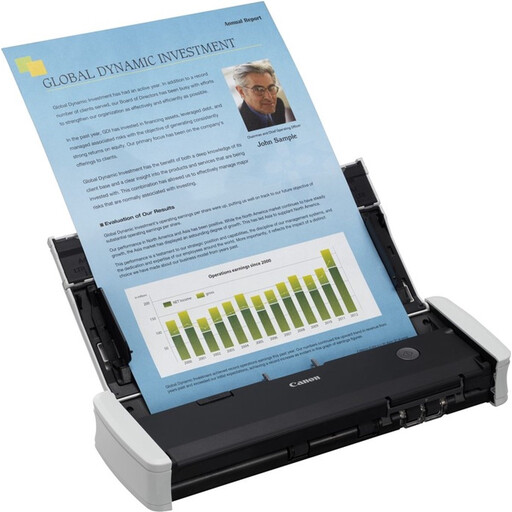 No image available
For regular scanning sessions with compatible receipts and invoices, Canon specifies duplex scanning and a 20-sheet ADF for this model.
Canon also lists USB power and receipt support.
 No image available
The product title specifies ADF and sheet feeding for A4 documents.
The title lists a resolution of 600 × 600 DPI.
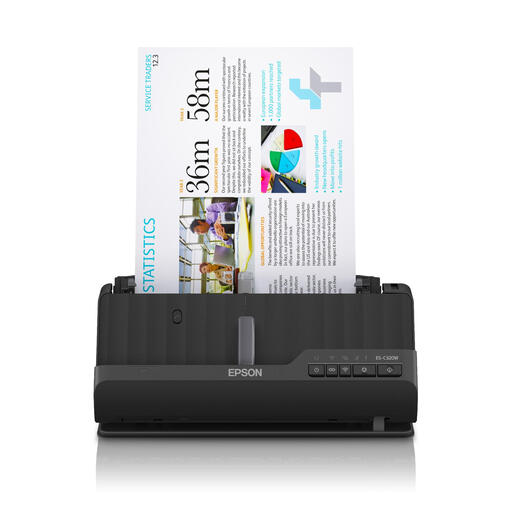 No image available
The product title specifies ADF and sheet feeding for A4 documents.
The title lists a resolution of 600 × 600 DPI.
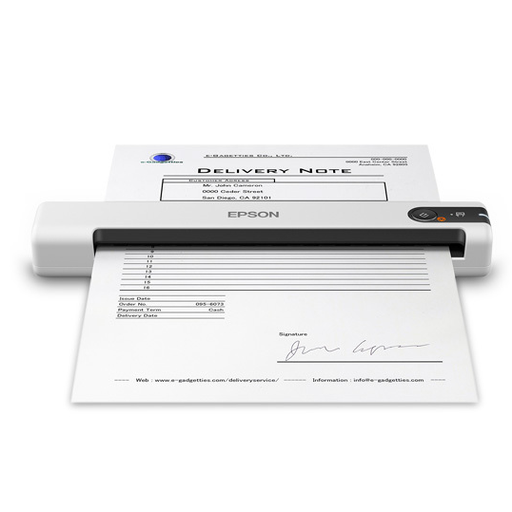 No image available
A handheld scanner for digitising documents without needing a permanent scanning space.
The product title specifies A4 and 600 × 600 DPI.
If you regularly process stacks of compatible receipts and invoices, compare the stated ADF capacity. A compact USB scanner may be enough for the occasional individual receipt. With a mixed stack, test whether the different sizes and paper conditions feed properly.
Scan a real receipt as a test and check that the whole receipt is legible and the file is saved in the intended location. Also check that the required software works with your computer, and follow the manual for your exact model for maintenance and troubleshooting.
Check what comes with your chosen model and what is sold separately. For the ADS-1300, Brother lists an adapter set among the accessories; Epson lists separate extended warranty options for its scanners. Check the terms for the exact model before deciding.
According to the Dutch Tax and Customs Administration, you can do this for business receipts if the digital scan is an accurate and complete reproduction, the authenticity features have been saved and the other conditions are met. The Government of the Netherlands states that businesses and self-employed people must retain financial records for 7 years. First establish who the records belong to and which rules apply to the expenses; these tax rules do not automatically apply to every personal classroom expense.
If the school processes personal data, the GDPR obligations apply to that processing. The Dutch Data Protection Authority explains that a data processing agreement is required when an external party processes personal data on behalf of an organisation. So establish what information appears on the receipt, who manages the storage service and who has access; a cloud feature is not, in itself, a privacy assessment.