Which type of scanner is right for you?

Student with a few receipts

Wants to create legible project files without needing a document feeder. A flatbed, such as the CanoScan LiDE 300 described by Canon, lets you place individual sheets on the glass; a simple sheet-feed option is another possibility.

Student with lots of project receipts

Scans several receipts and wants to spend less time feeding sheets one by one. Check the actual feed capacity and supported paper types. For example, Brother lists a 20-sheet ADF for the ADS-1300.

Student who scans on the go

Takes a scanner and laptop along, so size, power and connectivity matter. Brother describes the DS-640 as a single-sided scanner powered via a computer; also check whether delicate receipts are suitable for its feeder.

What should you look for when choosing?

Flatbed scanner

Best for: loose, creased or delicate receipts that you’d rather place on a glass bed. Canon describes the CanoScan LiDE 300 as an A4 flatbed scanner powered via USB.

Bear in mind: you need to position each receipt individually. The stated scan time doesn’t include positioning and checking.

Mobile sheet-fed scanner

Best for: scanning in different locations with a compatible laptop. The Brother DS-640 scans one side at a time and is powered via a computer; the Epson WorkForce ES-50 is another mobile option powered via USB.

Bear in mind: feed receipts carefully and check thin or creased ones to make sure the scan is complete and straight. An automatic feed mode doesn’t necessarily mean the scanner has a multi-sheet ADF.

Compact scanner with automatic feeding

Best for: regularly processing several suitable sheets. Brother lists a 20-sheet ADF for the ADS-1300; the Epson ES-C320W offers Wi-Fi and a choice of U-turn or straight-through paper paths.

Bear in mind: extra feeding and connectivity features are only useful if they suit the way you work. Check which media types are supported and assess delicate receipts individually.

What to consider What should you check? Who should pay closer attention?
A few receipts How many receipts you have in each batch; whether a flatbed or sheet feeder suits the way you work; connectivity and software. If I’m only scanning a few receipts for my project, I don’t want to choose features I won’t use. Around 40% of consumers prioritise being able to scan a small number of receipts easily.
Processing a stack The stated ADF capacity, supported media and whether you need double-sided scanning. When I have several receipts to scan in one session, I want to avoid feeding sheets one by one. Around 30% of consumers prioritise processing a stack of suitable receipts.
Scanning on the go Dimensions, required USB connection and power supply, operating system, and single- or double-sided scanning. If I work in more than one place, the scanner needs to suit my laptop and its connections. Around 20% of consumers put portability first.
Delicate or unusual receipts A flatbed or suitable paper path, supported dimensions, and checking the text and edges after scanning. For creased or delicate receipts, I want to avoid missing information. Around 10% of consumers make careful scanning of unusual receipts their main requirement.

Common buying mistakes

  • Assuming the stated scan speed is the total processing time

    With a flatbed, you also need time to place and position each receipt, then check and save the file. Canon’s stated A4 scan time for the CanoScan LiDE 300 is based on specific test conditions.

    Consider how many steps are involved for each receipt, including positioning and checking the file, rather than looking at the stated scan time alone.

    With loose receipts, placing them, naming files and checking them all take time too.

  • Confusing an automatic feed mode with a multi-sheet ADF

    A continuous scanning feature isn’t the same as a stated capacity for feeding several sheets. Brother lists a separate 20-sheet ADF capacity for the ADS-1300; an automatic feed mode is specified for the Epson ES-50.

    Check the ADF capacity of the exact model if you want to feed several receipts one after another.

  • Assuming the manufacturer’s warranty limits all your warranty rights

    According to ACM ConsuWijzer, your statutory rights exist alongside a commercial warranty. What you can expect from a product depends in part on normal use.

    Keep your proof of purchase and contact the retailer if a product is faulty.

Brands worth considering

Canon

The CanoScan LiDE 300 is an example of an A4 flatbed scanner for receipts that you place on the glass one at a time.

  • Canon specifies a flatbed and USB power for this model.
  • Automatic stack feeding isn’t listed for this model. The stated A4 scan time doesn’t include every step involved in scanning for a project.

Brother

The DS-640 and ADS-1300 suit different needs: mobile single-sided feeding and a model with automatic feeding, respectively.

  • Brother says the DS-640 is powered via a computer; the ADS-1300 has a 20-sheet ADF.
  • The features of these two models don’t necessarily apply to all Brother scanners.

Epson

The WorkForce ES-50 offers a mobile USB option, while the ES-C320W is a compact Wi-Fi scanner with different paper paths.

  • Epson lists receipts as a supported medium for the ES-C320W and specifies a U-turn path and straight-through feed options.
  • Check that your specific receipt falls within the applicable media specifications. The ES-50’s automatic feed mode doesn’t mean it has a stated multi-sheet ADF capacity.

Scanner options at Joybuy

These models cover mobile sheet feeding and compact scanners with automatic feeding. Check that each model’s paper path is suitable for your receipts.
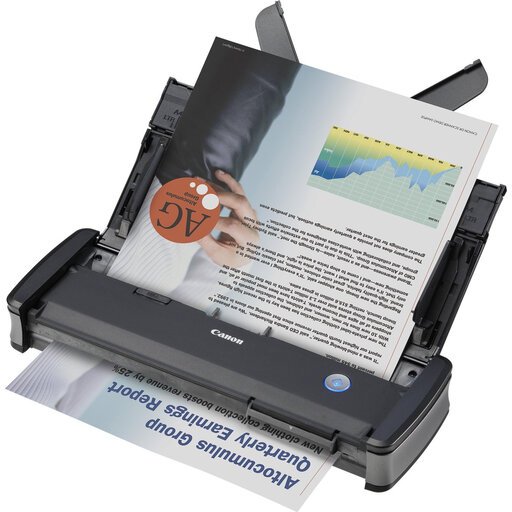
Canon imageFORMULA P-215II sheet-fed scanner, A4

Canon imageFORMULA P-215II

Suitable for scanning several compatible sheets per session or scanning in different locations.

The product description lists a 20-sheet ADF and automatic double-sided scanning. It also mentions USB power and support for delicate originals; check that your receipts are suitable.

Wi-Fi requires the optional WU10 unit.

View at Joybuy
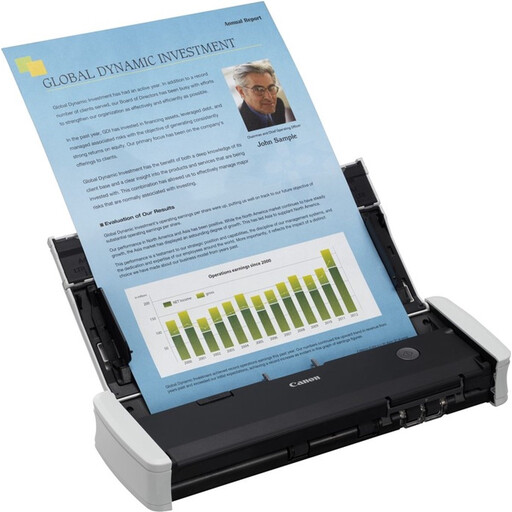
Canon imageFORMULA R10 sheet-fed scanner, A4

Canon imageFORMULA R10

Suitable if you want to feed several sheets and are looking for a scanner to use with a computer.

The product description lists a 20-sheet feed capacity, double-sided scanning and CaptureOnTouch Lite software.

According to the description, the scanner works with a computer via USB only.

View at Joybuy

Epson DS-C330 scanner with automatic feeding

Epson DS-C330

Suitable if you want to save receipts as digital files and need a compact paper path.

The product description lists receipts as a scan medium and PDF, JPG and TIFF output.

A U-turn path, paper protection and a compact design are also mentioned. Check the media requirements for your specific receipt.

View at Joybuy
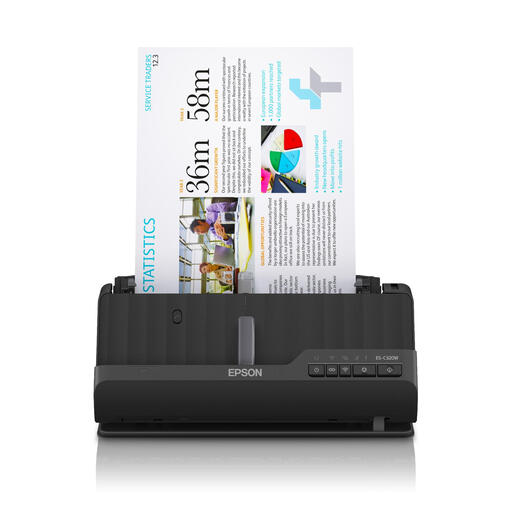
Epson ES-C320W scanner with automatic feeding, A4

Epson ES-C320W

Suitable for a compact workspace where Wi-Fi and a choice of paper paths could be useful.

The product description lists A4 paper, Wi-Fi and automatic double-sided scanning, with both a U-turn path and straight-through feed.

Don’t scan documents with staples, paper clips or wet ink.

View at Joybuy
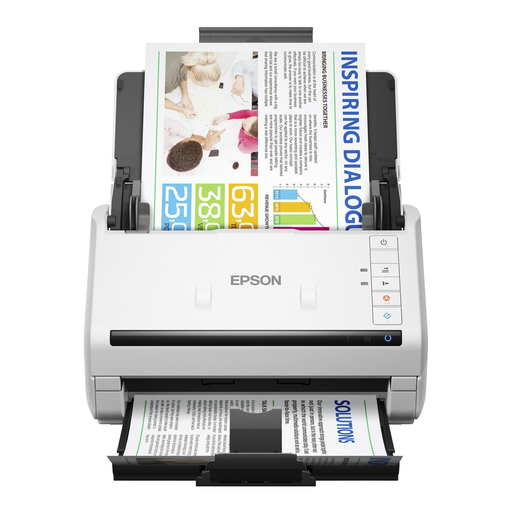
Epson WorkForce DS-530 II sheet-fed scanner, A4

Epson WorkForce DS-530 II

Suitable if you regularly process stacks of documents and want to capture information on both sides.

The product description lists a 50-sheet ADF and double-sided scanning in a single pass.

Windows and Mac are listed as supported systems; check the latest model information and whether your receipts are suitable for feeding.

View at Joybuy

Frequently asked questions

How can I make sure amounts and dates aren’t missed?

Choose a paper path that suits the receipt and check the edges, small print, date and amounts in the saved file. The stated scan speed alone doesn’t tell you whether your scan is complete.

Can I feed receipts automatically without having to reload the scanner each time?

It depends on the model. Brother lists a 20-sheet ADF for the ADS-1300; for the mobile ES-50, Epson lists an automatic feed mode for continuous scanning, but no 20-sheet capacity.

What should I check when setting up and maintaining the scanner?

Before buying, check that the scanner supports your operating system and that its connection and power supply suit your needs. Follow the model’s instructions when cleaning the glass or feed rollers, and don’t feed creased receipts without first checking that the scanner can handle them.

What warranty applies if a scanner breaks sooner than expected?

According to ACM ConsuWijzer, your statutory rights exist alongside the manufacturer’s or retailer’s warranty. What you can expect from a product under normal use is a factor; contact the retailer if a product is faulty.

Can I keep or share scanned receipts after the school project?

If they contain personal data, limit how you use and keep it to what’s necessary for the purpose, and follow the school’s guidance. The Dutch Data Protection Authority doesn’t specify a general, fixed GDPR retention period. The tax retention rules for businesses don’t automatically apply to a student doing a school project.
