If you regularly work directly with RAW files, an external SSD is usually a better fit. For a permanent archive or an additional copy, a desktop HDD is often the more practical choice. Choose based on the capacity you need, the connection and the power supply, and keep a separate, up-to-date copy: one external drive doesn’t automatically count as a backup.
Which storage option is right for you?
RAW editor working at a workstation
You regularly work directly from external storage and need a suitable connection for fast file transfers. A model’s stated maximum speed won’t necessarily be the speed you get on your workstation. Samsung Netherlands and Crucial specify the connection and host requirements for their SSD models.
Photographer with a growing archive
You want to keep older RAW shots at home and choose a drive based on the capacity you need, the space available and its power supply. Seagate lists a power adapter as included with the Expansion Desktop STKP8000400.
Photographer keeping a backup copy
You want a separate copy of your files and see an external drive as part of your backup routine, not as complete protection in itself. VeiligInternetten describes a backup as a copy of files.
What should you look for in an external drive?
External SSD for active work
Choose this option if: you regularly open or move RAW projects directly from the external drive and your workstation supports the required USB connection.
Bear in mind: your computer’s port and cable. Stated maximum speeds aren’t measured speeds on your system. You’ll still need a separate backup.
Desktop HDD for an archive or backup copy
Choose this option if: you mainly store completed shoots in one place and capacity matters more than being able to take the drive with you.
Bear in mind: the space it needs and whether it requires a separate power supply. A drive holding your original files doesn’t automatically count as a second copy.
| What to consider |
What should you check? |
Who is this important for? |
| Separate copy |
Decide where the original and second copy will be stored, how often you’ll copy your files and whether you can open them again. |
If I want to keep my RAW files even if my main storage fails, I make a separate copy; around 31% of consumers prioritise data retention. |
| Archive capacity |
Compare your current RAW folders and expected growth with the capacity of the exact model. |
It matters to me that the drive can hold both older and new shoots; around 25% of consumers prioritise archive space. |
| Speed for active work |
Check the drive model, your workstation’s USB port and cable, and whether you’ll be working directly from the drive. |
If I regularly open or transfer projects from the drive, I check the full connection; around 25% of consumers prioritise working speed. |
| Suitable connection and power supply |
Check the port, cable and file system. For a desktop model, make sure there’s a suitable power socket available too. |
I want to connect the drive to my workstation without any surprises around setup or power; around 19% of consumers prioritise compatibility and setup. |
Common buying mistakes
-
Moving an archive and calling it a backup
If you delete the original after moving the files to the external drive, you won’t have a separate copy. VeiligInternetten describes a backup as a copy of files.
Make a separate copy, keep it up to date and check that you can open the files again before deleting the originals.
A second storage location or backup service requires extra storage space and management.
-
Assuming an SSD’s maximum speed is its real-world speed
Your workstation’s connection and cable affect whether you can achieve the speed stated by the manufacturer. Crucial says the X9 Pro delivers its best speeds with a suitable USB 3.2 Gen 2 host and a USB-C to USB-C cable.
Check your workstation’s port and cable, and don’t compare product specifications with unverified real-world speeds.
-
Buying a desktop HDD without checking its power supply
Seagate lists a separate 18W power adapter as included with the Expansion Desktop STKP8000400.
Check what comes with the exact model and make sure there’s a suitable power socket near your workstation.
Brands to compare for this choice
Samsung
The portable T7 Shield is an example of an SSD for active RAW projects.
- Samsung Netherlands lists USB 3.2 Gen 2 and sequential maximum read and write speeds of 1.050 MB/s and 1.000 MB/s respectively for the T7 Shield MU-PE2T0S/EU.
- Samsung lists an IP65-rated enclosure for this model; these are manufacturer specifications for the named version.
Seagate
The Expansion Desktop is an example of a fixed HDD option for a home archive or separate copy.
- For model STKP8000400, Seagate lists a capacity of 8 TB, USB 3.0 and an included 18W power adapter.
- The separate adapter needs a power socket, making this model less convenient to move than a drive that doesn’t need its own power supply.
- One desktop HDD doesn’t automatically count as a separate copy of your files.
Crucial
The X9 Pro is a portable SSD option where the connection and file system matter.
- According to Crucial, the X9 Pro delivers its best speeds with a suitable USB 3.2 Gen 2 host and a USB-C to USB-C cable.
- Crucial says the X9 Pro comes formatted as exFAT and that reformatting erases the data on the drive.
WD
WD lists an 8 TB My Book version, making it a useful desktop storage range to compare.
- Compare the capacity and features of the exact My Book model with other desktop HDDs.
External drives at Joybuy
This selection includes portable external HDDs and SSDs for RAW files on a home workstation. Compare capacity and connectivity, and decide whether the drive is for active work, archive storage or a separate copy.
 No image available
WD Elements Portable 2TB USB-C, Graphite Black
A portable external drive for storing RAW folders or copying files to another location.
Capacity: 2 TB. Product information lists USB-C, plug-and-play and compatibility with Windows and Mac computers.
View at Joybuy
 No image available
Toshiba Canvio Ready 2TB, Micro-USB B, Black
A portable HDD option for keeping RAW files at home.
Capacity: 2 TB. Product information lists Micro-USB B, USB 3.2 Gen 1 and USB-powered operation.
View at Joybuy
 No image available
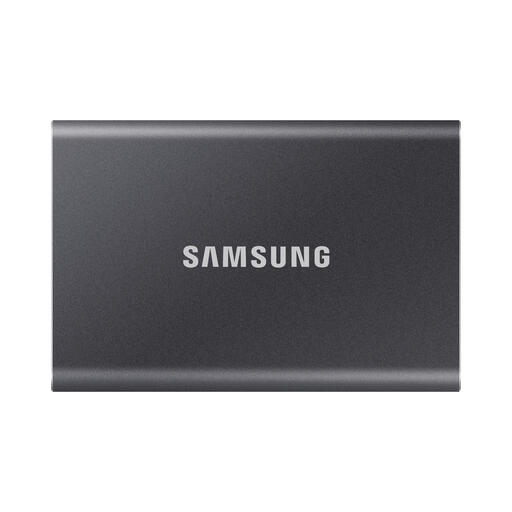
Samsung Portable SSD T7 2TB, USB Type-C, Grey
An external SSD option for anyone who wants to regularly open or transfer RAW files from the drive.
Capacity: 2 TB. Product information lists USB 3.2 Gen 2 and sequential maximum speeds of up to 1.050 MB/s read and 1.000 MB/s write. USB-C to USB-C and USB-C to USB-A cables are also listed; the speed on your computer may depend on the connection you use.
View at Joybuy
 No image available
Samsung MU-PE1T0S 1TB USB Type-C, Black
A portable SSD for RAW files when your workstation has a suitable USB Type-C connection.
Capacity: 1 TB. Product information lists USB 3.2 Gen 2, sequential maximum speeds of up to 1.050 MB/s read and 1.000 MB/s write, IP65 and drop protection up to 3 m. IP65 doesn’t mean the drive can be submerged.
View at Joybuy
 No image available
Samsung MU-PG2T0B 2TB USB Type-C 3.2 Gen 2x2, Black
A portable SSD for a RAW working folder, provided your computer supports the connection on this version.
Capacity: 2 TB. Product information lists USB 3.2 Gen 2x2 and sequential read and write speeds of up to 2.000 MB/s. USB-C to USB-C and USB-C to USB-A cables are listed.
View at Joybuy
Frequently asked questions
Is an external drive containing my RAW files automatically a backup?
No. As VeiligInternetten explains, a backup is a copy of files. If a file is only on the external drive, keep a separate, up-to-date copy as well, and check that you can open it.
Do I need to format a new SSD for my workstation?
That depends on the exact model and the file system you need. Crucial says the X9 Pro comes formatted as exFAT and that reformatting erases the data on the drive, so check your computer and any files already on the drive first.
What can I do if an external drive bought in the Netherlands develops a fault?
When you buy as a consumer, you’re entitled to a product that works properly. According to the Dutch government, there’s no fixed statutory warranty period in the Netherlands. If a product is faulty, contact the seller for a suitable solution. A manufacturer’s warranty is in addition to your statutory rights.


