What should you look for when choosing?
Portable external SSD
Choose this option: if you regularly move large RAW folders, work on the go or often work directly from the drive.
Bear in mind: the connection and cable must be compatible with your computer; an SSD is still a single storage copy and can fail.
Portable external HDD
Choose this option: if you mainly archive lots of files locally and don’t work directly from the drive all the time.
Bear in mind: an HDD has moving parts and is more vulnerable to knocks; also check that the supplied connection is compatible with your ports.
First, work out how much space your archive and planned shoots will need. Then decide whether you’ll use the drive for archiving or regular work, and plan for a separate copy.
| Consideration |
What should you check? |
Who is this important for? |
| A separate copy |
Decide which drive holds your working copy, how you’ll update a second local copy and whether both have enough space. |
If I don’t want to rely on a single copy, I want to know where my up-to-date back-up is and whether I can access it. Around 36% of consumers prioritise keeping a separate copy. |
| Space for your archive |
Add up your current files and planned shoots, and allow for the space needed for a separate copy. Compare the capacity of the specific variant. |
As my RAW archive grows, I want enough space for current and future shoots without needing extra speed every day. Archive space is the main concern for around 29% of consumers. |
| Transfer speeds and connection |
Check the USB connections on your computer and drive, the supplied cable, and the conditions attached to quoted read and write speeds. |
If I regularly move large RAW folders or work from the drive, I want the connection to be compatible with my computer. Around 21% of consumers prioritise reducing transfer times. |
| Portability and protection |
Check the size and connection, as well as the conditions attached to protection claims for the exact model. |
For working on location, I want a drive that suits my equipment and how I use it. Around 14% of consumers put portability and protection first. |
Products for local RAW storage
These Joybuy products include portable SSDs for regular transfers or taking with you, and HDDs for a local archive. One drive is not the same as a separate back-up.
 No image available
SanDisk Extreme Pro Portable SSD 1TB
A portable SSD for RAW files that you regularly take with you or transfer; plan to use a second storage location for your back-up.
The Joybuy product listing specifies 1 TB, USB 3.2 Gen 2x2 and a maximum read speed of 2.000 MB/s. This speed requires a compatible host.
View at Joybuy
 No image available
WD Elements Portable 5TB USB-C Graphite Black
A portable HDD for a local RAW archive that you can also take with you; an HDD is more vulnerable to knocks than storage with no moving parts.
The Joybuy product listing specifies 5 TB, a 2.5-inch casing, USB-C and a weight of 240 g.
View at Joybuy
 No image available
Samsung Portable SSD T7 2TB Blue
A portable SSD for storing and transferring RAW files locally; keep a separate copy if you don’t want to rely on a single drive.
The Joybuy product listing specifies 2 TB, USB 3.2 Gen 2, AES 256-bit encryption and maximum read and write speeds of 1.050/1.000 MB/s. Actual speeds also depend on the equipment used.
View at Joybuy
 No image available
Samsung MU-PE1T0S 1TB Black
A portable SSD for local use on location; check that its capacity suits your RAW files and leaves enough space for your back-up.
The Joybuy product listing specifies USB 3.2 Gen 2, maximum read and write speeds of 1.050/1.000 MB/s and IP65. According to the product description, IP65 does not mean the drive can be submerged for long periods.
View at Joybuy
 No image available
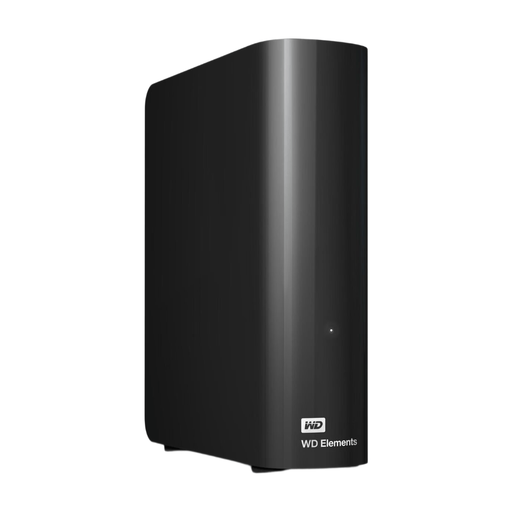
WD Elements Desktop 6TB
A desktop HDD for a dedicated archive location; the power adapter makes this model less suitable for taking with you.
The Joybuy product listing specifies 6 TB, a 3.5-inch drive, USB 3.0 and a power adapter included in the box. Reformatting for Mac may be necessary and will erase the data on the drive.
View at Joybuy
Frequently asked questions
Is one external drive enough if I don’t want to use the cloud?
Not if that drive holds the only copy of your RAW files. VeiligInternetten describes a back-up as a copy of the original files, so keep a separate, up-to-date local copy as well.
How do I disconnect a drive after copying files?
Microsoft recommends ejecting an external drive in Windows using Safely Remove Hardware first, to prevent data loss. Then check that you can open the transferred RAW files on the intended drive.
Can I use an external drive with both Windows and Mac?
Check the file system and the back-up software you want to use. Crucial says the X9 is supplied in exFAT and that reformatting erases data; Seagate says reformatting is required to use the Expansion with Time Machine.
Am I always entitled to exactly two years’ statutory warranty in the Netherlands?
No. According to the Dutch government, there is no fixed statutory warranty period in the Netherlands; you’re entitled to a product that meets the standard you can reasonably expect. A manufacturer’s warranty is additional, and the retailer is your point of contact if a product is faulty.
Can I store identifiable photos of other people on a drive without using the cloud?
Keeping photos locally doesn’t, by itself, determine which privacy rules apply. According to the Dutch Data Protection Authority, an exception for personal or household use applies to photos that someone keeps strictly private or shares within a very limited circle. This exception doesn’t apply to wider distribution or business use; in those cases, check the relevant GDPR obligations.


