A 27-inch QHD IPS monitor is a sensible starting point if you want to see map details and game windows clearly, provided your PC can handle the resolution you choose. VA may suit you if contrast matters more in a dark room; with OLED, it’s worth paying extra attention to interface elements that stay on screen for long periods. Also check readability at your viewing distance and how adjustable the specific model is: a high refresh rate isn’t automatically useful if your PC or game can’t make the most of it.
Who is this guide for?
Map and detail enthusiast
You often switch between railway lines, the map and text windows. In that case, readability at your viewing distance matters more than a high refresh rate alone. Transport Fever 2 lets you adjust the interface scale; RTINGS.com notes that text clarity depends on factors including resolution and pixel density.
Long-session player
You want to position the screen comfortably and vary your posture. Arboportaal, part of the Ministry of Social Affairs and Employment, points out that prolonged screen work can cause health problems; an adjustable monitor is no substitute for taking breaks and changing position.
Image-quality comparer
You’re weighing the demands on your PC and smooth visuals against contrast or game windows that remain visible for long periods. RTINGS.com generally reports higher contrast for VA than IPS, while static elements displayed for long periods can be a consideration with OLED.
What should you look for?
Start with readability and how the monitor will sit on your desk. Then consider which resolution and refresh rate suit your PC and game, before weighing up the panel type and how you use the screen.
| What to consider |
What to look for |
Who it matters to |
| Maps and text |
Compare screen size and resolution, and check how text looks in the game you play at your intended viewing distance. If needed, try the available interface scaling options. |
If I want to read fine map details and menus, I check how they look in my own setup; around 36% of consumers put readability first. |
| Screen positioning |
Check how adjustable the stand is and whether the screen dimensions, including the stand, will fit your desk. |
For long sessions, I want to position the screen comfortably and vary my posture; around 29% of consumers prioritise screen positioning. |
| PC and display |
Check whether your PC can run the game at your preferred resolution and what refresh rate the connection you choose supports. If frame rates are low, adjust the game settings if needed. |
I want the resolution and display to suit my PC, rather than simply chasing a high specification; around 21% of consumers prioritise this balance. |
| Contrast and static interface elements |
Compare the text display and panel type of the exact model. If interface elements stay unchanged on screen for long periods, also consider your usage habits and the warranty terms. |
In a dark room, I look for contrast, or take game windows that stay visible for long periods into account; around 14% of consumers prioritise this image-quality trade-off. |
What to watch out for
-
Choosing based on a high refresh rate alone
Your PC and chosen game settings both affect how the game is displayed. The maximum refresh rate available can also vary by connection.
First check how your own gaming setup performs, the resolution you want and the port limitations of the exact monitor model.
-
Assuming a larger screen means more readable text
A larger screen doesn’t guarantee that small text will be comfortable to read at your viewing distance; resolution and pixel density also play a part.
Check map details and menus from the distance at which you play, and try the game’s interface scaling if it’s available.
-
Overlooking static game windows on OLED
Static image elements displayed for long periods may be a consideration when it comes to permanent burn-in. This doesn’t predict whether or when it might happen with a specific model or your usage.
Consider your usage habits and the warranty terms for the exact model alongside image quality.
-
Assuming a retailer listing is identical without checking the model
Samsung describes the Samsung LS27DG502EUXEN as Fast IPS, while a Joybuy listing for the same model code describes it as VA.
Ask for clarification about conflicting key specifications for the exact model code before relying on them.
Brands to consider
LG
The LG UltraGear 27GS75Q-B is a useful model to compare: a 27-inch QHD IPS monitor with an adjustable stand.
- LG lists a resolution of 2560 × 1440, a maximum refresh rate of 180 Hz and height adjustment for this model; 200 Hz is listed as an overclocked mode.
- LG marks the 27GS75Q-B as discontinued. This doesn’t tell you whether it’s available elsewhere.
BenQ
The MOBIUZ EX2710Q is a 27-inch QHD IPS model with integrated audio.
- BenQ lists a 165 Hz refresh rate and built-in speakers for this model.
- The advertised HDRi and audio enhancements are claims made by BenQ, not independent measurements of their benefits for railway management games.
Dell
The Dell G2724D is a 27-inch QHD model you can use to compare adjustability and connectivity.
- Dell lists height, swivel and tilt adjustment. The stated refresh rate is 165 Hz via DisplayPort and 144 Hz via HDMI.
- Dell currently lists the model as unavailable on its Dutch product page; this doesn’t determine availability elsewhere.
Samsung
The Odyssey G50D LS27DG502EUXEN is a 27-inch QHD model for comparing panel types and checking model codes carefully.
- Samsung lists Fast IPS and 180 Hz for this model.
- A Joybuy listing with the same model code describes it as VA. Don’t assume the panel specification is confirmed until the discrepancy has been clarified.
ASUS
The TUF Gaming VG27AQ3A is a QHD IPS model to consider when assessing motion handling and screen size.
- ASUS lists a 27-inch IPS screen with QHD resolution and a 180 Hz refresh rate on its global product page.
- The global specifications page doesn’t confirm a specific Dutch version or a particular benefit for railway management games.
Gaming monitors at Joybuy
These gaming monitors from Joybuy are options to compare for resolution, panel type and adjustability during long sessions playing railway management games.
 No image available
Samsung Odyssey G5 G50F 32-inch IPS 180Hz LS32FG502EUXEN
An option for combining QHD map detail with an adjustable screen position.
32 inches, 2560 × 1440, IPS, 180 Hz and HDR10. The description lists height, swivel and tilt adjustment.
View at Joybuy
 No image available
AOC Gaming Q27G42XNE 27-inch QHD 180 Hz
A 27-inch QHD option for checking map details and text at your own viewing distance.
2560 × 1440, VA panel and 180 Hz. The title also lists FreeSync Premium and HDR10.
View at Joybuy
 No image available
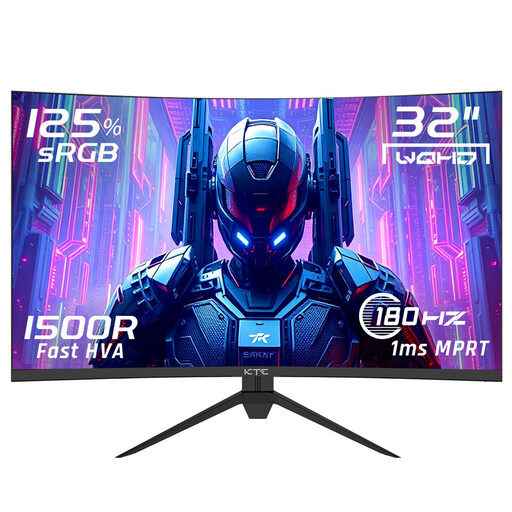
KTC H32S17 32-inch QHD 180 Hz HVA monitor
A larger QHD option to assess in light of your desk, viewing distance and how readable the game interface is.
2560 × 1440, HVA panel, 180 Hz and a 1500R curve. The product description lists tilt adjustment.
View at Joybuy
 No image available
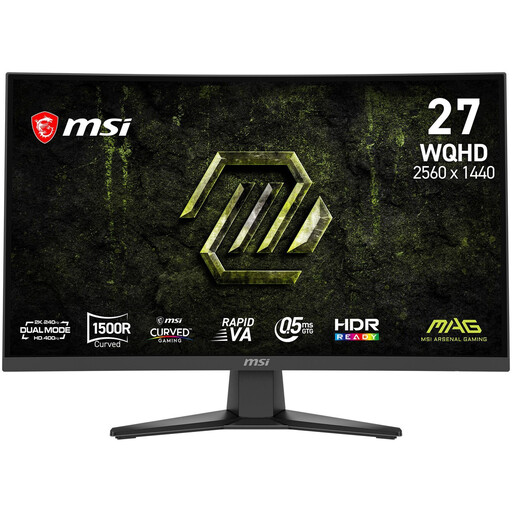
MSI MAG 275CQDF X24 27-inch QHD 240 Hz Rapid VA
A QHD model to compare if you’re weighing up panel type and resolution against how your PC performs in your own game.
2560 × 1440, Rapid VA panel and a curved screen. The title lists 240 Hz and FreeSync Premium.
View at Joybuy
 No image available
AOC G4 Q27G4ZR 27-inch QHD Fast IPS 240 Hz
A QHD IPS option to consider if adjustability is important for positioning the monitor on your desk.
2560 × 1440, Fast IPS and 240 Hz. The product description lists height, swivel, tilt and pivot adjustment.
View at Joybuy
Frequently asked questions
How can you make small menus easier to read in Transport Fever 2?
Adjust the interface scale and check the game at your intended viewing distance. According to the Transport Fever 2 manual, you can manually set the scale on PC between 75% and 200%.
Is 180 Hz essential for a railway management game?
Not based on the information available about these games. First check how your PC displays the game at your chosen resolution. Transport Fever 2’s help information identifies the graphics card and, for complex simulations, the processor as possible bottlenecks.
What should you look for in a monitor for long sessions?
Check that the stand and screen dimensions suit your desk, and avoid sitting in the same position for too long. Arboportaal warns that prolonged screen work can cause health problems; this is general information about screen work, not a specific finding about gaming.
How do you compare energy ratings and power consumption?
Compare the EU energy label and stated power consumption for the specific models. The European Commission gives electronic displays a scale from A to G, with separate information for HDR use. To compare running costs, you’ll also need details of your usage and electricity tariff.
What is the cooling-off period for buying a monitor online in the Netherlands?
According to the Dutch government, distance purchases from a business are often covered by a 14-day cooling-off period. Check the applicable terms and who the seller is; buying online from a private individual is not the same type of distance purchase.


