
Builder who uses lots of side panels
You want to see the map and control panels at the same time while laying tracks. Check that your game supports 21:9 and that the monitor will fit on your desk.


Start by considering your game, the space on your desk and what you want to see on screen at the same time. A 21:9 monitor can display the map and panels side by side, while a 27-inch QHD screen offers a less wide setup for map details and menus. Before you buy, check that your game supports 21:9 and that your PC can handle your chosen resolution and refresh rate through the connection you plan to use. A higher refresh rate alone won’t give you more screen space or make menus easier to read.
You want to see the map and control panels at the same time while laying tracks. Check that your game supports 21:9 and that the monitor will fit on your desk.
You want to distinguish track switches, text and small controls clearly, so you’re comparing the native resolution with the physical screen size.
Consider finding a comfortable viewing position, reducing reflections and taking breaks during long periods of use. A monitor feature can’t replace a well-set-up workspace.
Start with your game’s layout and the space available on your desk. Then compare readability, viewing position and the performance your PC can actually deliver through your chosen connection.
| What to consider | What to look for | Who should pay particular attention? |
|---|---|---|
| Room for the map and panels | Check whether your game supports 21:9 and measure the monitor’s width, including the stand. | If you want to see the map and tools at the same time, the interface is key. Around 33% of consumers prioritise having workspace visible all at once. |
| Detail clarity | Compare the native resolution and screen size. Assess text and controls from your usual viewing distance. | If you want to distinguish small map elements and menus, consider the combination of resolution and screen size. Around 25% of consumers give detail clarity top priority. |
| Setup for long sessions | Check height and tilt adjustment, viewing distance, reflections and ambient light. | If you’re building for a long time, you’ll want to position the screen comfortably and reduce distracting reflections. Around 25% of consumers prioritise workspace comfort. |
| Smooth visuals and connections | Compare the maximum resolution and refresh rate in Hz for each input with your PC’s outputs. | If smooth motion matters to you, or you also play faster-paced games, consider how your PC, port and monitor work together. Around 17% of consumers put smooth visuals first. |
The maximum refresh rate available can vary by input. A higher refresh rate also won’t give you more room for building menus.
Check the supported resolution and refresh rate for the specific port you plan to use.
A 34-inch screen takes up more space. The stand on the LG 34WR50QC-B we looked at is tilt-adjustable only, which may limit where you can position it.
Measure your desk and check how 21:9 displays in your own game before choosing a wider screen.
You may need a different monitor arm or to adjust your workspace.
The stated response time alone doesn’t tell you how comfortable a monitor will be during long building sessions. Philips notes that Smart MBR mode on the 27M2N3500NF/00 can noticeably change brightness and may cause flickering.
Assess motion modes separately, and also consider readability, lighting and a comfortable setup. When using a screen, change your posture and look away regularly, as advised by Arboportaal.
The Philips Evnia 27M2N3500NF/00 is a 27-inch QHD example for anyone who isn’t looking for an ultrawide screen.
The LG 34WR50QC-B is a 34-inch 21:9 example for anyone looking for more horizontal workspace.
The MSI MAG 274QRF QD E2 is a 27-inch QHD example for anyone also looking for a high refresh rate.
The Dell G2724D is an example of a 27-inch QHD gaming monitor with an adjustable stand.
This selection includes 27-inch QHD monitors for a more compact view of maps and menus, and 34-inch ultrawide models for anyone who wants to see the map and panels side by side. Before buying, check that your game supports the aspect ratio, that the monitor will fit on your desk and that your chosen port can handle the resolution and refresh rate.
 No image available
An option for anyone looking for a more compact QHD setup for map details and menus.
2560 × 1440, IPS and 144 Hz. Philips notes that Smart MBR can noticeably change brightness and may cause flickering.
 No image available
A 27-inch QHD option for anyone looking for map and menu detail, with an adjustable viewing position.
2560 × 1440, Fast IPS and 240 Hz native, overclocked up to 260 Hz. The stand offers height, swivel, tilt and pivot adjustment.
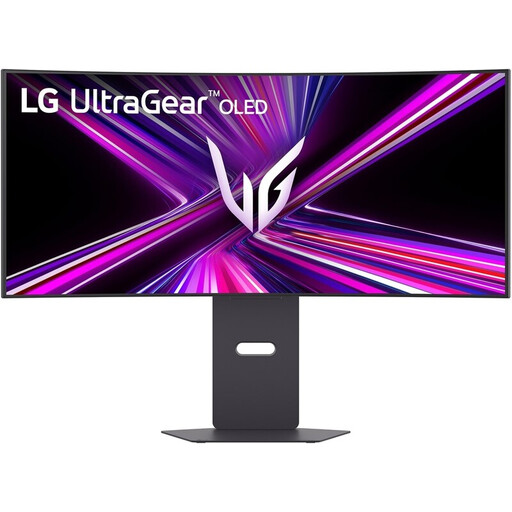 No image available
Suited to anyone who wants to see the map and panels side by side, provided the game supports 21:9 and there’s enough space on the desk.
21:9, 3440 × 1440, MLA+ OLED and 240 Hz. The product information lists height adjustment; the description also mentions swivel and tilt adjustment.
 No image available
A compact QHD option for anyone looking for detail on a 27-inch screen and an adjustable viewing position.
2560 × 1440, Fast IPS and 240 Hz, overclocked up to 275 Hz. The description lists height, tilt and swivel adjustment.
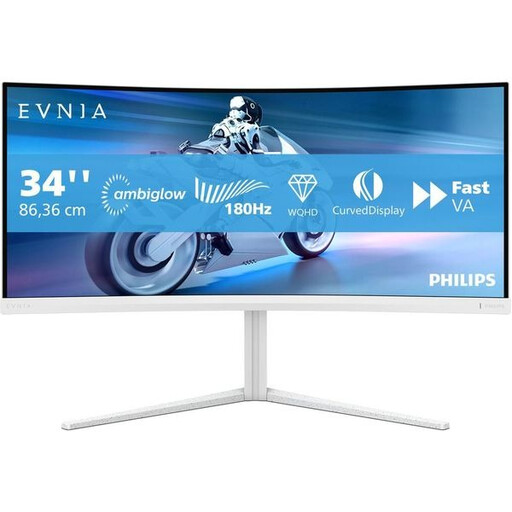 No image available
An ultrawide option for anyone who wants to view the map and panels at the same time. Check that your game supports 21:9 and that you have enough room on your desk.
21:9, 3440 × 1440, VA panel and 180 Hz. The product description lists height, swivel and tilt adjustment.
No, it depends on the game interface and the space on your desk. A 34-inch 21:9 monitor can give you more horizontal screen space, but check that your game supports this aspect ratio and displays menus well. The LG 34WR50QC-B we looked at only offers tilt adjustment.
Check the resolution you’ve set and the port you’re using. For the MAG 274QRF QD E2 at 2560 × 1440, MSI specifies up to 180 Hz via DisplayPort or USB-C and up to 144 Hz via HDMI.
Adjust the screen position to suit your workspace, reduce distracting reflections, change your posture and look away from the screen regularly. Arboportaal also recommends taking microbreaks. These work habits can’t guarantee that a monitor will prevent discomfort.
Check the total price, any additional costs, and the returns and warranty terms before placing your order. According to the Dutch government, online purchases from a business often come with a 14-day cooling-off period. There is no fixed statutory warranty period in the Netherlands. If a product is faulty, contact the seller; the product must meet reasonable expectations.
Check the energy label for the specific model and compare the energy class shown. The European Commission states that electronic displays, including computer monitors, carry a label on a scale from A to G.