Which setup is right for you?

Drivers with a dedicated cockpit

If you want to learn to recognise corners from the same seat every time, first measure the distance from your eyes to the screen and the screen width. iRacing uses these measurements to set your seating position and field of view.

Drivers with room for side screens

If you want screens to the left and right of your seat, check whether you have space to mount and align multiple panels. The iRacing instructions cover settings for a three-screen setup.

Drivers with limited space or PC capacity

If you want to tailor your setup to the space and hardware you have available, compare screen size, resolution, connections and the display mode supported by your game and system.

What should you consider when choosing?

One standard monitor

Best for: a compact setup from one fixed seating position, when the screen width and viewing distance work well together.

Trade-off: you get less physical screen space than with an ultrawide or three panels; setting a wider virtual field of view does not make up for the difference in width.

One ultrawide

Best for: anyone who wants more horizontal screen space from one seat without having to align multiple panels.

Trade-off: check that your game supports the aspect ratio you want and that your PC can handle the resolution and refresh rate through your chosen connection.

Three screens

Best for: anyone who wants screens to the left and right of their seat, and has the space, suitable graphics outputs and a compatible racing simulator.

Trade-off: you’ll need to position, align and configure the extra panels. For NVIDIA Surround, iRacing strongly recommends using three screens with the same resolution.

What to consider What should you check? Who is this important for?
View from your seat Measure your usual eye-to-screen distance and check the screen width and aspect ratio. Follow the settings for your own simulator; iRacing uses viewing distance and screen width to set the field of view. I want to judge corners and reference points clearly from my usual seat. Around 40% of consumers prioritise a suitable view from their seating position.
Space and alignment Measure the available width and check mounting space and connections if you’re considering three screens. The iRacing three-screen setup also takes into account the distance to the centre screen and the angle of the side screens. I want screens on either side of my seat and have space to position and adjust them. Around 30% of consumers prioritise a setup arranged around their seat.
Refresh rate Compare the resolution and refresh rate for the exact connection you’ll use. Dell lists 144 Hz via DisplayPort and 100 Hz via HDMI for the S3422DWG; ASUS lists 180 Hz for the VG34VQL3A when overclocked. I want smooth visuals while driving and need to know which mode my connection can handle. Around 20% of consumers prioritise the achievable refresh rate.
Hardware and connections Check how many suitable video outputs you have, and which resolution and display mode your game and PC or console support. A wider resolution or multiple screens need a different setup to drive them. I want to choose a screen that works with my existing hardware and connections. Around 10% of consumers give compatibility the greatest weight.

Common pitfalls

  • Setting an extra-wide virtual viewing angle instead of measuring your seating position

    Choosing an arbitrarily wider view can distort perspective. iRacing bases its field-of-view setting on physical measurements and distance.

    Measure from your usual driving position and follow the setup process for the simulator you actually use.

  • Looking only at the highest Hz figure

    The stated maximum refresh rate can vary by connection and mode. For example, Dell lists different figures for DisplayPort and HDMI on the S3422DWG.

    Before buying, check the resolution and refresh rate you want for the port you’ll use to connect the monitor.

    Depending on the connection you choose, you may also need a different cable or configuration.

  • Treating three screens like one monitor with no extra setup

    A three-panel setup needs space, alignment and settings that you don’t need with a single screen.

    Before choosing three screens, check the available space and video outputs, and read the instructions for your racing simulator.

    You’ll need to position the extra panels and may also need to arrange mounting equipment and suitable connections.

  • Confusing a product listing with a verified compatible model

    LG marks the researched 27GS75Q-B and 34GP63AP-B models as discontinued. A product name or search result alone doesn’t make it clear which version you’re actually buying.

    When considering a specific purchase, check the full model number, version and product information.

Brands to consider

ASUS

The TUF Gaming VG34VQL3A is an example of a 34-inch curved ultrawide with a resolution of 3440 × 1440 pixels.

  • ASUS lists two DisplayPort 1.4 inputs, two HDMI 2.0 inputs, height adjustment and a 100 × 100 mm VESA mount.
  • The stated 180 Hz refresh rate is overclocked. The HDMI specification lists a lower frequency range than DisplayPort, so check the mode you want for each connection.

Samsung

The Odyssey G5 LC34G55TWWPXEN is a 34-inch model with a 1000R curve and a resolution of 3440 × 1440 pixels.

  • Samsung lists a refresh rate of 165 Hz for this model.
  • The curvature alone doesn’t determine whether the field of view is set correctly for your seating position.

Dell

The S3422DWG shows why it’s worth checking the specifications for each connection on a 34-inch monitor.

  • Dell lists a resolution of 3440 × 1440 and up to 144 Hz via DisplayPort.
  • For HDMI, Dell lists a maximum of 100 Hz. Compare the specification with the port you plan to use.

LG

The UltraGear models researched show the difference between a flat 27-inch QHD screen and a curved 34-inch ultrawide.

  • LG lists a resolution of 2560 × 1440 and up to 180 Hz for the 27GS75Q-B, and 3440 × 1440 and up to 160 Hz for the 34GP63AP-B.
  • LG Netherlands marks both specific models as discontinued. Check the full model number and current product information before buying.

AOC

The CU34G2XP/BK is an example of a 34-inch ultrawide monitor in this category.

  • AOC lists a resolution of 3440 × 1440 and a refresh rate of 180 Hz for this model.
  • When buying, check that the product information matches the exact version you’re considering.

Joybuy products

These product picks are individual gaming monitors for use from one seating position, including QHD and ultrawide options.

AOC Gaming Q27G42XNE 27-inch Quad HD gaming monitor

AOC Gaming Q27G42XNE, 27-inch Quad HD

A 27-inch Quad HD monitor to consider if you’re looking for a standalone gaming monitor to use from a fixed seating position.

2560 × 1440; 180 Hz; FreeSync Premium; HDR10; 2 × HDMI 2.0; 1 × DisplayPort 1.4.

View at Joybuy

LG UltraWide 34U601B-B WQHD VA monitor, 34 inches

LG UltraWide 34U601B-B, 34-inch WQHD VA

A curved ultrawide option to consider if you want a wider screen from one seating position.

3440 × 1440; 21:9; 1800R curve; 120 Hz.

View at Joybuy
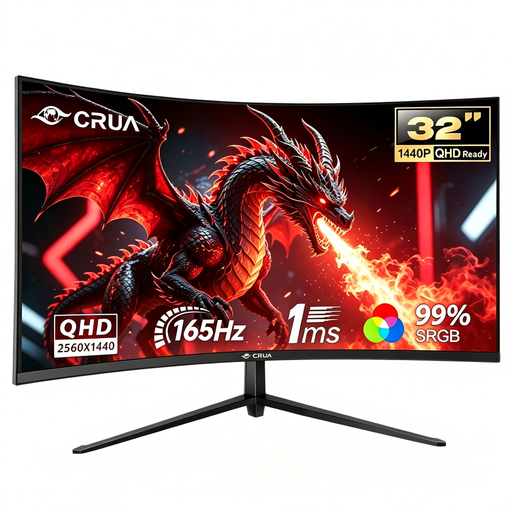
CRUA CR320C-H curved gaming monitor, 32 inches

CRUA CR320C-H, 32-inch curved gaming monitor

A curved gaming monitor to consider if you’re looking for a standalone screen for your cockpit.

QHD; 165 Hz; 1500R; 1 ms GTG. The product title also lists 2650 × 1440P; check the exact resolution version before buying.

View at Joybuy

Gawfolk 34-inch curved UWQHD gaming monitor

Gawfolk 34-inch curved UWQHD monitor

A 34-inch ultrawide option to consider if you want more horizontal screen space from one seating position.

3440 × 1440; 1500R curve; VA panel; DisplayPort. The product title lists 144 Hz.

View at Joybuy

Gawfolk GF340C-H curved UWQHD monitor, 34 inches

Gawfolk GF340C-H, 34-inch curved UWQHD

A curved 34-inch ultrawide option to consider if you want a wide screen from one seat.

3440 × 1440; 1500R curve; 165 Hz; VA panel; DisplayPort; VESA 75 × 75 mm.

View at Joybuy

Frequently asked questions

How do I adjust the view from my own seat?

If you use iRacing, measure the distance from your eyes to the screen and the screen width from your usual driving position. With three screens, also measure the angle between the panels. Enter the measurements in the simulator’s monitor settings; for another game, follow its own setup process.

Can I connect three monitors to any PC?

First check that your graphics card has enough suitable outputs and that your game supports the setup. For NVIDIA Surround, iRacing strongly recommends three screens with the same resolution; the guide also describes a windowed mode across three screens.

What do 144 or 180 Hz mean for the connection?

The available refresh rate can vary depending on the port and settings. Dell lists 144 Hz via DisplayPort and 100 Hz via HDMI for the S3422DWG; ASUS lists 180 Hz for the VG34VQL3A when overclocked. Check which mode your system supports through the connection you plan to use.

If a product develops a fault after two years, am I still entitled to a remedy in the Netherlands?

Possibly. ACM ConsuWijzer explains that statutory guarantee in the Netherlands doesn’t have a fixed two-year limit: what you could reasonably expect from the product is taken into account. If a product is faulty, the seller is responsible for providing an appropriate remedy; a commercial manufacturer’s guarantee doesn’t replace your statutory rights.
