What should you look for when choosing?
27-inch QHD, 16:9
A good fit if: you mainly work on your manuscript, regularly open a second window and want a more compact screen. Dell specifies a 27-inch screen, 2560 × 1440 pixels and height adjustment for the P2725D and P2725DE.
The trade-off: this screen has fewer horizontal pixels than a 3440 × 1440 ultrawide model. Test whether two windows remain wide enough at your preferred text size.
34-inch ultrawide, 21:9
A good fit if: you often want to view your manuscript, comments and sources at the same time, and have enough desk space. LG specifies a resolution of 3440 × 1440 pixels for the 34WQ73A-B, as does Philips for the 346B1C/00.
The trade-off: this screen takes up more space. For the 346B1C/00 at 3440 × 1440, Philips lists supported refresh rates of 60 Hz with USB 3.2 and 100 Hz with USB 2.0. Check which combination suits your needs.
Two separate screens
A good fit if: you prefer to keep your manuscript and sources on separate screens, and your computer and desk can accommodate a second screen. Microsoft Support explains how to set up and arrange multiple monitors in Windows.
The trade-off: check in advance which video outputs are available and whether your computer can drive the external screens you want.
Before choosing a screen size, compare the available space with your desk, text size and laptop connections.
| What to consider |
What to look for |
Who is this important for? |
| Space for windows |
Test your preferred text size and window width. Compare 2560 × 1440 on a 27-inch QHD model with 3440 × 1440 on a 34-inch ultrawide model. |
When I have my manuscript and source material open at the same time, I want to be able to read both windows at my chosen text size. Around 33% of consumers prioritise a clear layout in a split-screen editor. |
| Readability and positioning |
Check for height adjustment or a suitable mounting option, glare and how easy text is to read at your chosen size. |
For long editing sessions, I want to adjust the screen to suit my workspace and read text comfortably. Around 27% of consumers prioritise readability and an adjustable working position. |
| Laptop connection |
Compare your laptop’s video output and charging requirements with the exact monitor model and cable. Also check whether you need a hub or network connection. |
If I want to connect my laptop with one cable, I need video and, if required, enough power for charging. Around 20% of consumers prioritise a suitable laptop connection. |
| Desk space and features |
Measure the available width and depth, including the stand and viewing distance. Then consider which connections and features you will actually use. |
With limited desk space, I want a screen that fits and don’t want to choose features I won’t use. Around 20% of consumers prioritise a suitable size and only the features they need. |
Joybuy monitors for a spacious writing setup
This Joybuy selection features 34-inch ultrawide monitors for viewing your manuscript and sources side by side. Before buying, check that the connections and positioning suit your computer and workspace.
 Image unavailable
LG UltraWide 34U601B-B WQHD VA monitor, 1800R, 120 Hz
This 34-inch ultrawide model is a good choice if you want to view your manuscript and sources side by side.
WQHD; VA panel; curved 1800R; 120 Hz.
View at Joybuy
 Image unavailable
Gawfolk 34-inch Curved UWQHD monitor, 144 Hz, 1500R
This ultrawide model is designed for anyone who wants to keep their manuscript and sources on screen at the same time.
34 inch; 3440 × 1440; 144 Hz; curved 1500R. The product name does not mention speakers.
View at Joybuy
 Image unavailable
LG UltraWide 34U650A-B, 34 inch
This 34-inch LG model is included for anyone looking for an ultrawide workspace to view text and source material side by side.
34 inch.
View at Joybuy
 Image unavailable
LG 34WR50QK-B, 34 inch, 3440 × 1440
This ultrawide model is a good fit if you want to view several text windows side by side.
34 inch; 3440 × 1440 pixels; Wide Quad HD.
View at Joybuy
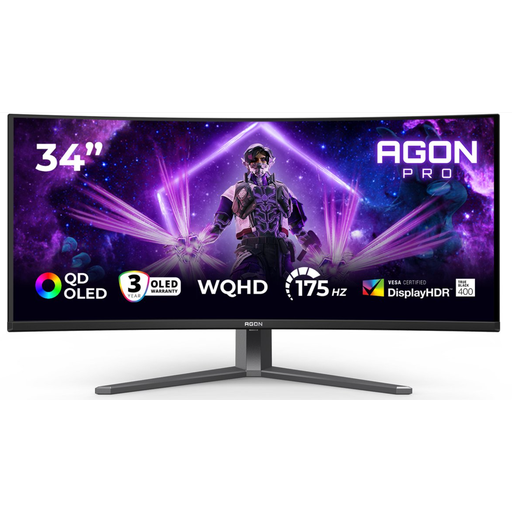 Image unavailable
AOC AGON PRO AG346UCD, 34 inch, 3440 × 1440
This 34-inch ultrawide model is designed for anyone who wants to view text and source material on a wide screen at the same time.
34 inch; 3440 × 1440 pixels. The product name lists DisplayPort up to 175 Hz and HDMI up to 100 Hz, as well as height, swivel and tilt adjustment.
View at Joybuy
Frequently asked questions
Do I need special split-screen software for my monitor?
Not necessarily if you use Windows: Microsoft Support explains that you can use Snap to arrange windows on the left and right. Check that text remains readable at your screen size and chosen scale. LG notes that OnScreen Control may not work properly, depending on the PC you use.
How should I set up a monitor for long editing sessions?
Adjust the screen height and position to suit your workspace, watch out for glare and take regular breaks from screen-based work. Arboportaal also outlines workplace setup requirements for employees covered by the Dutch rules on screen-based work.
What if USB-C provides video but does not charge my laptop sufficiently?
Compare your laptop’s charging requirements with the power output of the exact monitor model and use your laptop’s own charger if necessary. Dell states that the P2725DE provides up to 90 W of USB-C power. Also check that your laptop and cable are compatible; the stated power output does not guarantee compatibility with every combination.
What are my rights when buying online in the Netherlands?
For online purchases from a business that qualify as consumer sales, you will usually have a 14-day cooling-off period, according to the Dutch government; not every transaction is covered. You are also entitled to a product that performs as you may reasonably expect under normal use. ACM ConsuWijzer makes clear that a commercial warranty does not replace your statutory rights.
Can I connect a second monitor without changing operating system?
Microsoft Support explains that Windows supports connecting and arranging multiple monitors. Check in advance that your computer can actually drive the external screens you want; this depends on the capabilities of the specific device.


