If your laptop screen is still useful for sources or tools, one external monitor may be enough. If you need two external workspaces, check that your computer can support that setup. An adjustable screen, perhaps with pivot mode, can be handy for viewing full pages, while resolution and colour features need to be considered separately. Before buying, check your computer’s outputs, any dock you use and the cables you’ll need.
Who is this setup for?
Page designer working with lots of source material
You want to edit puzzle pages on one screen and keep clues, answers or layout tools open on the other. Microsoft Support explains how to arrange multiple displays; also check that your computer supports the connections you need.
Checker of small text and grids
You view pages with small numbers, letters or boxes and want to be able to read the preview clearly. Resolution, scaling and the option to use the screen in portrait mode are all worth considering separately.
Creator of colour proofs
You want to assess on-screen colour in relation to the intended print. Adobe describes a workflow using colour profiles for this; the monitor’s specifications alone won’t determine how the print will look.
What should you look for when choosing?
Laptop with one external monitor
A good fit if: you want to keep using your laptop screen for sources or tools while laying out pages on the external monitor.
Bear in mind: differences in screen height or size can be less comfortable if you often switch between windows.
Two similar external QHD monitors
A good fit if: you create pages on one screen and view sources or proofs on the other, and you have room for both monitors on your desk.
Bear in mind: two screens need space and suitable connections. Matching resolutions don’t mean the colours will look the same on both screens.
Main screen for detail or colour
A good fit if: you mainly use one screen to check small details or coloured pages, and use the other mostly for sources.
Bear in mind: different resolutions may need separate scaling settings. Adobe describes colour profiles as part of an electronic proofing workflow; a colour specification alone doesn’t guarantee a match with the printed result.
| What to consider |
Check before buying |
Who is this most important for? |
| Room for layout and sources |
Decide whether you want to use a laptop with one external monitor or two external monitors; check the video connections and the space available on your desk. |
If I want to see pages and sources at the same time, my computer must support the setup I choose. Around 36% of consumers give working across multiple spaces their highest priority. |
| Readability of small details |
Compare the resolution with the screen size and check that text remains readable at your preferred scaling. |
If I want to check small numbers, letters and boxes across a full page, I consider both detail and text size. Around 29% of consumers prioritise readability and checking pages. |
| Workspace and screen orientation |
Check the dimensions and adjustment options of the exact model, and whether it will fit your desk setup. |
If I want to view pages comfortably alongside my other workspace, the monitor needs to fit and adjust to my setup. Around 21% of consumers prioritise their workspace and screen orientation. |
| Colour checking for print |
Check the colour specifications of the exact model and which colour profiles your print workflow uses. |
If I’m preparing coloured pages for print, I want to consider screen colour and colour management together. Around 14% of consumers prioritise colour checking. |
Common mistakes
-
Assuming USB-C will automatically support two external screens
The monitor’s capabilities and your computer’s capabilities are separate requirements. A USB-C port on the monitor alone doesn’t tell you which video signals your laptop can output.
Before choosing a second screen, check your exact laptop outputs and the combination you need for video, any daisy-chaining and charging.
Setting up scaling and colour management may take extra work.
-
Assuming the screen size tells you whether it can be used in portrait mode
Adjustability varies by model. You also need to make sure both screens will fit your workspace.
Check the orientation and adjustment specifications of the version you’ve chosen, and measure the space available.
If the stand supplied doesn’t suit your setup, you may need a separate monitor arm.
Brands to consider
Dell
The P2725D and P2725DE are QHD work monitors with different connection options; compare the version with your computer and setup.
- Dell lists a 27-inch QHD screen for both models.
- For the P2725DE, Dell lists 90 W USB-C power delivery and Ethernet.
- The P2725DE’s hub features don’t automatically apply to the P2725D; also check compatibility with your laptop.
BenQ
The PD2705Q is worth considering if you want to combine page layout with specified colour features and portrait mode.
- BenQ specifies 27-inch QHD, 100% sRGB and 90° rotation for this model.
- BenQ also lists 65 W USB-C power delivery and DisplayPort output with MST.
- These are specifications for this model; your computer and connections must support the screen setup you want.
LG
The 27UP850K-W is a 27-inch 4K model to consider as a main screen for viewing pages and coloured content.
- LG lists height, tilt and pivot adjustments, typical DCI-P3 coverage of 95% and USB-C charging up to 96 W.
- These are manufacturer specifications for the model mentioned, not a measurement of how closely it matches a print. Also check that it has the connections you need.
Philips
The 27E1N1600AE/00 is a 27-inch QHD model with USB-C and could be an option as an extra workspace alongside a laptop.
- Philips lists 2560 × 1440 pixels, 120 Hz and USB-C with power delivery.
- Check the exact version and whether its USB-C connection is compatible with your laptop’s capabilities.
Monitors at Joybuy
This selection at Joybuy focuses on external screens for page layout, with models for checking detail or colour and a QHD option with pivot mode.
 No image available
Dell UltraSharp U3226Q 32-inch 4K UHD 120 Hz QD-OLED monitor
The listed multi-source features may be useful if you want to view pages and reference material side by side.
Listed features: 32 inches, 4K, 120 Hz, 100% sRGB, 99% DCI-P3, built-in colourimeter and PbP/PiP.
Joybuy
 No image available
BenQ PD3225U 32-inch 4K UHD monitor
The listed resolution and colour coverage make this a workspace to consider for viewing pages and coloured elements.
Listed features: 32 inches, 3840 × 2160 pixels, 99% sRGB and Rec. 709, KVM switch and Thunderbolt 3 with 85 W and daisy-chain support.
Joybuy
 No image available
LG 27UQ850V-W 27-inch 4K UHD monitor
The product title specifies a 4K screen for anyone who prioritises detail when laying out pages.
Listed in the product title: 27 inches, 3840 × 2160 pixels and LCD.
Joybuy
 No image available
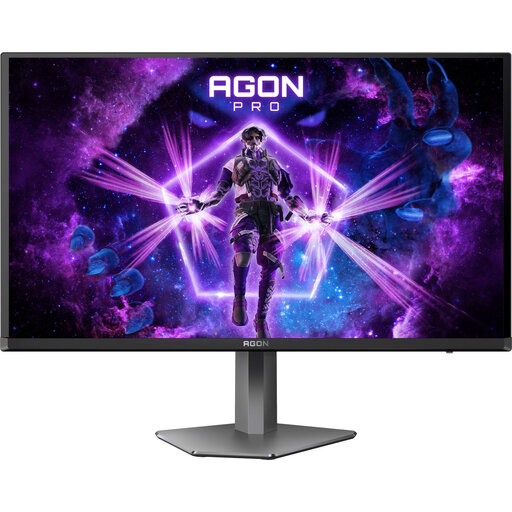
AOC AGON PRO AG276QZD2 27-inch QHD monitor
The listed pivot function may be useful if you want to view a puzzle page in portrait mode.
Listed features: 2560 × 1440 pixels; DisplayPort up to 240 Hz and HDMI up to 144 Hz; two HDMI and two DisplayPort connections; height, pivot, swivel and tilt adjustment.
Joybuy
Frequently asked questions
How do I set up two screens for creating pages?
In Windows, you can identify detected screens and drag them in the display settings to match their physical positions. If you rotate a monitor, also change the screen orientation and adjust the scaling for each screen if needed. Whether your computer supports two external monitors at the same time depends on the computer and its connections.
Does a monitor with a wide colour gamut automatically provide a reliable print proof?
No. For an electronic colour proof, Adobe describes a workflow using suitable colour profiles. A monitor’s colour gamut figures are manufacturer specifications for that model and don’t guarantee a match with the printed result on their own.
What can I do if my monitor develops a fault, and do I need an extended warranty?
For consumer purchases in the Netherlands, you’re entitled to a legal guarantee if a product doesn’t meet what you could reasonably expect from it. ACM ConsuWijzer states that a more limited manufacturer’s or seller’s warranty doesn’t replace this right; you don’t need to pay for an extended warranty to claim your legal guarantee.
Are there legal requirements for a workspace with two screens?
For employees, Arboportaal outlines rules for working with display screens and setting up a workspace. For example, it states that if you work with a display screen for more than two hours a day, the screen and keyboard must not be attached to each other. This isn’t a general purchase requirement for every private buyer; if you’re setting up a workspace for employees, discuss it with the employer.


