
Viewers in the seats at the sides
Want to watch the performance from an angle on the sofa, too. Compare the screen material’s viewing angle with the position of the seats at the sides.


Start with the screen’s viewing angle: sitting off-centre doesn’t in itself mean you need lens shift on your projector. If the projector itself has to sit off the screen axis, horizontal lens shift becomes relevant. Also check that the throw distance, recording and sound setup will work in your room. Digital keystone correction often involves a trade-off: BenQ Europe warns that it can affect sharpness and image size, among other things.
Want to watch the performance from an angle on the sofa, too. Compare the screen material’s viewing angle with the position of the seats at the sides.
Can’t place the projector on the screen axis. They should check the throw distance and the chosen model’s horizontal image shift together.
Move the projector regularly and want to realign it each time. Autofocus or automatic keystone correction may be useful, but neither is the same as horizontal optical lens shift.
| What to consider | What should you check? | Who is this important for? |
|---|---|---|
| Screen viewing angle | Compare the stated viewing angle of your chosen material with your seating positions. Elite Screens lists 180° for CineWhite and 90° for CineGrey 3D; these specifications apply to those materials. | I want to see the performance clearly from a seat at the side, too. Around 40% of consumers in this target group prioritise the screen’s viewing angle. |
| Projector position | Measure the distance between the lens and the screen, and check the exact model’s horizontal lens shift. Epson Netherlands lists horizontal ±24% for the EH-TW7000; BenQ Netherlands states a maximum of ±15% for the W4100i, with a more limited range when using 60% vertical shift. | I can’t place the projector on the screen axis and want to minimise digital image correction. Around 30% of consumers in this target group prioritise placing the projector off the screen axis. |
| Realigning the image | Check autofocus, zoom and keystone correction for each model. Automatic correction doesn’t prove that a projector has horizontal optical lens shift. | I move the projector regularly and want to realign it before watching the performance. Around 15% of consumers in this target group prioritise being able to set up again easily. |
| Playback and sound | Check that the connections suit your playback device and that your chosen sound setup works with the specific projector. | I want to play the recording using the equipment I have and hear it clearly. Around 15% of consumers in this target group prioritise playback and sound. |
The screen’s viewing angle partly determines how clearly you can see the image from a seat at the side. Lens shift moves the projected image, so it addresses a different issue.
Before comparing models, mark out both the seating positions and the projector’s position in the room.
Elite Screens lists a 90° viewing angle for the specific CineGrey 3D material and 180° for CineWhite. Check that the stated viewing angle of your chosen material suits the viewing positions in your room.
Before choosing a screen, check the material variant, its stated viewing angle and its compatibility with your chosen projector.
Digital keystone correction and optical lens shift are different features. For the EH-TW6250, Epson lists vertical lens shift and keystone correction as separate features.
If the projector needs to sit off the screen axis, look specifically for horizontal optical lens shift in the exact model’s specifications.
The EH-TW7000 is worth considering if the projector needs to sit off the screen axis; the EH-TW6250 offers another way to align the image.
The W4100i is a model to compare if you need horizontal lens shift for your setup.
The HORIZON Ultra is worth considering if you regularly set up the projector in a new position.
The projectors below are options for a range of home setups. For each model, check that its placement, throw distance, screen viewing angle and connections suit your room, recording and sound setup.
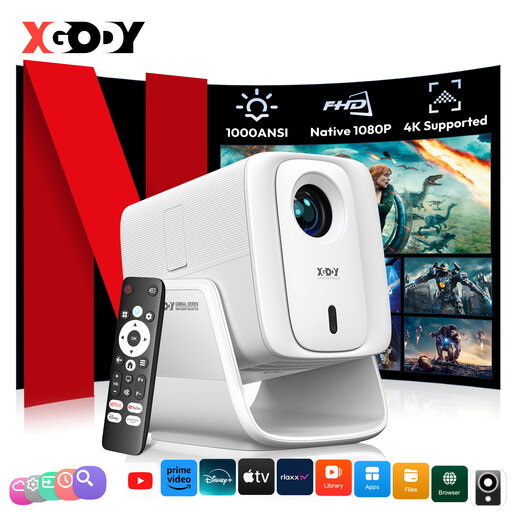 Image unavailable
May be worth considering if you want to connect an external HDMI source and regularly readjust the projector.
The product name lists 1000 ANSI lumens, native 1080P, 4K support, 2 GB + 16 GB, autofocus and keystone correction.
Check that the listed connections and correction features suit your playback device and setup.
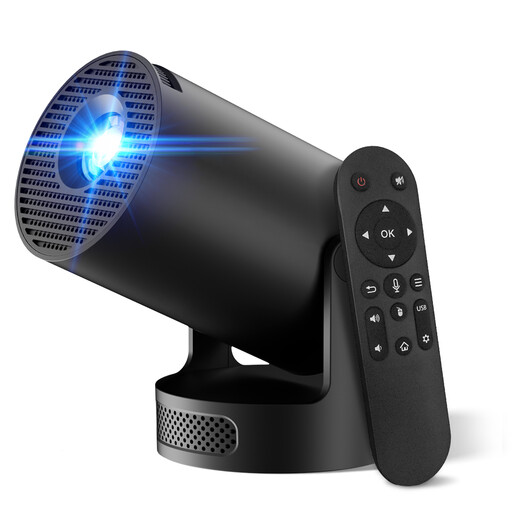 Image unavailable
May be an option if you want to use built-in apps; check in advance that the specific recording is available on them.
The product name lists WiFi 6, Bluetooth, HDMI compatibility, automatic image correction, 50%–100% digital zoom and a 180° rotating body.
Check that the image size you want and the digital zoom suit the distance from the screen.
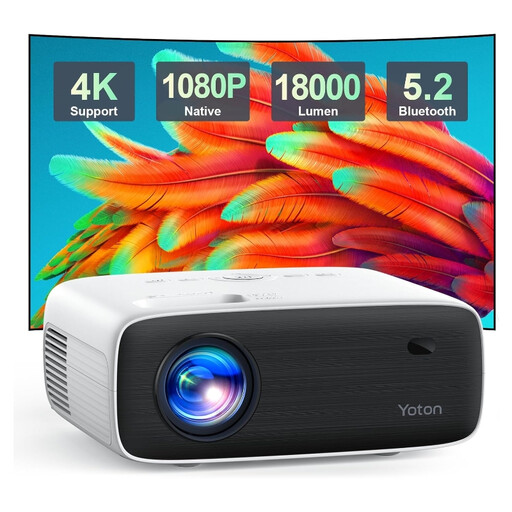 Image unavailable
May suit a setup with a compatible HDMI playback source or wireless audio.
The product name lists native 1080P and Bluetooth. Check which connections and audio options are available for your own equipment.
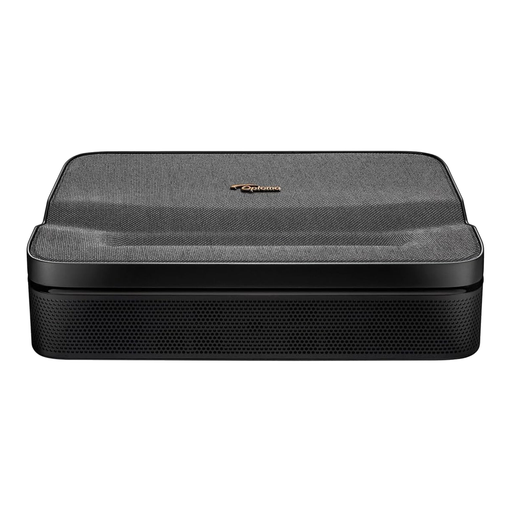 Image unavailable
Its portable design may be useful if you regularly move the projector.
Check that the connections and sound setup suit your playback device and the place where you watch the performance.
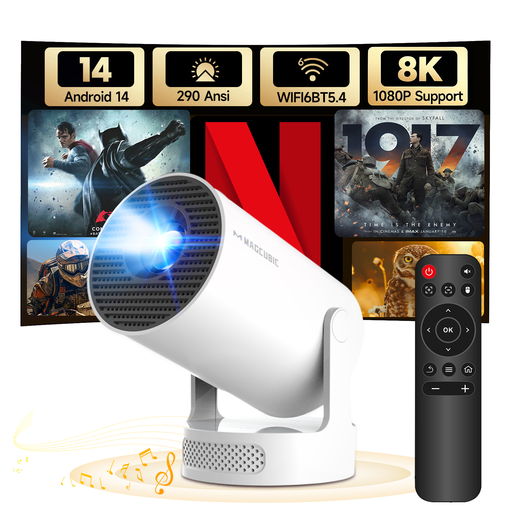 Image unavailable
Its portable design and rotating stand may be useful if you want to use the projector in different places.
The product name lists WiFi 6, Bluetooth 5.4, Android 14, 290 ANSI lumens, a 5 W speaker, automatic vertical correction and a 180° rotating stand.
The stated vertical correction doesn’t indicate horizontal optical lens shift; check the placement requirements for the exact model.
Not just because of where you sit. Compare the screen’s viewing angle with your seating position; horizontal lens shift is relevant if the projector itself needs to sit off the screen axis.
Measure your desired screen width and the distance between the lens and screen, then check the exact model’s throw ratio. Next, check separately whether the lens shift range required suits the projector’s position.
No. BenQ Europe describes keystone correction as digital image correction and warns that it can affect sharpness and image size, among other things. Position the projector correctly first wherever possible, then use as little correction as you need.
Don’t assume you can use it without restriction. According to the Dutch Government, a private copy may be made for personal use, but it may not be distributed or made available to the public. Check the rights and terms for the specific recording, especially if you plan to show it beyond private use.
Check the warranty terms for your chosen model and who to contact if there’s a problem. According to the Dutch Government, there is no fixed statutory warranty period in the Netherlands; if a product is faulty, contact the seller.