
Host with their own video files
This host wants to have local documentaries ready in advance, without relying on unverified USB or codec support. XGIMI describes HDMI as a standard connection for linking a laptop or desktop computer to a projector.


For a documentary night using local files, playing them from a laptop or compatible media player via HDMI is a practical option if you don’t want to rely on the projector’s built-in USB file reader. Playing directly from USB means you won’t need an extra device, but check the manual for the exact model to confirm it supports your video, audio and subtitle files. Match the brightness and projection distance to your room, and check in advance that dialogue is clear from the back row.
This host wants to have local documentaries ready in advance, without relying on unverified USB or codec support. XGIMI describes HDMI as a standard connection for linking a laptop or desktop computer to a projector.
This host can’t completely darken the room, so needs to consider brightness alongside image size and setup. Epson Netherlands recommends 2,500–3,500 lumens as a guide for living rooms with some ambient light.
This host wants to position or move the projector easily, and needs to match the distance from the screen to the throw ratio. Also check how dialogue sounds in the room; product specifications alone won’t tell you whether everyone will hear it clearly.
First, decide how you’ll play your files. Then work out how much brightness the room needs and whether the projector will fit in the available space. Test the sound before everyone takes their seats, too.
| What to consider | What to look for when buying | Who is this important for? |
|---|---|---|
| Playing local files | Check whether the USB port on the exact model is a reader, and which storage, video, audio and subtitle files it supports. Test your file in advance; HDMI with a compatible player is an alternative. | If I want to be sure the picture, sound and subtitles work, I’ll test the whole file in advance. Around 36% of consumers would make file playback their top priority. |
| Picture in ambient light | Work out how much light you can block out and how large the image will be. Compare brightness figures, taking the measurement method into account. | If I can’t properly darken the room, I want to know how the picture will look in the available light. Around 29% of consumers would prioritise visibility in ambient light. |
| Projection distance | Measure your desired image width and the distance from the lens to the screen. Check the throw ratio and zoom of the exact model. | If I have limited space for setup or want to move the projector, the distance needs to suit the image I want. Around 21% of consumers would prioritise their available setup space. |
| Clear dialogue | Check which audio output is available, then listen from the back row before the screening starts. | If everyone needs to follow the spoken parts, I want to assess the sound from the back row. Around 14% of consumers would prioritise clear dialogue. |
A port or reader listing doesn’t confirm that your video, soundtrack and subtitles will work. You could end up needing an extra playback device on the night.
Check the manual for the exact model and try the whole file in advance. It may be worth keeping a laptop or compatible media player with HDMI and the necessary cable handy.
Epson lists white and colour light output, BenQ uses ANSI lumens and XGIMI uses ISO lumens. So the figures alone don’t provide an independent comparison of how the picture will look in your room.
First work out how much ambient light to expect, then check the brightness specification and measurement method for the exact model. Epson Netherlands recommends 2,500–3,500 lumens as a guide for a living room with some ambient light.
Auteursrecht.nl distinguishes screenings within a strictly domestic circle from, for example, a private club event. For screenings outside that circle, you may need permission from the rights holders.
Before the screening, decide who will be attending and check which rights apply to your chosen documentary and the way you plan to show it.
According to Epson Netherlands, the Epson CO-FH01 is a Full HD projector with HDMI, designed for use with an external player.
According to the model specifications, the GP100A combines Full HD and HDMI with a USB-A port labelled as a reader.
The M2e documentation describes model-specific connections that are worth considering if you’re planning to play local files.
XGIMI describes the HORIZON Pro as a 4K model with HDMI and USB connections.
This selection includes projectors with HDMI for an external player, plus one model whose product description mentions USB media playback. Always check whether the exact file and the audio you need are supported for your documentary.
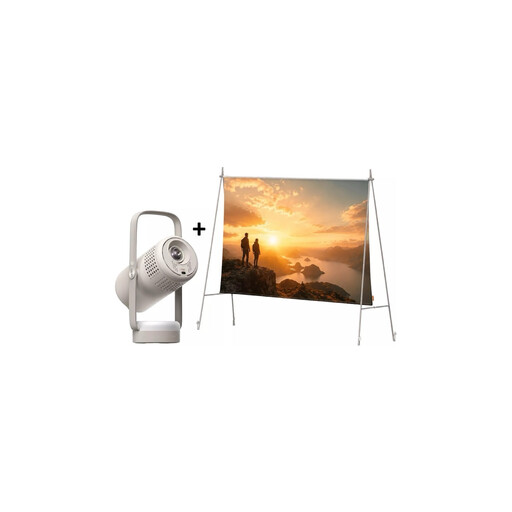 No image available
HDMI lets you connect an external laptop or compatible media player; the title also mentions a built-in battery and a projection screen with stand.
The product name mentions Google TV, 250 ISO lumens and JBL audio. The stated brightness doesn’t guarantee a sufficiently clear picture in ambient light.
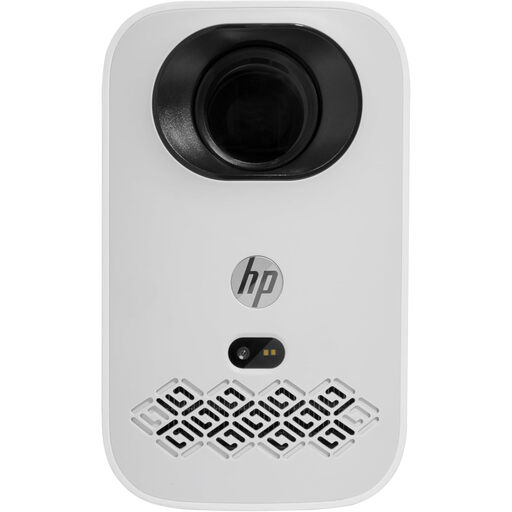 No image available
The product information lists HDMI for an external player and two USB ports. Check which files are supported via USB before relying on direct playback.
The description mentions native 1080p, 220 ANSI lumens, autofocus, built-in stereo speakers and Bluetooth audio. Assess the sound in your room and the picture under your planned lighting conditions.
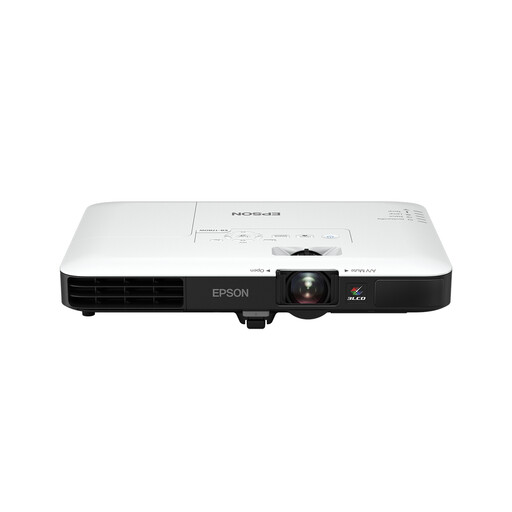 No image available
The product description lists two HDMI ports for connecting a laptop or another device.
The title lists 4,000 ANSI lumens and the description gives a weight of 2.5 kg. Check that the WXGA resolution and available projection distance suit your screen and setup.
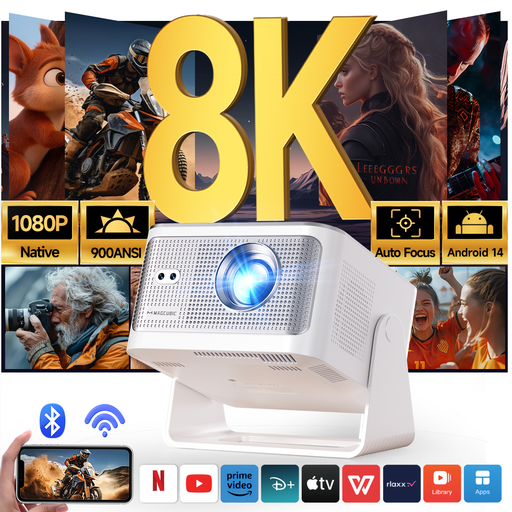 No image available
The product name mentions HDMI compatibility for an external player; the description also mentions USB compatibility.
The title lists 900 ANSI lumens, Android 14 and 180° rotation. The description mentions a built-in 15 W speaker; check that the positioning and sound suit your room.
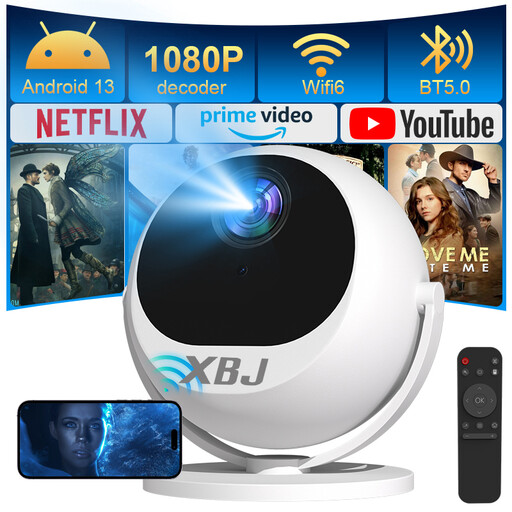 No image available
The product description mentions media playback from USB flash drives and HDMI for external devices. Test your own file in advance, including its sound and subtitles.
The description lists 500 ANSI lumens, autofocus and automatic keystone correction. The stated brightness alone doesn’t tell you whether the picture will be clear enough in your room.
No, having a USB port doesn’t guarantee that. Check whether the exact model has a reader and supports your storage device, video, audio and subtitles. Test the file in advance; using a laptop or compatible media player via HDMI is another option.
Measure your desired image width and the distance from the lens to the screen, then check the throw ratio and zoom of the model you’re considering. BenQ lists a throw ratio of 1.2 with fixed zoom for the GP100A; for an image 2.0 m wide, an initial estimate gives a distance of around 2.4 m.
It depends on the room and how far away you’re sitting. Check whether your chosen model or playback device has a suitable audio output, then listen from the back row in advance to make sure the dialogue is clear.
According to ACM ConsuWijzer, you have a legal guarantee in addition to any manufacturer’s warranty. If a product doesn’t meet reasonable expectations during normal use, the seller must resolve the issue free of charge under the applicable terms. In the Netherlands, there isn’t one fixed statutory warranty period for every device.
According to Auteursrecht.nl, you can show a film or video within a strictly domestic circle without separate permission for the screening. Outside that circle, you need permission from the rights holders to show copyright-protected work, even at a private club event. Having a local file or having bought it previously doesn’t automatically give you screening rights; also check that the file comes from a legal source.