First, choose a screen size based on the furthest viewing position and the smallest details on your slides. Then decide how much ambient light will remain during the presentation. Next, compare the throw ratio, brightness, connections and light source of models suited to your available setup. A larger image or higher stated lumen rating won’t automatically make small captions easier to read.
Who is this buying guide for?
Presenter with detailed historical slides
You might be showing maps, documents and photographs with captions to people sitting a long way from the screen. Start with the furthest viewing position and the screen height you need, rather than the distance between the projector and the screen. Epson UK recommends a viewing distance of no more than four times the screen height for detail-focused viewing. Then check this against your own slides.
Organiser in a brightly lit room
You may not be able to switch off all the ambient light during the presentation, but still want a clear, usable image. Compare the stated brightness with your intended screen size, then check the smallest text under the lighting conditions that will remain in the room.
Volunteer presenting at different venues
You set up the presentation somewhere different each time. Check that the throw ratio, zoom and connections suit the available setup and your presentation laptop. If you use the projector regularly, the type of light source may also be a factor.
What should you look for?
| What matters when buying? |
What should you check? |
Who is this most relevant to? |
| Readability from the back |
Measure the distance from the rearmost seat and test the smallest text at your intended screen height. |
I want people at the back of the room to be able to follow dates, map labels and captions; around 36% of consumers say readability is their main concern when buying. |
| Picture quality with the room lights on |
Check your slides at your intended screen size, with the lighting that will remain on during the presentation. |
If the room can’t be fully darkened, I want to see in advance how the image looks under those lighting conditions; around 29% of consumers prioritise usability with the room lights on. |
| A suitable setup |
Measure the distance from the projector lens to the screen and check the throw range for your intended image width. |
I want to know whether the projector can produce a usable image from the available position; around 21% of consumers say physical placement is their main purchasing concern. |
| Connections and regular use |
Compare your laptop’s video output with the model’s inputs and check whether any wireless accessories are included. |
For regular events, I want to connect my equipment easily and know what maintenance the light source requires; around 14% of consumers prioritise connections and long-term use. |
Common purchasing mistakes
-
Confusing viewing distance with throw distance
The audience may be sitting a long way from the screen while the projector is positioned close to it. These distances affect different things, so they’re not interchangeable.
Measure both the distance from the rearmost seat to the screen and the distance from the projector lens to the screen. Then check that your intended image width falls within the range for the exact model.
A miscalculation could mean changing the projector’s position or mounting, or finding that your intended screen size won’t work.
-
Comparing only the standard lumen rating
The stated brightness can vary depending on the operating mode. For example, Epson lists the EB-FH52 at 4.000 lumens in Normal mode and 2.400 lumens in Eco mode. Readability also depends on screen size and room lighting.
Compare specifications using the same operating mode, then check your own slides under the lighting that will remain on during the presentation.
-
Assuming wireless presentation is included as standard
The dongle for the wireless presentation feature mentioned for the BenQ LH650 is optional.
Check what’s included with the exact model and test in advance that your laptop connects in the way you intend to use it.
You may need to buy a separate dongle or adapter.
-
Expecting a laser projector to need no maintenance
The stated lifespan of a laser light source is information supplied by the manufacturer. It doesn’t guarantee that every component will remain maintenance-free throughout that period.
Compare the terms for the light source, other components and the seller’s warranty separately, and consider how often you present.
Brands to consider
These brands offer presentation projector models that may suit your needs. The specifications listed are supplied by the manufacturers and won’t, on their own, tell you whether a model is right for your room.
Epson
Epson describes the EB-FH52 and EB-2250U, among others, as presentation projectors for a range of setups.
- Epson lists Full HD, two HDMI inputs and optical zoom for the EB-FH52. According to Epson, the EB-2250U offers WUXGA and 5.000 lumens.
- The EB-FH52 uses a UHE lamp. Its stated specifications alone can’t tell you whether small captions will be readable from the rearmost seat.
BenQ
BenQ describes the LH650 as a laser projector for meeting rooms, which may make it worth considering for regular presentations.
- BenQ lists Full HD, 4.000 lumens, HDMI and USB-C for the LH650.
- The dongle for the wireless presentation feature mentioned is optional. Consider the manufacturer’s information about the light source alongside the relevant terms and conditions.
ViewSonic
ViewSonic describes the LS740HD as a laser installation projector for larger professional and educational spaces.
- ViewSonic lists Full HD, 5.000 ANSI lumens and 1,3× optical zoom for the LS740HD.
- Check that the throw distance and intended screen size suit your exact setup. The stated light source lifespan is information supplied by the manufacturer.
Projectors at Joybuy
These projectors are worth considering for a slide presentation. For each model, check your intended image size, the lighting in the room and the available position for setting it up.
 No image available
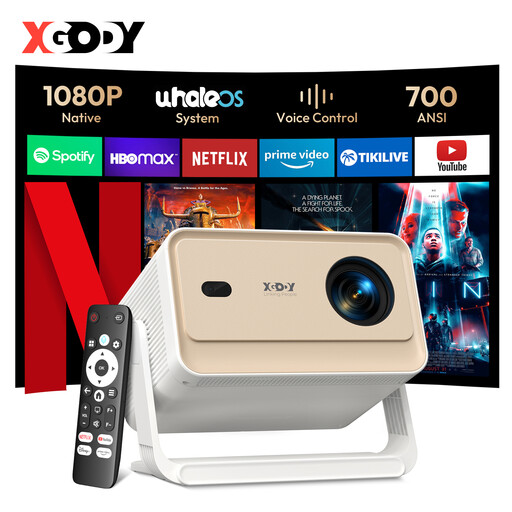
XGODY Gimbal N6 Pro (White + Gold)
The listed HDMI and USB connections make this model worth considering if you want to connect a presentation source by cable. Check which connections your own device has.
The product name lists native 1080p, 700 ANSI lumens, HDMI, USB, autofocus and automatic keystone correction. Check that the screen size suits your setup and assess the image in the room.
View at Joybuy
 No image available
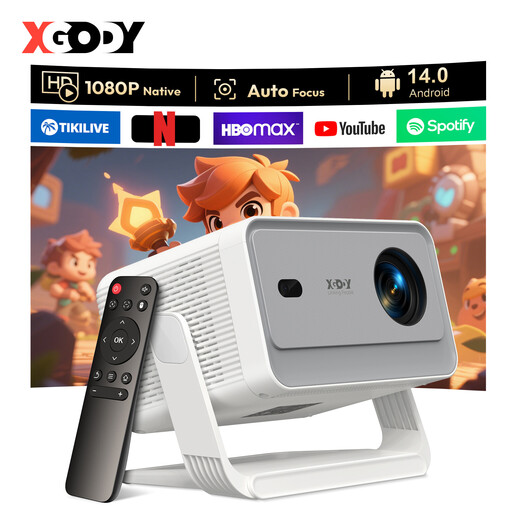
XGODY Gimbal A6 Pro (White + Grey)
This model may be worth considering if you want to use HDMI or USB. Check in advance which connection your presentation device needs.
The product name lists native 1080p, 650 ANSI lumens, Android 14.0, HDMI and USB. Check your intended image width and test your slides under the room lighting.
View at Joybuy
 No image available
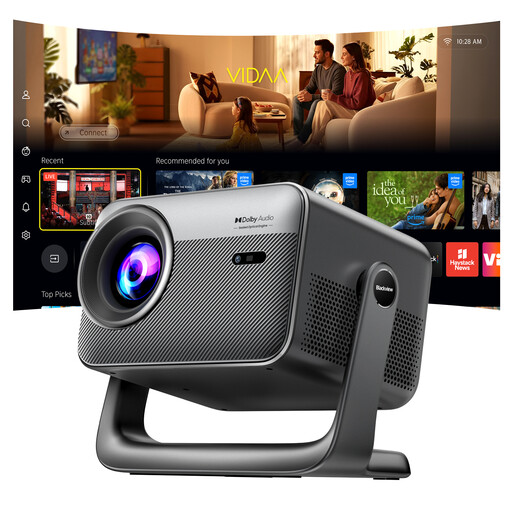
Blackview Smart Projector PV1000 Max Grey
The 360° rotating design mentioned may be worth considering if you want flexibility when positioning the image. Check that you can set up the projector properly in your space.
The product name lists native 1080p, 1.000 ANSI lumens and a 360° rotating design. The stated image size is 40–150 inches; check that your preferred size suits the available throw distance.
View at Joybuy
 No image available
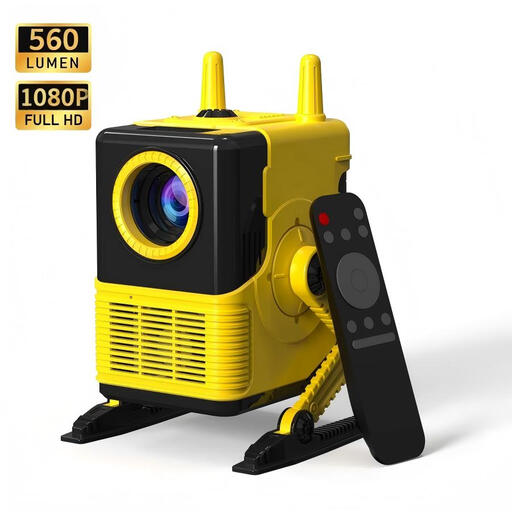
XBJ H8 Portable LCD Home Projector
The listed HDMI and USB connections make this model worth considering if you want to connect a presentation device by cable. Check your device’s output in advance.
The product name lists 1080p support, 560 lumens, HDMI and USB, as well as four-point keystone correction. Check your intended screen size and assess the text using your own slides.
View at Joybuy
 No image available
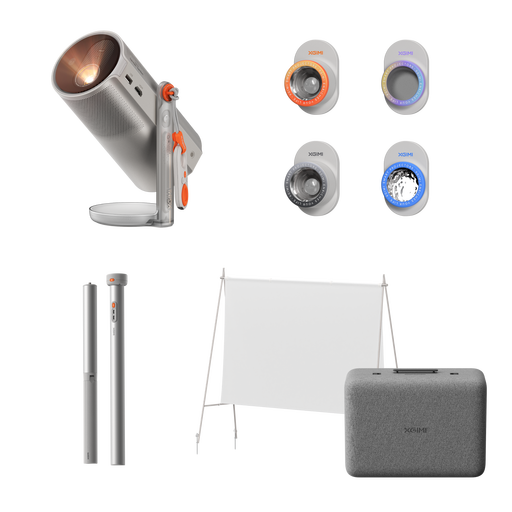
XGIMI MoGo 4 (Match Night EU Edition, EA SPORTS FC 26 Game Code)
The portable design with a battery may be worth considering if you present at different venues. Check in advance how long the event will last and what setup is possible.
The product name lists Full HD 1080p, 450 ISO lumens, Google TV and a battery life of 2,5 hours. Check whether the stated picture and battery specifications suit your space and how you plan to use it.
View at Joybuy
Frequently asked questions
How can you tell whether captions will be readable from the back row?
Measure the distance from the rearmost seat to the screen, then use Epson UK’s guideline for detail-focused viewing as a starting point: no more than four times the screen height. Then test the smallest captions in the room. The guideline can’t guarantee that every slide will be readable for every viewer.
Is the distance to the audience the same as the throw distance?
No. Viewing distance is measured from the audience to the screen; throw distance is measured from the projector lens to the screen. Measure them separately and check the model-specific throw ratio range for your intended image width.
How can you tell whether the image will remain visible with the room lights on?
Assess your own slides at the screen size and under the lighting you expect during the presentation. Compare the stated brightness with the specified operating mode, and bear in mind that a lumen rating alone can’t guarantee small text will be readable.
How do I connect a laptop, and what should I check first?
Compare your laptop’s video output with the inputs on the exact model, and test your presentation in advance. Epson lists two HDMI inputs on both the EB-FH52 and EB-2250U. The dongle for the wireless presentation feature mentioned for the BenQ LH650 is optional.
Does a projector sold in the Netherlands need a CE mark?
According to the Netherlands Food and Consumer Product Safety Authority, electrical products offered for sale on the Dutch market must carry a CE mark. Check the marking on the item you actually buy; a model listing alone doesn’t show that the specific item meets the applicable requirements.


