Start with the screen: its stated viewing angle helps determine whether people seated to the sides can see the image clearly. Keystone correction and lens shift help you align the projector, but they don’t change the screen’s viewing angle. Then choose a projector to suit the room lighting, available projection distance, and the connections and picture settings your reel requires.
Who is this set-up for?
Organiser with seats to the sides
You’re arranging the chairs in a wide or angled layout and want the animation reel to remain visible from every seat in use. So check the screen material and its viewing angle first; Elite Screens, for example, publishes viewing-angle specifications for individual materials.
Animator reviewing their work
You’re showing work where colour and fine detail matter. Compare the stated resolution and picture modes, and, if possible, preview your own file. Manufacturer specifications, such as the Rec.709 coverage BenQ states for the TH575i, aren’t an independent colour measurement.
Presenter in different venues
You’re setting up the projector and playback equipment in different locations. Optical zoom or automatic alignment can be useful, but always check that the projection distance and connections are suitable. Hisense lists these features for the M2 Pro.
What should you look for?
First, check that the screen suits the seating layout. Then choose a projector to suit the room, the picture you want and the set-up.
| Key consideration |
What should you check? |
Who is this important for? |
| Viewing from the sides |
Map out the seats furthest to the sides and check the viewing angle of the exact screen material. |
I want people seated to the sides to be able to see the reel too, so I start with the screen. Around 36% of consumers give side viewing their top priority. |
| Colour and detail |
Check the stated display resolution, picture mode and connection; view the final file on the model you’ve chosen. |
When I show animation, I want to assess how the colours and fine details look. Around 29% of consumers prioritise picture quality. |
| Visibility in a lit room |
Consider whether you can darken the room and only compare brightness figures when the units and measurement basis match. |
If I can’t dim the room much, I want to know whether the screen and projector will work with the ambient light. Around 21% of consumers make visibility in a lit room their top priority. |
| Setting up in different venues |
Measure the distance and image width, then check the throw ratio and connections for the exact model. |
If I show the reel in different locations, I want to be able to set up and connect the projector appropriately each time. Around 14% of consumers prioritise different room layouts and repeated set-ups. |
The screen figures listed are specific to each model: Elite Screens gives a 180° viewing angle for CineWhite material and a 90° viewing angle for CineGrey 3D. For CineGrey 3D, the manufacturer also states a minimum throw ratio of 1.5 times the image width. Check these figures for the material you’re actually considering and make sure they suit the seating and projection distance.
Common buying mistakes
-
Confusing side projection with a wide viewing angle
Projector correction and the screen’s viewing angle are two different things. An aligned image doesn’t guarantee good visibility from seats set far to the side or at an angle.
First check the seats furthest to the sides and the screen material. Then work out which projector position and correction features you need.
If the screen and seating don’t work well together, you may need a different screen or a revised seating layout.
-
Choosing an ALR screen just because the room is bright
A screen designed to handle ambient light may have a stated viewing angle that doesn’t suit seats to the sides. The required projection distance can also affect your choice of projector.
For the exact screen variant, check the viewing angle, the room conditions and the required projection distance.
If the screen isn’t suitable, you may still need a different screen or another set-up.
-
Treating lumen ratings and input signals as directly comparable
The product information reviewed uses different brightness labels, including ANSI, ISO and RGB laser lumens. A supported input signal on its own doesn’t tell you how the animation reel will look.
Only compare brightness figures measured on the same basis, and check the display resolution and picture mode for the exact model.
Relevant brands
Epson
The Dutch models mentioned include Full HD projection and projector alignment features.
- Epson lists HDMI and Full HD for the CO-FH02. For the EH-TW7000, the manufacturer specifies optical lens shift and zoom.
- Lens shift helps you position the projector, but doesn’t widen the screen’s viewing angle. Check the adjustment range for the exact model.
BenQ
The models mentioned range from the Full HD TH575i to the short-throw TK710STi.
- For the TH575i, BenQ lists 1920 × 1080, 3800 ANSI lumens and a throw ratio of 1.49–1.64, among other specifications.
- The stated vertical keystone correction on the TH575i isn’t horizontal lens shift. The short-throw model needs to suit the actual room distance.
Hisense
The Dutch M2 Pro is a portable model with stated optical zoom and automatic image correction.
- For the M2 Pro, Hisense lists optical zoom with a throw ratio of 1.0–1.3 and automatic keystone correction.
- ProjectorCentral notes in its review of this model that it has one HDMI input. Check whether that’s enough for your playback source and audio set-up.
XGIMI
The European Elfin Flip 4K is a compact model with stated optical zoom for flexible set-ups.
- XGIMI lists optical zoom with a ratio of 0.98–1.3:1.
- The stated 1600 ISO lumens can’t be treated as numerically equivalent to ANSI lumens without a common measurement basis. The viewing angle still depends on the screen material.
ViewSonic
The LX700-4KE RGB mentioned is designed for a fixed laser set-up, with optical zoom and vertical lens shift.
- ViewSonic lists 1.6× optical zoom, vertical lens shift, and horizontal and vertical keystone correction.
- Horizontal keystone correction isn’t the same as horizontal optical lens shift. The stated RGB laser lumens aren’t directly comparable with an ANSI figure.
Projectors on Joybuy
These projectors are worth considering for playing an animation reel and matching the projector to the available set-up. None of a projector’s correction features replace checking the screen’s viewing angle.
 No image available
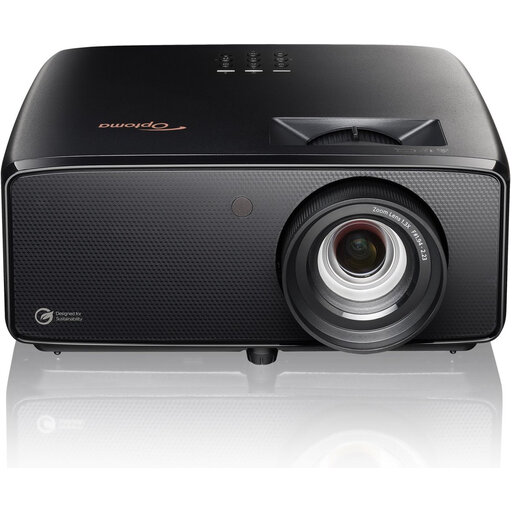
Optoma UZ38X 4K UHD dual-laser projector
An option to compare if you want to play a reel with plenty of image detail and need to match the projection to the available distance.
The product description lists native 4K UHD, two HDMI 2.0 inputs, 1.3× manual zoom, and horizontal and vertical keystone correction. The viewing angle depends on the screen material used.
View on Joybuy
 No image available
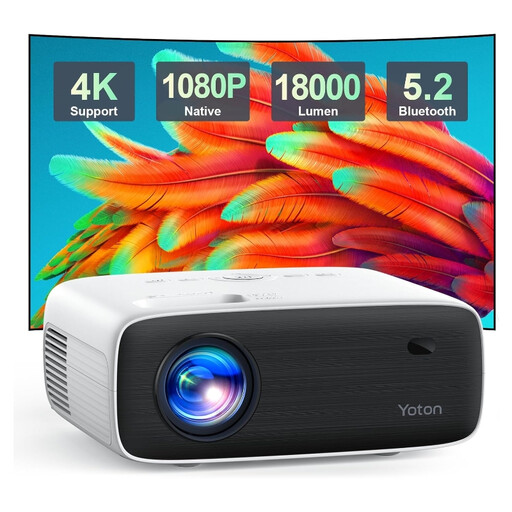
Yoton Y6 5.2 Bluetooth projector, native 1080p
Worth a look if native 1080p and connections for your playback source suit your presentation.
The product description lists native 1920 × 1080 and HDMI, USB and AV connections. Check which connection your player needs and how you want to play the audio before you buy.
View on Joybuy
 No image available
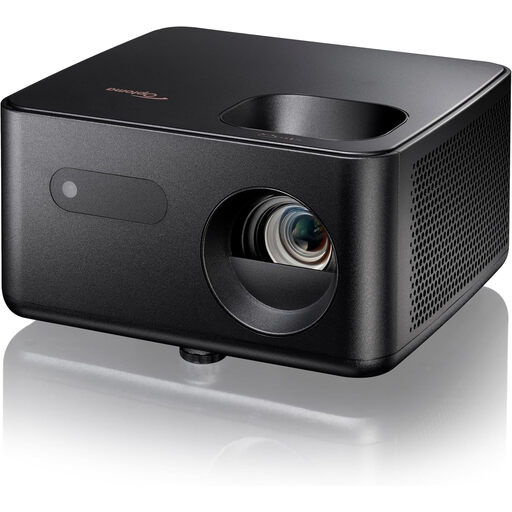
Optoma Photon Life PH31
A Full HD option to compare if you want to connect an HDMI source and have a fixed projection distance in mind.
The product description lists Full HD 1920 × 1080, one HDMI input, a throw ratio of 1.5:1–1.65:1, 1.1× manual zoom and vertical automatic keystone correction. This correction doesn’t change the screen’s viewing angle.
View on Joybuy
 No image available
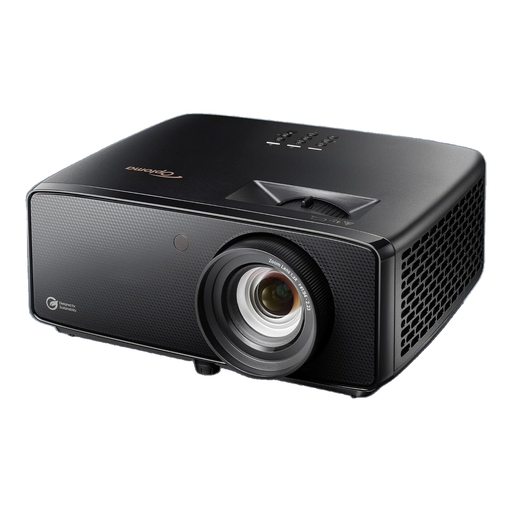
Optoma Photon Beam PK52
Worth comparing if 4K UHD and multiple HDMI inputs suit your playback set-up.
The product description lists 4K UHD 3840 × 2160, two HDMI 2.0 inputs, 1.3× manual zoom, and horizontal and vertical keystone correction. The correction doesn’t widen the screen’s viewing angle.
View on Joybuy
 No image available
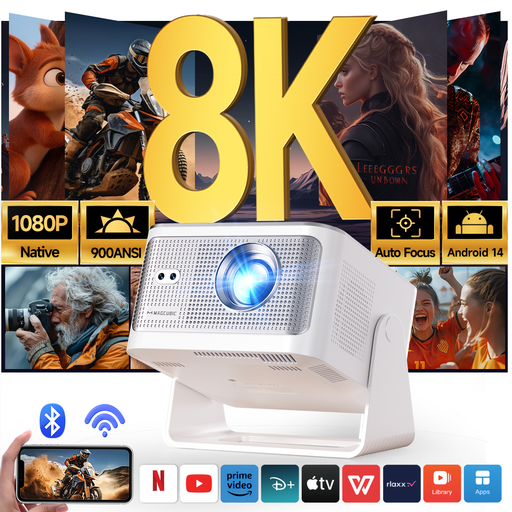
Magcubic HY350Max projector, native 1080p
A portable model to compare if automatic picture adjustment would be useful for different set-ups.
The product description lists native 1080p, HDMI, 900 ANSI lumens, automatic focus and keystone correction, and a throw ratio of 1:1. Check the projection distance and connections you’ll need for your presentation.
View on Joybuy
Frequently asked questions
Can keystone correction fix the view from angled seats?
No. Keystone correction adjusts the shape of the image when the projector is at an angle to the screen. For viewers seated to the sides, you need to check the screen’s viewing angle separately.
What should I test before playing the animation reel?
Check that your laptop or player’s output matches an input on the projector, then play the final video file. Test the picture and sound from the audience’s seats; connections vary by model.
How do I choose a projector if it needs to sit beside the screen?
Measure the available distance and side position, then check the specifications for the exact model to see whether it has horizontal optical lens shift. Horizontal keystone correction may offer another way to adjust the image digitally, but it isn’t the same as optical lens shift.
What cooling-off period and product protection apply to an online purchase in the Netherlands?
For an online consumer purchase, there is generally a statutory 14-day cooling-off period after delivery, subject to legal exceptions; ACM ConsuWijzer explains this right. A product must also meet the standard you can reasonably expect. According to the Dutch government, there is no fixed general statutory warranty period, and the seller is your point of contact if something is wrong.
Can I show an animation reel with music at a student event?
Not automatically: outside a strictly domestic setting, you may need permission to use protected images and music. Auteursrecht.nl states that members of a student association aren’t considered to be within a domestic setting. Educational use may be covered by exceptions under certain conditions; check who holds the rights to the animation and soundtrack and whether the screening falls within those exceptions.


