
Detail checker
You want to inspect small annotations clearly before marking a discrepancy. Weigh the overview you get on screen against the space the tablet takes up with its stand.


Start with the app and files you need to use for project drawings, then choose a screen size that fits your desk. A tablet of around 11 inches takes up less space, while models measuring approximately 12.7 to 13.1 inches offer more screen area. Choose a Windows tablet only if your workflow requires it, and check compatibility with your specific software and accessories.
You want to inspect small annotations clearly before marking a discrepancy. Weigh the overview you get on screen against the space the tablet takes up with its stand.
You want to place the drawing next to other work materials or pick up the tablet easily. So compare the external dimensions of the device and its set-up, not just the screen size.
You may need to return comments through an existing PDF, DWG or project workflow. Check that the app you need, file permissions and any offline working arrangements suit your project.
Best for: limited desk space and a workflow that runs on iPadOS or Android.
Trade-off: you may need to zoom in or switch views more often to inspect small drawing details. Also check the stylus and the exact app.
Best for: drawings where seeing the details clearly matters more than having a compact set-up.
Trade-off: measure your work surface to check that the tablet fits with its case or stand.
Best for: a workflow that requires specific Windows software, once you have checked the exact application.
Trade-off: the 12-inch Surface Pro for Business reviewed here uses Arm, so check plug-ins, dependencies and drivers too.
When reviewing project drawings at a small desk, your first buying priority is usually visibility, the space you need, your file workflow or pen annotation. The percentages below give a broad indication of how these different needs are spread.
| Consideration | What to look for | Who should prioritise this? |
|---|---|---|
| Detail and visibility | Compare screen size and external dimensions; open a representative drawing at the size you are considering. | If you want to check small annotations without constantly switching views, visibility should be your first priority. Around 36% of consumers prioritise checking details. |
| Desk space | Measure the available space and allow for both the tablet and its stand or case at your preferred viewing angle. | If you want to use the tablet alongside other work materials, a compact set-up is important. Around 29% of consumers say desk space is their first priority. |
| Files and project app | Check the file format, required app, project access and offline use; test a representative file. | If comments need to be shared back through your existing project workflow, start with the app and how files are shared. Around 21% of consumers prioritise this workflow. |
| Pen annotations | Check stylus compatibility for the exact model, what comes in the box and whether the app can save and share comments. | If you mainly want to record corrections by hand, check both the stylus and the app's capabilities. Around 14% of consumers put pen annotation first. |
The tablet also takes up space because of its external dimensions, and a stand or case can make the set-up larger still. Apple lists dimensions of 247,6 × 178,5 mm for the 11-inch iPad Air and 280,6 × 214,9 mm for the 13-inch version, without accessories.
Measure the available space on your desk and try out your preferred viewing angle with a drawing and the stand you plan to use.
You may need a different stand, case or desk layout to suit your chosen set-up.
Stylus compatibility, what comes in the box and the features of the annotation app are separate considerations. Support for a particular stylus model does not automatically mean it is included.
Check stylus compatibility for the full tablet model and the contents of the exact product version.
A compatible stylus may be a separate purchase, so check before putting together the set you need.
Microsoft says that many x86 and x64 apps are supported through emulation, but also flags potential issues with dependencies, plug-ins and drivers.
Before buying, check the exact application version, project files and peripherals you need.
Checking compatibility may take extra time before you can use the tablet in your workflow.
ACM ConsuWijzer explains that consumer protection partly depends on the main purpose of the contract. A purchase made primarily for business purposes may be treated differently from a consumer purchase.
Before ordering, check whether you are buying as a private individual or mainly for business, and which terms apply to your purchase.
According to Apple, the iPad Air is available in 11- and 13-inch versions for an iPadOS workflow.
According to Samsung, the Galaxy Tab S10 FE series offers a 10,9-inch FE and a 13,1-inch FE+ for an Android workflow.
Lenovo lists the Idea Tab Pro with a 12,7-inch screen.
The 12-inch Surface Pro for Business is a Windows option if an existing project workflow requires Windows.
This range includes compact models of around 11 inches and larger versions for those who want more screen space when reviewing project drawings.
 No image available
A compact screen size to consider if you want to keep desk space free for other work materials.
11-inch screen with a resolution of 2360 × 1640 pixels; external dimensions are 247,6 × 178,5 mm. Apple Pencil is sold separately.
 No image available
An 11-inch option to consider if you are looking for a compact tablet with a stylus for annotations.
IPS screen with 2560 × 1600 pixels, 90 Hz and 500 cd/m²; the product description says a Lenovo Tab Pen is included. The charger must be purchased separately.
 No image available
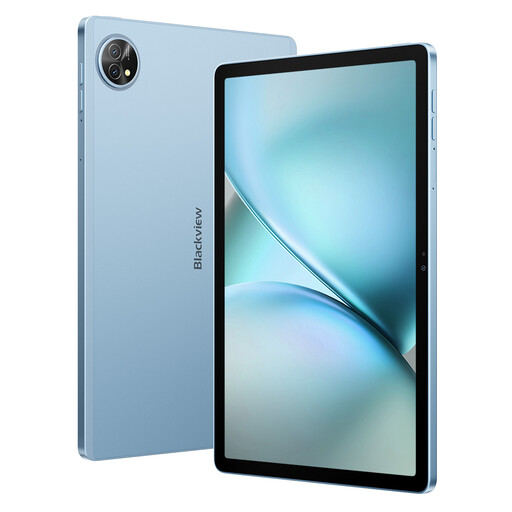
The 11-inch screen size suits a compact set-up, and the product title says a stylus is included in the bundle.
The product title describes a 2K screen. Check that the stylus and your project app's features suit the way you want to record comments.
No image available
A larger screen to consider if seeing drawing details clearly matters more than having a compact desk set-up.
13-inch screen with a resolution of 2732 × 2048 pixels; external dimensions are 280,6 × 214,9 mm. It takes up more desk space than the 11-inch version. Apple Pencil is sold separately.
 No image available
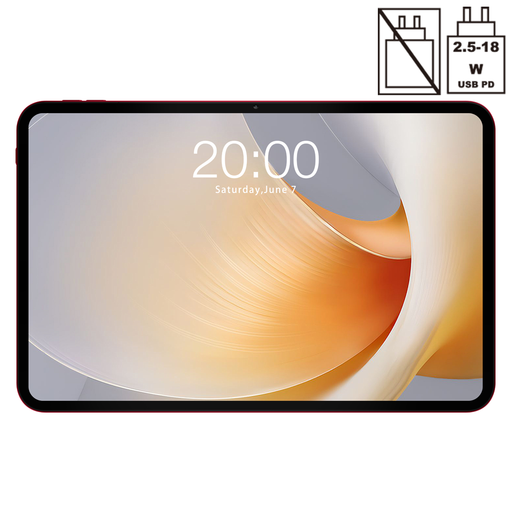
A larger Android screen to consider if you want more room for the drawing and it fits on your desk.
The product information lists a 13,4-inch screen with 120 Hz and Android 15. Allow for its larger size when planning your set-up.
Choose a tablet that runs the app you actually use for your project. Autodesk describes mobile access to DWG files; also test whether comments are returned to your project team in the required format.
That depends on the app and your access to the project files. Bluebeam says you can mark Studio Project files for offline use while online; check in advance which files and permissions your project makes available.
No. Bluebeam said that Revu for iPad would no longer be available to buy or download from the App Store after 31 December 2025. For a new workflow, consider Bluebeam's current mobile solution and check that its features suit your project.
This varies by product version. Check the exact package and distinguish between stylus support and a stylus actually being included; also check whether the project app can save and share comments.
For an applicable online consumer purchase, you generally have a 14-day cooling-off period from delivery, and the seller is responsible for the statutory guarantee. ACM ConsuWijzer notes that a purchase made mainly for business purposes may be treated differently, so check in what capacity you are buying.
If an organisation processes personal data, the Dutch Data Protection Authority requires appropriate security. Which measures are appropriate depends on the circumstances; this does not mean that one specific tablet model is required.