What should you look for?
First set the magnification you actually want to use, then assess how much workspace remains for your code, documentation and calculator. Arboportaal highlights height adjustment and avoiding reflections as points to consider when working at a screen.
| What to consider |
What should you check? |
Who is this important for? |
| Readable enlarged text |
Set your preferred text size and view real code, error messages and the calculator at that scale. Also look out for reflections. |
If I want to read code and error messages comfortably at my chosen magnification, I start with the text settings. Around 36% of consumers put readability at their chosen magnification first. |
| Space for multiple windows |
Try your IDE, documentation and browser at your preferred text size, then compare the layout with the space on your desk. |
If I want to view code, documentation and the calculator at the same time, I check how much of it fits side by side while remaining readable. Around 29% of consumers prioritise this window layout. |
| Adjustability and reflections |
Check the height adjustment, tilt, screen dimensions and, if you’re using a monitor arm, whether its mount will fit your desk. |
If I want to position the screen comfortably and reduce distracting reflections, I consider the setup and lighting. Around 21% of consumers make their workspace setup their main selection criterion. |
| Connecting a laptop |
Check that the laptop supports video through the connection you’ve chosen and that there’s enough power if you also want to charge it. |
If I want to connect my laptop to the monitor and possibly charge it, I check both functions separately. Around 14% of consumers prioritise the laptop connection. |
Monitors at Joybuy
These Joybuy product picks suit programming with enlarged text, with options for both a 27-inch workspace and a larger screen, as well as different desk and laptop setups.
 Image unavailable
Dell UltraSharp U3226Q 32-inch 4K UHD 120Hz QD-OLED monitor
A 32-inch screen may suit you if you want to view enlarged code on a larger physical display.
The product name lists 4K UHD, 120 Hz and QD-OLED. The description mentions a stand with height, tilt, swivel and pivot adjustment.
Joybuy
 Image unavailable
Philips 27E1N1800AE/00 27-inch 4K UHD IPS monitor
This 27-inch model is worth comparing if you’d prefer a smaller screen diagonal with a 4K display for enlarged text.
The product name lists 3840 × 2160, 60 Hz and 4 ms. The description mentions an anti-glare screen, EasyRead and a height-adjustable stand.
Joybuy
 Image unavailable
Dell Plus S2725QC 27-inch 4K monitor
A 27-inch 4K screen lets you assess how your preferred text size and window layout work on that screen diagonal.
The product name lists 3840 × 2160. The description mentions a matt screen, height and tilt adjustment, and USB-C.
Joybuy
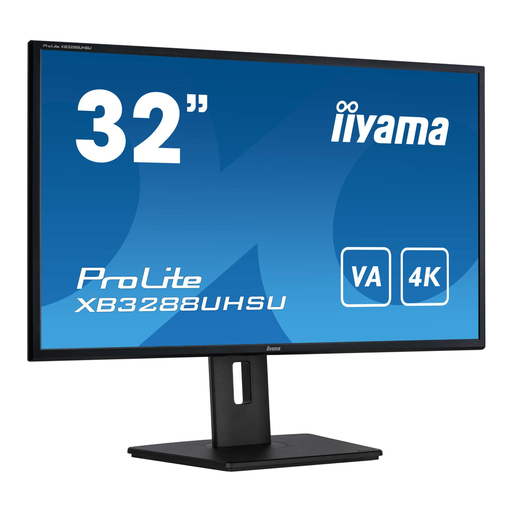 Image unavailable
iiyama ProLite 32-inch 4K VA monitor
A 32-inch 4K model may suit you if you want more physical screen space for code and the calculator preview.
The product name lists a VA panel and 4K resolution. The description mentions a height-adjustable stand and pivot function.
Joybuy
 Image unavailable
BenQ PD3205U 31.5-inch 4K monitor
This 31.5-inch screen is an option if you’d like to view enlarged code on a more spacious display.
The description lists 3840 × 2160 pixels, height and tilt adjustment, USB-C with 90 W Power Delivery, and a KVM switch. Check that the charging power and connections suit your laptop.
Joybuy
Frequently asked questions
Do you need to buy a new monitor straight away to get larger text?
No, not straight away. First try adjusting the text size and scaling in Windows, or use your editor’s zoom settings. Consider a different screen only if readability or the workspace left over with your settings isn’t good enough.
How should you set up your screen for long coding sessions?
Enlarge the text to suit you, position the screen at a suitable height and reduce reflections by adjusting the screen position and lighting. Arboportaal advises taking breaks from screen work; a monitor doesn’t replace this approach.
Will a USB-C monitor always connect to your laptop with a single cable?
No, it depends on your laptop’s connections and power requirements. Check that its USB-C port supports video and provides enough power if you also want to charge it. LG specifies up to 60 W Power Delivery for the 32UN880P-B.
What are your rights when buying a monitor online?
When you buy from a business online, you’ll often have a 14-day cooling-off period. You’re also entitled to a product that works as it should; according to the Dutch government, Dutch statutory warranty has no fixed duration. Before ordering, check who the seller is and what information they provide about returns.
What can you do with your old monitor in the Netherlands?
According to the Dutch government, you can return an old electrical appliance to the shop or online service where you buy a new, similar appliance, or take it to your local council’s recycling centre.


