If you mainly print black text and only do so occasionally, a multifunction black-and-white laser printer is a sensible option to compare. If you need colour, consider inkjets with cartridges or ink tanks, as well as colour laser or LED printers. For each option, check that it supports the paper and size you want to use, and factor in consumables and maintenance.
Who is this guide for?
Text label maker
You mainly create easy-to-read text and want to decide whether you really need colour. The print technology and a test print on your chosen paper matter more than a quoted dpi figure alone. The Consumers’ Association discusses text printing and paper choice.
Colour label maker
You also use coloured headings, logos or images, and want to weigh up colour reproduction, paper and ongoing costs together. The Consumers’ Association and the product specifications from Canon and Epson offer useful pointers for comparing these choices by model.
Maker using specialist paper or printing in volume
You have a particular paper type, size or recurring print run in mind. Suitability depends on the media supported by the model and how often you print. The Consumers’ Association and Canon outline points to consider for print quality and paper feeding.
What should you consider when choosing?
Black-and-white laser
A good fit if: your labels consist mainly of black text and you print occasionally.
Bear in mind: coloured logos and images won’t print in colour.
Colour inkjet with cartridges
A good fit if: you need colour or images and are factoring cartridge use into your decision.
Bear in mind: if you don’t print often, cleaning cycles can use extra ink. Check paper support too.
Colour inkjet with ink tanks
A good fit if: you regularly print colour labels and are considering costs over the printer’s lifetime.
Bear in mind: an ink tank printer is still an inkjet and may need maintenance. A quoted page yield won’t predict how many labels you’ll print yourself.
Colour laser or LED
A good fit if: you need coloured text and graphic elements and want to avoid ink drying out.
Bear in mind: compare the size and cost of the printer, along with the cost of replacement toner. Check the paper specifications for each model.
Compare multifunction models that can print, scan and copy. Then choose based on whether you need text or colour, the paper you plan to use and how often you print.
| What to consider |
What should you check? |
Who should factor this in? |
| Readable text |
Check how text looks on the paper you plan to use and at the size you’ll be printing. Don’t rely on a dpi figure alone. |
If I need small text on labels, I want to know first whether it will be easy to read on my paper. Around 33% of consumers prioritise text readability. |
| Colour reproduction |
Decide whether colour is essential and check the print result on your chosen paper. |
If my labels include coloured headings, logos or images, the colour needs to come through on paper. Around 27% of consumers say colour is their top priority. |
| Paper and size |
Check the exact model’s supported paper types, sizes and weights, as well as its paper feed. |
If I have a particular matte or heavier paper in mind, I want to make sure the model I choose and the right tray can handle it. Around 20% of consumers prioritise paper compatibility. |
| Running costs |
Weigh up consumables and maintenance against how often and how much you print. |
If I print labels regularly, I want to factor in the cost of ink, toner and maintenance over time. Around 20% of consumers focus mainly on running costs. |
Avoid common buying mistakes
-
Choosing an inkjet without considering how often you print
If you don’t print often, inkjet printers may use extra ink for cleaning. The purchase price alone doesn’t tell the whole story when it comes to running costs.
Work out how often you actually print labels, then compare the relevant consumables and maintenance for the models you’re considering.
-
Assuming A4 support means your card stock is supported too
A stated paper size doesn’t confirm that a printer can handle every heavy or specialist sheet. Supported media and feed paths vary by model.
Check the paper type, weight and feed path for the exact model. If possible, print a test page on your chosen paper.
-
Assuming all colour printers are equally good for text and photos
The Consumers’ Association discusses printing text and images on different types of paper. A printer suited to photos on glossy paper won’t necessarily be the right choice for small text.
Decide whether your labels will mainly contain text or photographic images too, then check the result on the paper you plan to use.
Brands to compare
Brother
Brother offers multifunction A4 models with black-and-white laser and colour LED printing.
- The DCP-L2627DWE supports printing, scanning and double-sided black-and-white printing; the DCP-L3560CDW adds colour. These are Brother’s model specifications.
- The black-and-white model doesn’t print in colour. For both models, check that the paper, printer dimensions and toner meet your needs.
Epson
Epson’s EcoTank ET-2950 is a multifunction A4 colour inkjet with refillable ink tanks.
- Epson lists printing, scanning and double-sided printing. The manufacturer publishes page yield and savings claims based on its own terms.
- An ink tank printer is still an inkjet and may need maintenance. A quoted page yield doesn’t guarantee how many labels you’ll print with your own colour coverage.
Canon
Canon offers models including the cartridge-based PIXMA TR4755i and the refillable-tank MAXIFY GX4050.
- Canon lists two cartridges for the TR4755i, and a range of supported media for the GX4050, including matte photo paper.
- Canon says the GX4050 has a user-replaceable maintenance cartridge. Support for a particular medium doesn’t mean that any thick label card stock will be suitable, so check the feed path for the exact model.
HP
The OfficeJet Pro 8132 is a multifunction colour inkjet for home use.
- HP lists printing, scanning and copying for this model.
- HP’s Dutch product page lists the OfficeJet Pro 8132 as unavailable. HP also lists dynamic cartridge protection, which can block certain cartridges without an HP chip. This doesn’t apply to the entire OfficeJet Pro range.
Joybuy printers for labels
This selection features multifunction colour inkjet printers with cartridges or ink tanks, including one model listed as supporting matte and thick paper. For each model, check that it supports the exact paper and size you need for your labels.
 No image available
HP Smart Tank 7305 Wireless All-in-One
An ink tank model for printing colour labels, with scanning and copying too.
Ink tanks; automatic double-sided printing; 35-sheet document feeder.
View at Joybuy
 No image available
Canon PIXMA MG2556S
A cartridge-based inkjet for when you need colour and want a multifunction model for printing, scanning and copying.
A4; two cartridges; quoted resolution of 4800 × 600 dpi.
View at Joybuy
 No image available
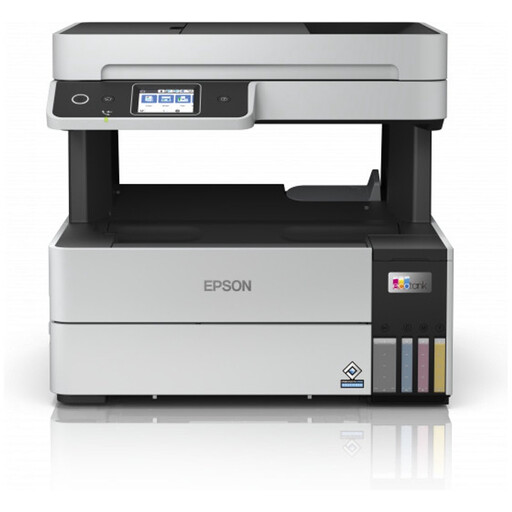
Epson EcoTank ET-5185
An ink tank model for regular colour printing, with scanning and copying too.
A4; automatic double-sided printing; Wi-Fi Direct; 250-sheet paper capacity; quoted resolution of 4800 × 1200 dpi.
View at Joybuy
 No image available
HP Smart Tank 7005 Wireless All-in-One
An ink tank model for when you need colour and want to factor paper support into your choice of label printer.
The specifications list matte and thick paper weighing 60–250 g/m², and one 250-sheet paper tray. Prints, scans and copies in colour.
View at Joybuy
Frequently asked questions
For labels on matte paper, should I focus mainly on print resolution?
No. Focus on how easy the text is to read on your chosen paper and at the size you plan to print. The Consumers’ Association discusses printing text and images on different types of paper; a quoted resolution alone won’t predict your results.
What can I do if my inkjet prints blurry text after a period of not being used?
Follow the maintenance instructions for your exact model. For the EcoTank and Expression printers mentioned, Epson recommends running a nozzle check first and cleaning the print head if necessary. Check the ink level too. This manufacturer advice doesn’t automatically apply to every printer.
Does my statutory guarantee end when the manufacturer’s warranty expires?
No. For a consumer purchase in the Netherlands, statutory rights apply alongside any retailer or manufacturer’s warranty. ACM ConsuWijzer says you can contact the retailer if the product breaks during normal use sooner than you could reasonably expect.
Where can I take an old personal printer in the Netherlands?
When you buy a similar new appliance, the retailer must take back an old household appliance from a private individual free of charge, including for an online purchase. The Dutch government outlines other options if you can’t hand it in directly. This scheme doesn’t apply to business equipment. You can also take it to a local council collection point, although arrangements vary by council.


