First, choose the size and type of paper for your cards, then check that the printer and its paper feed can handle them. If you print in colour regularly, a colour ink tank printer is worth comparing. For text-only cards, a mono laser printer could be a good fit, even if you only print after long breaks. In a shared studio, you’ll also need to consider the network connection and the cost of consumables.
Who should consider this printer choice?
Maker of sturdy flashcards
You want to print on individual cards or card sheets, so the main thing is to check that the size, paper type and feed are compatible. Avery Nederland recommends checking whether the specific card product is suitable for your printer.
User of colour codes
You regularly make cards with colour or images and want to compare colour printing with the cost of ink. The Consumentenbond identifies colour versus black and white as a choice to consider when buying a printer.
User of a shared studio printer
You print with other people, perhaps irregularly, and need a suitable network connection and clear arrangements for managing consumables. The Consumentenbond lists wireless printing as a feature worth considering.
What should you look for in a printer for flashcards?
First decide which card paper and size you want to use. Then choose between colour and black and white, taking your printing frequency and shared access into account.
The percentages below show the first purchasing priority of consumers choosing a printer for flashcards in a shared studio.
| What to consider |
What to look for when buying |
Which consumers does this matter to? |
| Card paper and size |
Compare card size, paper type and weight for each feed; check separately whether the card sheets can be printed on both sides. |
If I want to print sturdy cards, the size, material and feed need to work together. Around 28% of consumers put card paper and size first when buying. |
| Colour on the cards |
Decide whether you need colour codes or images; black and white is only an option if you don’t need colour. |
If colour codes help me organise my study materials, I’ll look at a colour printer. Around 22% of consumers put colour first. |
| Running costs |
Compare the compatible ink or cartridges, toner and any separate drum with the number of cards you expect to print. |
If I print regularly, I want to know which consumables my chosen printer needs. Around 22% of consumers put running costs first. |
| Access in the studio |
Check that the supported connections work with the studio network, and agree who will manage the paper and refills. |
If several people use the printer, I want it to be accessible from the devices available. Around 17% of consumers put shared access first. |
| Printing after a break |
Consider how often the studio prints and whether colour is essential; the Consumentenbond points out that ink in an inkjet print head can dry out when the printer is used infrequently. |
If I only print occasionally, I’ll consider how the printer suits my needs after a longer break and whether I need colour. Around 11% of consumers prioritise printing after a break. |
Common pitfalls when printing on card paper
-
Treating the weight limit for special paper as a general limit for card stock
Paper limits can vary between printers and materials. For example, Canon lists 64–105 g/m² for plain paper and around 275 g/m² for one specific Canon photo paper for the PIXMA G3520. These figures are not a general limit for other models or card stock.
Check the paper limits for the exact printer model and the card material you’ve chosen separately. Don’t assume that the maximum weight for special paper also applies to any card stock.
-
Assuming automatic double-sided printing means every card sheet is suitable
A printer’s duplex function and whether a card product can be printed on both sides are two different things.
Before creating a double-sided layout, check both the paper feed supported by the printer model and the instructions for your card sheets.
-
Comparing only the purchase price
Running costs also include the compatible ink or toner. Brother lists a separate toner cartridge and drum for the HL-L2445DW.
Compare the consumables with how often you expect to print. Don’t treat stated page yields as guaranteed yields for card designs.
Brands and models to compare
Canon
The PIXMA G3590 is a colour printer worth considering if colour and a specified card size are important to you.
- Canon lists Wi-Fi, a rear tray, a card size of 55 × 91 mm and automatic double-sided printing.
- These specifications don’t confirm that every type of loose card stock or double-sided card feed is suitable.
Brother
The HL-L2445DW is a mono laser printer to consider for text-only cards and shared printing.
- Brother lists Wi-Fi, Ethernet, automatic double-sided printing, and a separate toner and drum.
- This model doesn’t print in colour; check separately that your card paper is suitable.
Epson
The EcoTank ET-2950 is a colour ink tank printer to compare if you print regularly.
- Epson lists Wi-Fi, double-sided printing, scanning and copying.
- Check separately that your chosen card paper and feed are suitable for the model.
HP
The Smart Tank 7005 is a colour printer with scanning and copying functions to compare with other models.
- HP lists wireless printing and automatic double-sided printing.
- Check that the card paper is suitable for your specific material and printer feed.
Printer options at Joybuy
This selection includes printers for colour and text, suited to shared or mobile study environments. For each model, check that it supports your specific card material, size and chosen feed.
 No image available
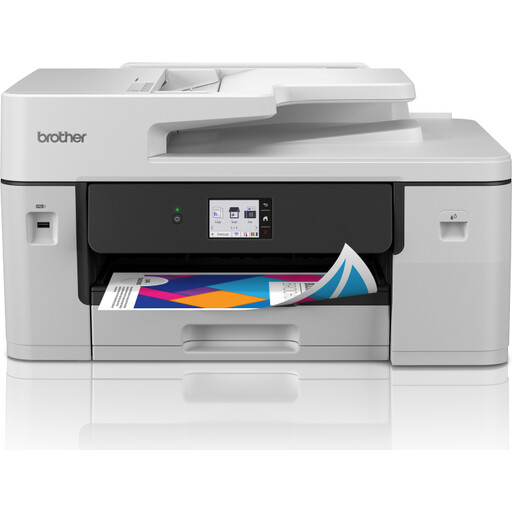
Brother MFC-J6760DW A3 inkjet printer, 31 ppm, Wi-Fi
An option to consider for colour printing and shared studio use. Check that the specific card paper and chosen feed are suitable.
View at Joybuy
 No image available
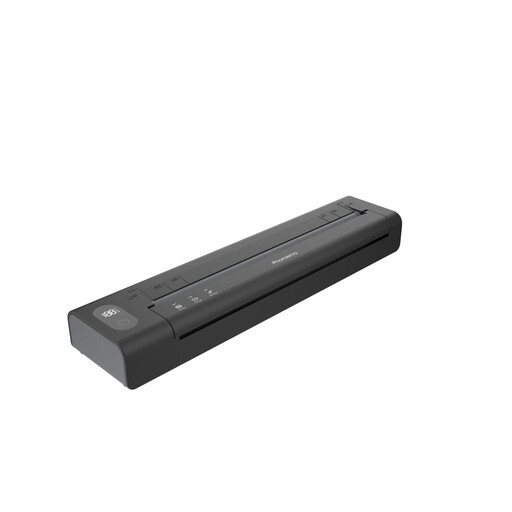
Phomemo A282U portable wireless printer, black (1 piece)
A portable option to consider for printing on the go while studying. Before buying, check that the card material and size you want to use are suitable for this printer.
View at Joybuy
 No image available
HP Smart Tank 7305 wireless all-in-one colour printer
A colour option to consider for shared printing. The product name lists automatic double-sided printing; check separately that your card paper is suitable for this.
View at Joybuy
 No image available
Canon PIXMA MG2556S A4 inkjet printer, 4800 × 600 DPI
An A4 inkjet option to consider for colour card printing. Check that your card sheets and feed are suitable for this specific model.
View at Joybuy
 No image available
Epson WorkForce Pro WF-C5390DW A4 colour inkjet printer, Wi-Fi
An A4 colour option to compare for a shared workspace. Check that this model supports your card material and chosen feed.
View at Joybuy
Frequently asked questions
Can I automatically print on both sides of individual cards?
You can’t tell from the duplex specification alone. Check whether the size and paper type are supported for double-sided feeding by the exact printer model. Avery Nederland states for each card product whether the sheets can be printed on both sides.
How can I avoid poor print quality on card sheets?
Choose card sheets that are suitable for your type of printer and set the paper type according to the product instructions. Avery Nederland recommends checking the compatibility of the specific card product; sheets for inkjet printers aren’t automatically suitable for laser printers.
Is an ink tank printer suitable if I don’t print often?
That depends in part on how often you use the printer and whether you need colour. The Consumentenbond warns that ink in an inkjet print head can dry out when the printer is used infrequently. So if colour isn’t essential, compare a colour option with a mono laser printer.
Which consumables should I compare?
Compare the compatible ink or cartridges and, for models that use them, toner and a separate drum. Brother lists a separate toner cartridge and drum for the HL-L2445DW; include any parts that apply to the model you’re considering.
Can everyone in the studio use the printer over Wi-Fi?
Only if the printer’s connection is compatible with the available network and users’ devices. Check which network connections the exact model supports and whether they work with the studio’s setup.


