
Text schedule creator
You mainly print text and have little need for colour or a scanner. A black-and-white printer is a sensible starting point, especially if it might go unused for extended periods.


If you mainly print text and only print occasionally, start by comparing black-and-white printers based on the paper size you need, the available connections and the cost of all replacement parts. Choose colour if you need colour-coded information on paper. Compare multifunction models if the studio also needs to scan or copy printed schedules, and weigh up inkjet against your actual usage.
You mainly print text and have little need for colour or a scanner. A black-and-white printer is a sensible starting point, especially if it might go unused for extended periods.
Several people need to be able to print schedules. The available network connection and paper tray are important features to compare across models.
Colour helps you distinguish different parts of your schedule, or you may want to scan and copy marked-up paper versions. So it’s worth comparing colour printers and multifunction models too.
A good fit if: your schedules are mainly text, colour doesn’t convey information and the printer may sometimes go unused.
Bear in mind: you won’t be able to print colour codes; also check whether you need scanning or copying.
A good fit if: colour codes need to remain clear on printed schedules and several people send print jobs.
Bear in mind: compare the compatible colour toner and replacement parts; some models only print and don’t scan or copy.
A good fit if: the studio regularly prints colour schedules and also needs to scan or copy paper updates.
Bear in mind: weigh the cost of refills against your expected print volume; an inkjet printer may use ink for cleaning if it’s used infrequently.
| What to consider | What to look for when buying | Who is this important for? |
|---|---|---|
| Clear, readable text | Check black-and-white print quality and the paper size you need. Decide whether you need scanning or copying. | If I mainly print text schedules and don’t need colour, I don’t want to choose features I won’t use. Around 33% of consumers prioritise clear, readable text schedules. |
| Access for multiple users | List the devices you use and check whether Wi-Fi, Ethernet or USB suits the studio for each model. | If several people need to print from different devices, I want the connection to suit the network at our workplace. Around 25% of consumers give shared access top priority. |
| Regular print runs | Estimate the number of pages and compare compatible toner or ink, any drums or maintenance parts, and the paper tray. | If we print new schedules regularly, I want to factor in consumables and refilling the paper. Around 17% of consumers prioritise repeat printing. |
| Colour and paper updates | Check whether a schedule remains clear in greyscale. Then consider whether you need colour, scanning and copying. | If colour codes convey information or we need to process paper updates, I want to be able to compare those features. Around 25% of consumers prioritise colour or paper updates. |
For regular schedule updates, compatible toner or ink and model-specific parts also add to the cost.
Compare your expected print volume with the consumables for the exact model. Don’t treat stated page yields as a guarantee of what you’ll get from your own usage.
If all the information remains clear in greyscale, a colour printer may add features and consumables the studio doesn’t need.
Print a sample schedule in greyscale, then compare black-and-white and colour models.
A stated yield doesn’t automatically predict ink usage for a studio’s irregular printing habits.
Weigh up refill costs against how often you expect to print. Consumentenbond points out that automatic cleaning can use ink when a printer is used infrequently.
If you print infrequently, bear in mind that cleaning may use ink.
Compare different Brother models for black-and-white or colour printing, network connectivity and paper capacity.
The EcoTank ET-3950 is an A4 multifunction colour printer worth comparing if the studio also needs to scan or copy.
The MAXIFY GX4050 is a multifunction model with refillable colour tanks for schedules that need colour, scanning or copying.
The Color LaserJet Pro 3202dw is a colour laser printer worth comparing if you need colour but not a scanner.
Joybuy printer options for printing schedules in a shared studio.
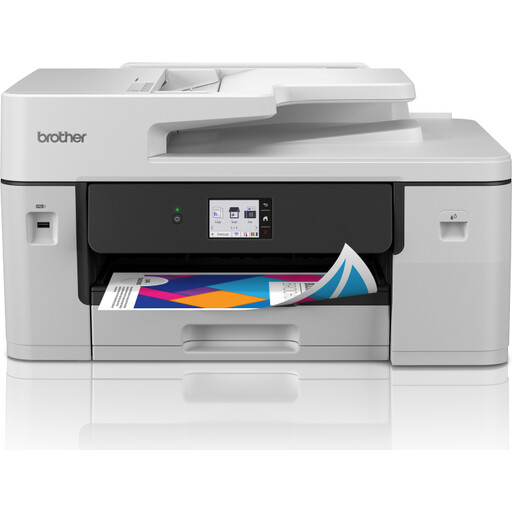 No image available
An option to compare if the studio prints colour schedules and needs to process paper updates.
Multifunction; A3; 1200 × 4800 DPI; 31 ppm; Wi-Fi.
 No image available
Compare this model if the studio wants to print colour schedules and also copy or scan paper updates.
Wireless colour printer; double-sided printing; copying and scanning.
 No image available
A model to compare if the studio prints A4 schedules and needs to process paper updates.
Inkjet printer; A4; 4800 × 600 DPI.
 No image available
Compare this model for A4 colour schedules if Wi-Fi suits your shared workspace.
Colour inkjet printer; A4; 4800 × 1200 DPI; Wi-Fi.
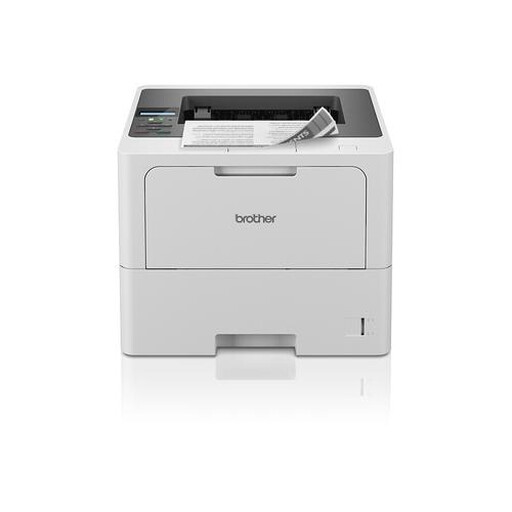 No image available
An option to compare for mainly text-based A4 schedules and wireless use in the studio.
Laser printer; A4; 1200 × 1200 DPI; Wi-Fi.
Not necessarily. Choose a connection that suits your devices and where the printer is located. Brother lists Wi-Fi, Ethernet and USB for the HL-L3240CDW; check which connections are available on the model you’re considering.
Estimate how many pages the studio typically prints and compare compatible toner or ink, along with any replacement parts. Brother lists a separate drum for the HL-L2445DW; Canon lists a replaceable maintenance cartridge for the MAXIFY GX4050.
Factor in how often you print when choosing a printer. Consumentenbond points out that inkjet print heads can become clogged and that automatic cleaning can use ink when the printer is used infrequently. If you only print text now and then, it’s worth comparing black-and-white laser printers too.
Before sharing or publishing the document, check whether it contains personal data and who is allowed to see the schedule. The Autoriteit Persoonsgegevens warns about data breaches through shared documents. The relevant considerations depend on the schedule’s contents and how it is shared; this alone doesn’t determine which type of printer you need.
The Rijksoverheid lists collection points and the municipal recycling centre, among other options. The described take-back requirement when buying a similar appliance applies to equipment from private individuals, not businesses. So first check whether the studio is acting as a private individual or a business.