Who is this relevant to?

Student with a network socket in their room

You want to connect a print server, but first you need to check whether your room’s connection supports wired devices and what rules apply to your accommodation. The University of Twente describes facilities that can vary by residence; this information is not a rule for all student accommodation.

Student with too few Ethernet ports

You have a working wired connection and want to connect a print server and other devices to it. The number of spare switch ports, the cables you need and a straightforward set-up are all practical considerations.

Student with a managed home network

Your network administrator has specified a particular configuration. Compare the required features with those of an unmanaged switch; TP-Link Netherlands, for example, lists VLAN and diagnostic features for the TL-SG105E.

What should you look for when buying?

Unmanaged gigabit switch

Choose this if: you want to expand a permitted wired connection without having to configure the switch itself.

Trade-off: you won’t get configurable VLANs, and a gigabit switch won’t make a print server with a 10/100 Mbps port any faster.

Managed or Easy Smart switch

Choose this if: you demonstrably need VLAN settings, port diagnostics or other management features, and your network administrator allows the configuration.

Trade-off: you get more configuration options, but you’ll also need to configure the switch; VLAN support does not guarantee access through a room or campus network.

Don’t buy a switch

Choose this if: you already have a suitable spare Ethernet port, or you still need a suitable Ethernet print server for your USB printer.

Trade-off: you avoid an unnecessary expansion, but with a managed connection you’ll need to check which devices and connection methods are permitted.

What to consider What to look for when buying Who is this important for?
Network access Check your accommodation or network administrator’s connection rules, and make sure the print server has Ethernet. If I want to use the print server in my room, I first need to know whether my network allows the connection and whether my computer can reach the device. Around 36% of consumers say network access is their main concern.
Enough ports Count all your devices, including the port used to connect to the existing network. If I want to connect other wired devices as well as the print server, I’ll work out how many ports I need in advance. Around 29% of consumers put the number of connections first.
Space and power Check the model’s dimensions, whether it has a fan and how it is powered. If space on my desk is limited, I need to know where the switch and power supply will fit, and whether the model has a fan. Around 21% of consumers cite placement and power as their main consideration.
Management features Check which settings your network administrator requires and permits; only choose management features if you need them. If my network administrator requires a specific configuration, I need to know whether the switch supports it and is permitted. Around 14% of consumers say management features are their main concern.

Common pitfalls

  • Buying a switch before checking the network rules

    A switch does not determine whether devices are permitted on your accommodation network or whether they can reach each other. The University of Twente, for example, describes connection options that vary by residence.

    Check the rules and connection options with your landlord or network administrator before choosing a switch.

  • Assuming five ports means five connections for devices

    If one port is needed to connect to the existing network, a five-port switch has four ports left for devices.

    Count the network connection, the print server and all the devices you want to connect at the same time before choosing a five- or eight-port model.

  • Expecting a gigabit switch to speed up the print server

    The TP-Link TL-PS110U reviewed has a 10/100 Mbps Ethernet port. A gigabit switch does not change the print server’s specifications.

    Compare the port speed of your own print server and choose extra switch features only if they solve a specific connection or management issue.

Brands to consider

TP-Link

TP-Link Netherlands describes several five-port models, including unmanaged switches and the Easy Smart TL-SG105E.

  • According to the manufacturer, the TL-SG105, TL-SG1005D and TL-SG105E each have five gigabit ports.
  • The metal casing is a feature of the TL-SG105; the TL-SG1005D has a plastic casing. VLAN and diagnostic features are listed specifically for the TL-SG105E.

NETGEAR

NETGEAR describes the GS305v3 as a compact, unmanaged switch with five gigabit ports.

  • NETGEAR specifies a fanless design for this model.
  • The stated PoE budget is not available. Check the exact version and its product documentation before buying.

Linksys

The Linksys datasheet in Dutch distinguishes between the unmanaged five-port LGS105 and the eight-port LGS108.

  • The datasheet lists gigabit ports, plug-and-play operation and an external power supply for these models.
  • Eight ports are only useful if you need the extra connections; the product specifications do not confirm that the switch is permitted on your room network.

D-Link

D-Link Netherlands describes the DGS-105GL as an unmanaged five-port gigabit switch.

  • D-Link describes this model as plug-and-play.
  • Check the product specifications and documentation for the version on offer.

Joybuy switches for this use

This selection includes wired switches for expanding a network around a print server, from simple models to versions with extra ports, PoE or management features. Before buying, check that your network permits the connection and what features your devices need.
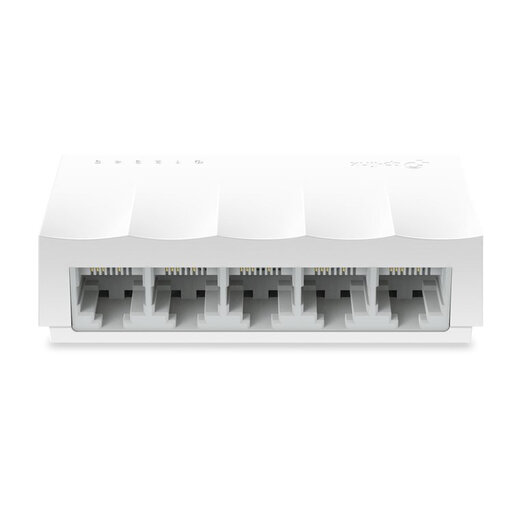
TP-Link LS1005 desktop network switch

TP-Link LS1005 5-Port 10/100Mbps Desktop Network Switch

An unmanaged model for simple expansion if you have a permitted wired connection and don’t need gigabit ports.

Five 10/100 Mbps Ethernet ports; the product information lists auto-negotiation and a fanless design.

View on Joybuy
TP-Link TL-SG105 five-port metal gigabit switch

TP-Link TL-SG105 5-Port Metal Gigabit Switch

An unmanaged option for simple wired expansion when you want gigabit ports and don’t need to configure the switch.

Five gigabit RJ45 ports, a metal casing and a fanless design. The speed of a connected print server still depends on its own port.

View on Joybuy
TP-Link five-port gigabit desktop switch with PoE

TP-Link 5-Port Gigabit Desktop PoE Switch with 4-Port

Consider this model if you need PoE support for compatible equipment as well as wired network ports.

Five gigabit ports, four of which are listed as supporting PoE in the product information. The switch is described as unmanaged.

View on Joybuy
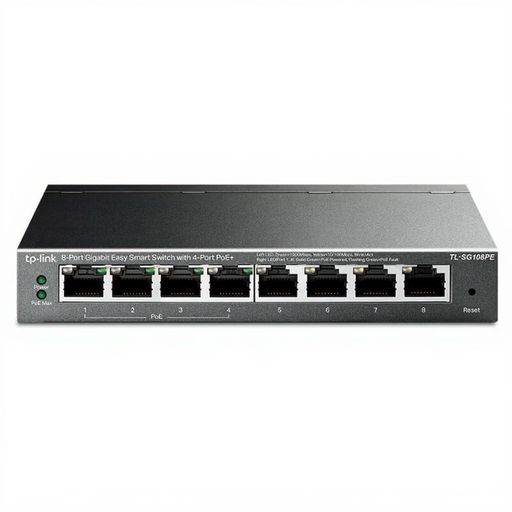
TP-Link eight-port gigabit Easy Smart switch with PoE

TP-Link 8-Port Gigabit Easy Smart Switch with 4-Port PoE

An option for anyone who wants to connect more wired devices and needs specific Easy Smart or PoE features.

Eight gigabit ports; the product title lists four PoE ports. The product information mentions web interface management and port diagnostics.

View on Joybuy
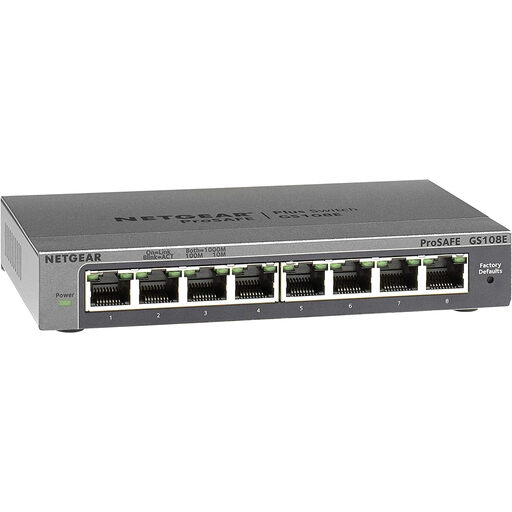
NETGEAR GS108E-400EUS eight-port network switch

Netgear GS108E-400EUS

An option to compare if you’re connecting several wired devices; check that this version suits your network’s management and PoE requirements.

The product information lists eight gigabit Ethernet ports, four of which support PoE, and plug-and-play operation.

View on Joybuy

Frequently asked questions

Can I connect my printer’s USB cable directly to a network switch?

No, the switches reviewed have Ethernet ports. With the TP-Link TL-PS110U, the USB connection goes to a compatible printer and the Ethernet port connects to the network. Check that your printer and print server are compatible; a switch does not replace a print server.

Do I need to install software on the switch?

According to TP-Link, you don’t need to for the basic connection on the unmanaged TP-Link TL-SG105: the manufacturer describes it as plug-and-play. Your printer or print server may still need its own installation or configuration.

What can I check if the print server isn’t showing up?

Check the power supply, Ethernet cable and connection lights, then check the print server settings and whether your computer can reach it. If you have a managed room connection, ask which connection method is permitted; adding a switch doesn’t prove that network access is possible.

Is a manufacturer’s warranty the same as the statutory guarantee in the Netherlands?

No. According to ACM ConsuWijzer, the statutory guarantee is separate from the seller’s or manufacturer’s warranty and depends on what you could reasonably expect from the product under normal use. Contact the seller about a faulty product.

What should I check in the product documentation and for compliance in the Netherlands?

Equipment covered by the applicable EU rules on electromagnetic compatibility must meet conformity requirements and carry CE marking. Check the marking and relevant product documentation for the version on offer; a manufacturer’s statement about a model does not, by itself, confirm which version will be supplied.
