
Taking presentations between computers
You make a copy at home and want to open it on another computer. So check the ports and, if you switch between Windows and Mac, the file system. Apple Support warns that formatting erases existing files.


A USB flash drive is handy for carrying and transferring presentation files; check that it fits the ports on both computers. An external SSD is worth considering if you regularly copy larger files and transfer time matters, while an external HDD is best suited to storing a sizeable archive. Keep a separate copy of important files too, and check that you can open them. If your presentations contain personal data, assess security separately.
You make a copy at home and want to open it on another computer. So check the ports and, if you switch between Windows and Mac, the file system. Apple Support warns that formatting erases existing files.
You want a usable version available in case something goes wrong or a file is lost. The National Cyber Security Centre advises opening files from a backup to check that it works.
You store lots of presentations or files containing media, and need to weigh up the storage capacity against how often you copy files and how much time you want to spend doing so.
Best for: carrying presentation files or transferring them between computers.
Bear in mind: choose a connector to match the ports you actually use. A small capacity may not be enough for your entire copy.
Best for: regularly copying larger presentations when transfer time is a priority.
Bear in mind: stated speeds are maximums and don’t guarantee the copying speed you’ll get on your computer.
Best for: keeping a larger archive alongside your presentation files.
Bear in mind: an HDD is more vulnerable to knocks, and high transfer speeds aren’t the main priority here.
| What to consider | What should you check? | Who is this important for? |
|---|---|---|
| A usable backup | Keep the original, open a few files from the external drive and store the copy separately. | If I make a backup, I want to be able to find and open the files later. Around 31% of consumers put having a recoverable copy first. |
| Connectivity and readability | Check the ports on both computers and the file system if you use Windows and Mac. | If I want to open presentations on another computer, I don’t want to run into a connection or file system problem. Around 25% of consumers prioritise connectivity and readability. |
| Space for your files | Check the total size of your folders and compare it with the capacity of the exact model. | As my presentation collection grows, I want enough space without relying on a rough estimate of the number of files. Around 19% of consumers put archive space first. |
| Copying time | Consider how often you copy files and check your computer’s USB port. | If I regularly transfer larger presentations, I want to know whether an SSD is suitable for my connection. Around 13% of consumers prioritise copying time. |
| Protecting sensitive files | Check whether your presentations contain personal data and whether the security features on your devices work. | If presentations contain sensitive data, I want to limit who can open them if the drive goes missing. Around 12% of consumers put confidentiality first. |
Simply having an external drive doesn’t tell you whether the files on it are complete and can be opened.
Keep the original and, after copying, open a few files from the drive. The National Cyber Security Centre recommends this as a way to check that a backup works.
USB-A won’t plug directly into a device with USB-C only. The file system can also matter if you switch between Windows and Mac.
Check the ports on both computers and the connector or cables included with the exact model. Before formatting, make a copy somewhere else: formatting erases existing files.
If the connection isn’t compatible, you may need a different model or a suitable cable.
A maximum speed for a particular connection doesn’t tell you how quickly the entire copy will transfer to your computer.
Consider the size and frequency of your copying tasks, and check your computer’s connection before taking a stated SSD speed into account.
ACM ConsuWijzer distinguishes between a commercial warranty and your statutory guarantee.
Check what any additional cover includes, and assess it separately from your statutory rights.
The DataTraveler Exodia M and DataTraveler Duo are USB flash drive models for carrying and transferring files.
The Ultra Dual Drive Go is designed for moving files between devices with USB-C and USB-A.
The 1 TB Portable SSD T7 is worth considering if you regularly copy larger files.
The 2 TB Basic Portable Drive could suit a larger collection of presentations or a broader file archive.
This selection includes USB flash drives and a portable SSD for storing and transferring presentation files. Check the capacity and connection for each model.
 Image unavailable
A portable SSD for storing and transferring files.
Capacity: 1 TB.
 Image unavailable
A USB flash drive for carrying or transferring presentation files; it has a USB Type-A connector.
Capacity: 128 GB. Connection: USB 3.2 Gen 1 Type-A.
 Image unavailable
A USB flash drive for copying presentations and other files; it has a USB-A connector.
Capacity: 64 GB. Interface: USB 3.0.
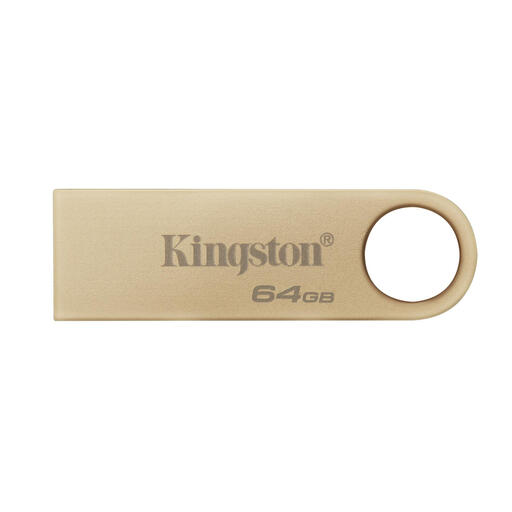 Image unavailable
A USB flash drive for transferring files from a computer with a USB Type-A port.
Capacity: 64 GB. The product name lists 220 MB/s; check the specifications to see what this speed refers to.
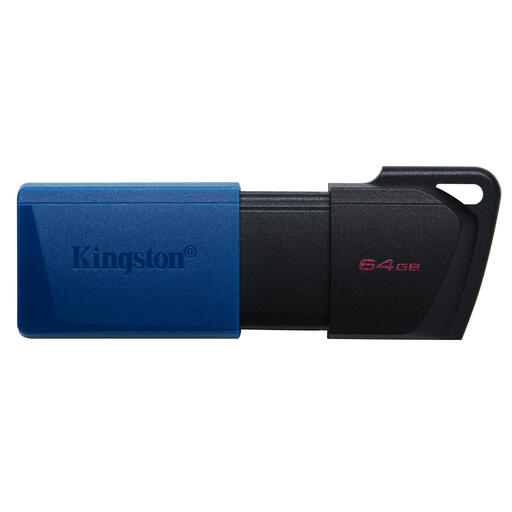 Image unavailable
A USB flash drive for carrying and transferring documents; it has a USB Type-A connector.
Capacity: 64 GB. Interface: USB 3.2 Gen 1.
Keep the original, check that the files you need are on the external drive, and open a few presentations from it. The National Cyber Security Centre recommends opening files as a way to check that a backup works.
Yes, if the connections and file system are suitable. Apple Support describes exFAT as an option for drives larger than 32 GB that you want to use with Windows and Mac. First, make a copy of the files on the drive somewhere else, as formatting erases them.
Safely eject the drive after copying. Microsoft recommends doing this with USB flash drives and external hard drives to prevent data loss.
Not necessarily. ACM ConsuWijzer explains that in the Netherlands you have statutory rights in addition to any manufacturer’s or retailer’s warranty. If a product breaks sooner than you could reasonably expect during normal use, the retailer is responsible for providing an appropriate solution. Check the terms of any additional warranty separately.
There isn’t one general requirement that applies to every presentation. The Dutch Data Protection Authority says that organisations processing personal data must choose appropriate security measures based on their circumstances and the risks involved. It recommends an encrypted USB flash drive for certain work documents that can’t be stored on a server. If you’re handling personal data, also follow the policies of the responsible organisation.