
Moving presentations between devices
If you copy presentations between computers, focus on the stick’s connectors and the available USB ports on both devices.


For everyday presentation files that you copy between computers, a USB stick with the right connector is often the most space-saving option: you won’t need a separate drive and cable. If you regularly copy large folders or work directly from external storage, compare portable SSDs. An HDD is worth considering mainly if having more space for a larger archive matters more than keeping your desk uncluttered. Before buying, check the ports, the capacity you need and the specifications of the exact model.
If you copy presentations between computers, focus on the stick’s connectors and the available USB ports on both devices.
If you have little space beside your computer, compare the size of each storage device and remember to allow for the space taken up by a separate cable.
If you regularly copy larger folders or store additional project materials, capacity and the way you use your files are important factors to consider.
| What to consider | What should you check? | Who is this important for? |
|---|---|---|
| Connector | Check the ports on both computers and the connectors on the exact model. Kingston lists USB-A for the DataTraveler Exodia; SanDisk describes the Ultra Dual Drive Go as having USB-A and USB-C. | If I want to transfer presentations directly between devices, the connectors need to fit both. Around 36% of consumers give connector type top priority. |
| Desk space | Compare the device’s dimensions, and allow for the cable and the space needed beside the USB port. | On a small desk, I want to keep separate devices and cables to a minimum. Around 29% of consumers put available workspace first. |
| Frequent or large file transfers | Check the size and contents of your folders, as well as your computer’s USB connection. Stated maximum speeds don’t guarantee how long your files will take to copy. | If I often copy large presentation folders, I want to consider transfer performance without treating a maximum speed as a real-world result. Around 21% of consumers say this is their top priority. |
| Archive space | Add up the files you want to keep and compare the total with the capacity of the exact model. | For a larger archive of presentations and project materials, I mainly want enough storage space. Around 14% of consumers put archive space first. |
The USB standard doesn’t tell you whether the physical connector will fit your computer’s port. Kingston specifies USB-A for the DataTraveler Exodia; SanDisk specifies USB-A and USB-C for the Ultra Dual Drive Go.
Check the ports on both the source and destination computers and compare them with the connectors on the full model.
An SSD’s stated maximum sequential speed doesn’t predict how quickly your presentation files will transfer.
Compare your computer’s port with the size and contents of your files. Don’t choose solely on the basis of the highest stated MB/s figure.
A USB stick you carry around can go missing. If it holds the only copy, the files could be lost too.
Keep a separate copy and check that you can open it. The Dutch Data Protection Authority advises keeping sensitive work documents on your work server where possible.
Kingston describes the DataTraveler Exodia as a USB-A stick and the DataTraveler Duo as a separate range with USB-A and USB-C.
SanDisk describes the Ultra Dual Drive Go as a stick for transferring files between devices with USB-A and USB-C.
For the grey 1 TB Portable SSD T7 sold in the Netherlands, Samsung lists two included cable types.
The Expansion Portable range includes portable HDDs for anyone who wants to keep a larger archive as well as transfer files.
Here are some Joybuy options for copying and storing presentation files, including USB sticks and portable SSDs.
 Image unavailable
A 1 TB portable SSD for storing and carrying your files.
 Image unavailable
A USB stick for transferring presentations between devices with a compatible USB-A port.
Capacity: 128 GB. Connector: USB Type-A.
 Image unavailable
A portable SSD for storing and transferring larger files; the description mentions an integrated USB-C cable.
Capacity: 1 TB. Stated read speed: up to 1.000 MB/s; this isn’t a measured transfer speed for your files. Direct connection requires a device with USB-C.
 Image unavailable
A compact USB stick for presentation files on computers with a compatible USB-A port.
Capacity: 64 GB. Interface: USB 3.0.
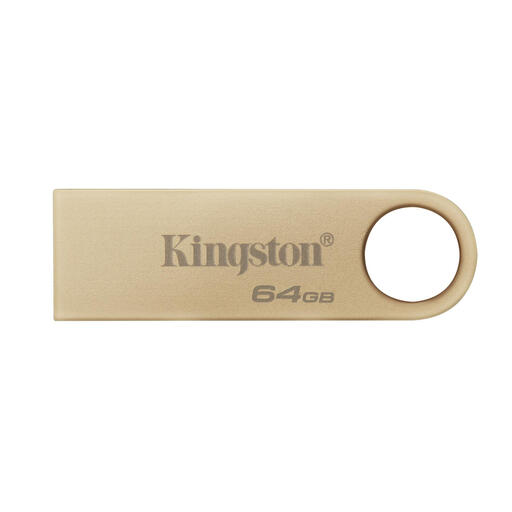 Image unavailable
A USB stick for transferring files between devices with a compatible Type-A port.
Capacity: 64 GB. Interface: USB 3.2 Gen 1.
For transferring everyday files between computers, start with a stick that fits both devices and has enough space. Compare portable SSDs if you regularly copy larger folders or work from external storage; stated maximum speeds don’t predict how long your files will take to transfer.
The connector must fit the USB ports on both the computer you’re copying from and the one you’re transferring the files to. Check the exact model: some sticks have USB-A, while SanDisk says the Ultra Dual Drive Go has USB-A and USB-C.
First, check that copying has finished. In Windows, eject the stick or external drive using ‘Safely Remove Hardware’ before disconnecting it. Microsoft recommends this to help prevent data loss.
Keep important presentations somewhere else as well, and check that you can open the copy. A portable stick can go missing; for sensitive work documents, the Dutch Data Protection Authority also advises keeping them on your work server where possible.
The Dutch Data Protection Authority doesn’t specify one encryption feature that is mandatory for every presentation. If an organisation processes personal data, it must assess the risks and choose appropriate security measures. For sensitive work documents that can’t be stored on the work server, the Dutch Data Protection Authority recommends using an encrypted USB stick.