
Anyone with a fixed upload workstation
You send large work files from a computer in a location where running a network cable to the router is difficult. Compare the upload speed next to the router with the speed at the sockets you plan to use.


For portfolio uploads from a fixed workstation, a powerline adapter with LAN is suitable if you use a wired connection there; choose a model with Wi-Fi if laptops or phones also need to connect wirelessly. If you can run a network cable to the router without much difficulty, the connection won’t travel through your electrical wiring. Test powerline at the sockets you intend to use first: TP-Link points out that the quality of your electrical wiring affects data transfer, while the upload speed of your internet connection is a separate limiting factor.
You send large work files from a computer in a location where running a network cable to the router is difficult. Compare the upload speed next to the router with the speed at the sockets you plan to use.
As well as your computer, other devices at the same workstation need to go online via a cable. Check how many LAN ports the adapter at that location has; extra ports won’t increase your internet connection’s upload speed.
You want to connect laptops or phones at your upload workstation too. To do this, choose a powerline kit whose adapter provides Wi-Fi at that location.
Start by comparing the upload speed next to the router with the speed at your workstation. Then work out how many devices need a wired or Wi-Fi connection, and whether you want to expand an existing kit.
| What to consider | What to look for when buying | Who it’s for |
|---|---|---|
| Uploads at your workstation | Compare a wired speed test next to the router with a test using the sockets you plan to use, including when other people are online. | I want to know whether I can upload portfolio files reliably from my fixed workstation. Around 31% of consumers prioritise reliable uploads. |
| Multiple LAN connections | Count your wired devices and check how many LAN ports the adapter at your workstation has. | I want to connect my computer and other devices directly by cable at the same workstation. Around 25% of consumers prioritise having several wired connections. |
| Wi-Fi at your workstation | Check whether the receiving adapter has Wi-Fi and how many LAN ports are also available. | I also want to use laptops or phones without Ethernet at my upload workstation. Around 19% of consumers need wireless coverage there. |
| Existing adapters | Make a note of the full model numbers and standards of your existing adapters before choosing an expansion. | I want to keep using my current powerline adapters if they’re compatible with the new kit. Around 13% of consumers prioritise compatibility. |
| Complete kit and placement | Check that the kit includes adapters for both ends of the connection and that the sockets you plan to use are suitable for installation. | I don’t yet have a suitable kit and want to connect both the router and my workstation. Around 12% of consumers are mainly looking for a complete kit that’s easy to install. |
Data transfer over your electrical wiring depends in part on the installation and its surroundings. The upload capacity of your internet connection also matters.
Compare a wired speed test next to the router with a test at the sockets you’ll use, during normal use when other people are online too.
An adapter with LAN only won’t automatically provide a wireless connection for laptops and phones at your workstation.
Decide in advance which devices need a wired connection and which need a wireless one, then check the features of the adapter you’ll use at your workstation.
Powerline standards and product ranges aren’t always compatible. TP-Link states that G.hn doesn’t work with HomePlug AV/AV2; devolo says that Magic isn’t compatible with dLAN.
Compare the full model numbers and standards. For a new network, you’ll need a compatible adapter by both the router and your workstation.
The features listed apply to specific product ranges and models; they aren’t a general statement about a brand or the upload speed in your home.
The range includes wired HomePlug AV2 kits and G.hn models with Wi-Fi.
The Magic starter kits include options for several wired devices or for Wi-Fi and LAN at your workstation.
The range includes both wired kits and a Wi-Fi model for a workstation with different types of devices.
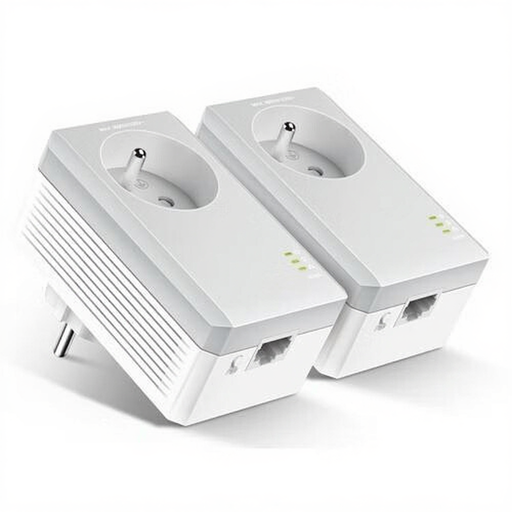
The MP500 KIT v2 is a wired HomePlug AV2 option for an Ethernet device at your workstation.
These product picks are designed for a powerline connection at a workstation, with Wi-Fi or a wired device.
 No image available
An option for a workstation where wireless devices also need to connect.
Test the connection at the sockets you plan to use; a powerline connection doesn’t guarantee a particular upload speed.
 No image available
A wired powerline option for a workstation that needs an Ethernet connection.
The stated 500 Mbit/s isn’t a guaranteed upload speed; data transfer also depends on your electrical wiring.
First, run a test using a network cable close to the router, then compare the result with a test at your intended powerline workstation while other people are using the internet. ACM ConsuWijzer advises taking the upload speed of your fixed internet connection into account. A difference between the two locations shows that there may be an additional limitation at home, but it doesn’t automatically identify what’s causing it.
Connect one adapter to the router with an Ethernet cable and plug the other in near your workstation. TP-Link recommends plugging adapters directly into wall sockets, as an extension lead or nearby sources of interference may affect data transfer. Try again after moving the adapter.
Only if the product ranges are compatible. TP-Link states that G.hn adapters don’t work with HomePlug AV/AV2; devolo says that Magic isn’t compatible with dLAN. So compare the full model numbers and standards before choosing an adapter.
For online purchases by consumers, you’ll generally have a 14-day cooling-off period after delivery, although there may be exceptions. This is separate from your right to receive a product that works as it should: if there’s a fault, you can contact the seller. ACM ConsuWijzer explains the cooling-off period; the Dutch Government says there is no fixed statutory two-year guarantee period for all products in the Netherlands.
Electrical products sold on the EU market must meet the applicable product safety requirements, including CE marking where required. The Dutch Government advises checking the product information and marking; a product listing on its own doesn’t show that an individual item meets all the requirements.