
Painting teacher filming from above
Wants students to be able to follow the brushstrokes and see the pottery. Focus on the distance from your work, the framing and a stable mount.


For a fixed setup at your computer, a tilting webcam is a practical choice; a mirrorless camera is a better fit if you want to choose the lens and framing yourself. A compact gimbal camera is most useful if you also film handheld. With any camera, check that the entire work surface is in focus and in frame, and test the lighting, sound and recording setup in advance.
Wants students to be able to follow the brushstrokes and see the pottery. Focus on the distance from your work, the framing and a stable mount.
Wants to show the work surface while teaching through a computer. Check the computer connection, recording or streaming software, and voice quality.
Wants paint and glaze colours to look true to life. A test recording with the lighting and white balance you plan to use during the lesson will help you judge how well the colours come across.
A good fit if: you mainly teach live or record directly to your computer from a fixed desk setup. Logitech describes the MX Brio as having a tilting Show Mode for desk work.
Bear in mind: check that the mount shows the whole painting area and that your hands don’t cover your work. The Elgato Facecam 4K has fixed focus, so test the distance to your pottery.
A good fit if: you want to make a fixed recording and choose your own lens and framing. The Canon EOS R50 and Sony ZV-E10 II are examples with interchangeable lenses; Canon also mentions USB webcam use.
Bear in mind: the camera body alone won’t determine whether the whole work surface is in focus and in frame. Consider the lens, mount, sound and power supply as parts of one complete setup.
A good fit if: you switch between a view of your workspace and handheld demonstrations during a lesson. The DJI Osmo Pocket 3 has an integrated gimbal.
Bear in mind: stabilisation while moving doesn’t provide a mount for a fixed overhead view. DJI states that 4K/120fps is only available in slow-motion mode on the Osmo Pocket 3.
| What to consider | What to look for | Who this matters to |
|---|---|---|
| Work surface and focus | Test the working distance, viewing angle and focus area with your hands and the entire object in frame. | If I want to show both the brushstrokes and the whole piece of pottery, the framing needs to suit my desk. Around 33% of consumers prioritise a clear view of the work surface. |
| Colour and lighting | Make test recordings in the lesson lighting and check whether exposure and white balance can be adjusted. | If I want paint colours to look true to life during a lesson, I look for even lighting and settings I can reproduce. Around 27% of consumers give colour reproduction and lighting top priority. |
| Voice and computer setup | Test how your voice sounds and check that the camera works as a video source on your computer and in your recording software. | When I paint and explain at the same time, I want my voice to remain clear and the video source to be easy to use. Around 20% of consumers prioritise live teaching and the computer connection. |
| Lesson length and complete setup | Test your intended recording length and check the lens, mount, power supply, storage and any audio equipment. | If I want to record a full lesson, I want to know in advance which components my setup requires. Around 20% of consumers make a complete setup for an uninterrupted lesson their top priority. |
Resolution won’t tell you whether the pottery and brushstrokes will both fit in the frame from desk height.
Set up a test frame at your planned working distance and check both the viewing angle and focus.
The Osmo Pocket 3’s gimbal is designed to stabilise moving shots; that doesn’t mean you can mount the camera above a stationary work surface.
Choose a gimbal camera for handheld filming, and assess the mount for desk-based recording separately.
With a mirrorless camera, the lens is one of the factors that determines the setup you’ll need; camera bundles and included accessories can also vary.
Check the exact version and make a list of the components you’ll need to record a full lesson.
Logitech describes the MX Brio as having a tilting Show Mode for desk work.
Canon describes the EOS R50 as a mirrorless camera with an interchangeable lens and USB webcam functionality.
The Sony ZV-E10 II is a mirrorless camera that uses Sony E-mount lenses.
The Osmo Pocket 3 is a compact camera with an integrated gimbal.
Elgato describes the Facecam 4K as a webcam for desktop recording with fixed focus.
This selection focuses on compact video and vlog cameras for filming demonstrations. Check that each camera’s mount and framing suit your work surface.
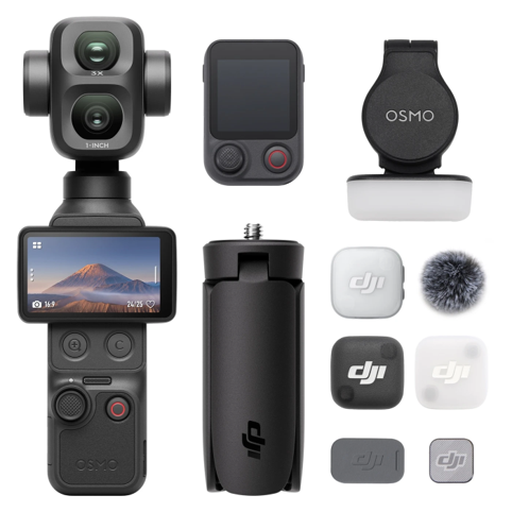 No image available
For recording video demonstrations; check the mount and framing for your desk setup.
The product description lists 4K video, a 20mm f/2.0 wide-angle lens and a dynamic range of 17 stops. 4K/240fps is listed for slow-motion mode.
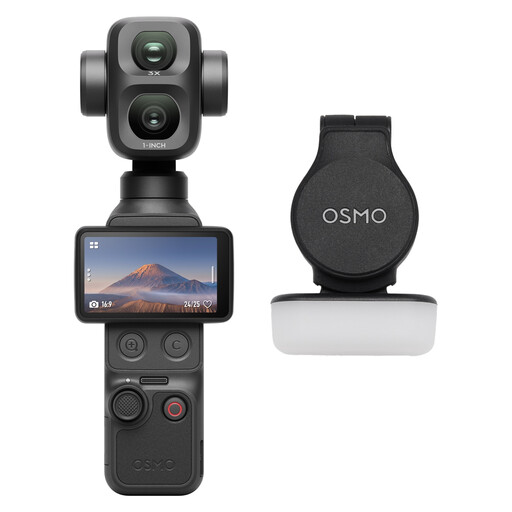 No image available
For recording video demonstrations; check that the mount and framing suit your fixed or mobile recording setup.
The product description lists 4K video, a 20mm f/2.0 wide-angle lens and a dynamic range of 17 stops. 4K/240fps is listed for slow-motion mode.
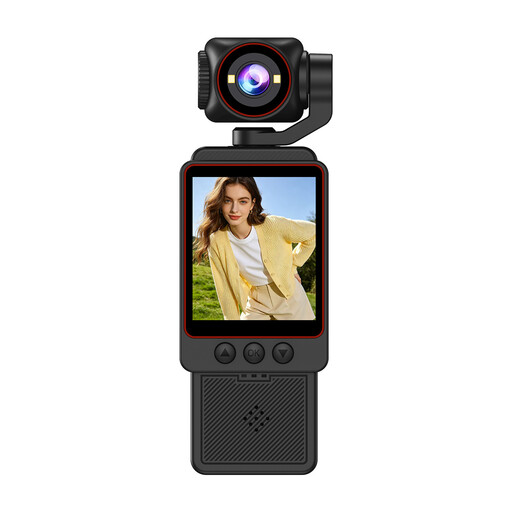 No image available
For recording a lesson; make a test recording to see how the work surface and your explanations come across in the picture and sound.
The title lists 1080P video. The product description mentions Wi-Fi transfer and an included SD card.
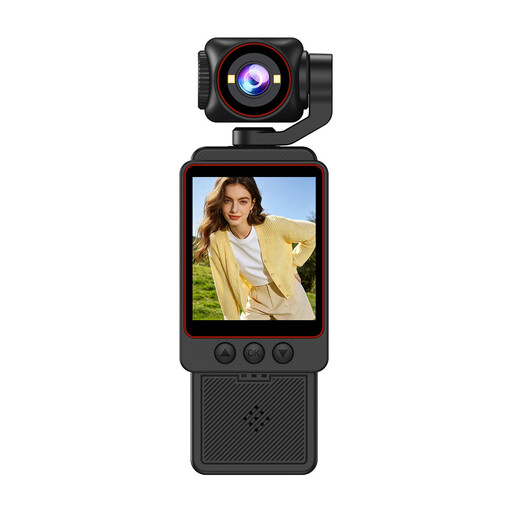 No image available
For anyone considering a portable camera for demonstrations from different angles; check the framing and mount for desk use.
The product description lists 2K video and a 360° rotating lens.
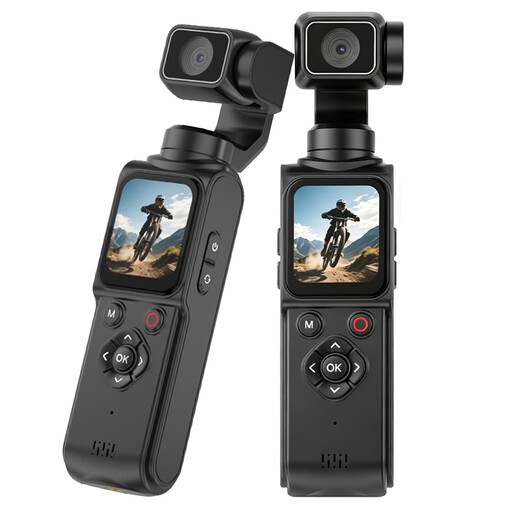 No image available
For recording demonstrations with a camera that, according to the product description, includes a mini tripod; check that its positioning suits your work surface.
The description lists 4K video, a 330° rotating lens and an included mini tripod.
In OBS Studio, add a video capture source for your webcam and make a test recording to check that the work surface is clearly visible. OBS Project explains how to add and position the source.
Where possible, use even lighting and test the exposure and white balance before recording a full lesson. Tammie Ann Creative explains from personal experience why consistent lighting matters when filming creative work; this isn’t a comparative camera test.
No. According to the Dutch government, there is no fixed statutory warranty period in the Netherlands: you’re entitled to a product that works as it should, and the seller must provide a solution if there’s a problem. A separate manufacturer’s warranty may specify a set period.
Not necessarily. The Dutch Data Protection Authority describes recognisable images of other people as personal data. If you publish on behalf of an organisation, or the recording is part of a business or commercial activity, the household exemption doesn’t apply; you’ll need a legal basis to record and publish recognisable images. If you film only yourself and your work, this information doesn’t imply a general obligation to ask someone else for permission.