First, choose cataloguing software that lets you record the pottery details you need and combine them in searches: a faster computer won’t add those search features. Then compare desktops for software compatibility, storage for photos and backups, and the complete workstation setup, including whether you’ll need a separate monitor. The configurations mentioned differ in form and storage, but have not been tested against each other for search performance.
Who is this choice relevant to?
A collector who wants to search efficiently
This collector wants to describe objects consistently and later search across details such as material, object type or date. Collectie Nederland offers filters like these; how fields and search functions are set up depends on the cataloguing software you choose.
A collector with lots of object photos
This collector adds photos to object records, so storage, file transfer and backups all matter when choosing a computer. The Cultural Heritage Agency of the Netherlands recommends including clear photos in records for collection objects.
A collector with a small workspace
This collector is weighing up a built-in screen against a compact computer with a separate monitor. So consider the complete setup, not just the computer itself.
What should you look for when choosing?
Start with the software’s search capabilities, then check storage, data protection and the space needed for the complete workstation. The Cultural Heritage Agency of the Netherlands treats photos as part of object cataloguing; Collectie Nederland shows searches by details such as object type, year and material.
Windows all-in-one
Ideal for: a dedicated cataloguing space where you’d also like an integrated screen.
Bear in mind: check software compatibility and connections, and make sure the storage suits the way you work with photos.
Compact Windows desktop
Ideal for: a compact computer setup, for example if you already have a suitable monitor.
Bear in mind: allow for a separate monitor and check the exact configuration and connections.
Windows tower
Ideal for: anyone looking for a standalone desktop and weighing up local storage for photo files.
Bear in mind: a tower needs its own space and is no substitute for backing up your catalogue.
Mac mini
Ideal for: anyone who wants to pair a compact computer with their own monitor and can use their chosen catalogue software on macOS.
Bear in mind: check software and file compatibility in advance, and make sure the storage is right for your files.
| What to consider |
What should you check? |
Who is this important for? |
| Search fields and software |
Test sample records to see whether you can search using a combination of pottery type, material and date. Check that the software works with your chosen operating system; LibreOffice explains tables and queries in Base. |
If you want to find objects using several details, first check that the software supports this. Around 33% of consumers prioritise this search function and compatibility. |
| Photos and local storage |
Compare the storage in the exact configuration with your files, and check how to transfer photos from your camera, card reader or external drive. |
If you store photos with object records, available space and a practical way to transfer files both matter. Around 27% of consumers give photos and local storage top priority. |
| Backups and recovery |
Check that you can export and restore both records and linked photos. Plan a separate backup on an external drive or in the cloud. |
If you want to be able to restore your catalogue after data loss or a failed import, a separate copy matters more than simply having extra internal storage. Around 20% of consumers prioritise data protection. |
| Workspace and monitor |
Check the dimensions and connections of the configuration you’ve chosen. Include a suitable separate monitor and any peripherals in your complete setup. |
If desk space is limited or you don’t yet have a monitor, you’ll want to know what else you need besides the computer. Around 20% of consumers base their choice primarily on space and the complete setup. |
Common buying mistakes
-
Assuming a fast processor means advanced search
Searching by several details depends on the fields and queries available in your cataloguing software; the processor model alone won’t tell you that.
Before you buy, test sample records to see whether you can search across multiple object details in the software you plan to use.
Setting up fields and queries may take extra time.
-
Comparing a desktop tower with an all-in-one without counting the monitor
According to Lenovo, the Lenovo A100 configuration has a built-in screen; with a standalone desktop, you’ll need to consider the rest of the setup separately.
Check the connections on the exact configuration and see which components you already have.
You may still need a suitable separate monitor and possibly peripherals.
-
Treating a larger SSD as a backup
Extra internal storage isn’t a separate copy if the computer fails or data is lost during an import.
Make a current backup of both your records and linked photos, and test an import on a small scale first. Netwerk Digitaal Erfgoed recommends making a current backup before importing.
You may need external storage or a cloud service for a separate copy.
-
Choosing an older Windows 10 desktop without a support plan
Microsoft ended regular support for Windows 10 on 14 October 2025. This matters if you store a catalogue on that computer.
Check the operating system and current support options for the exact PC, and confirm that your software works with it.
Switching to another system or using an applicable update option may involve extra steps.
Brands and configurations to consider
Lenovo
The Lenovo A100 is a Windows all-in-one for a dedicated cataloguing space, with an integrated screen.
- Lenovo lists a 23.8-inch screen, 16 GB of memory and a 512 GB SSD for this configuration.
- These configuration details don’t tell you how quickly a specific catalogue database will search; check software compatibility too.
HP
The HP OmniDesk 16L M03-0612nd is an example of a standalone Windows tower.
- HP lists Windows 11 Home, 16 GB of memory and a 1 TB SSD for this version.
- The stated storage capacity doesn’t prove better search performance or data protection.
Dell
The Dell Pro Slim QCS1250 is a compact Windows desktop that needs a separate monitor.
- For one configuration, Dell lists a Core Ultra 5 235, Windows 11 Pro, 16 GB of memory and a 512 GB SSD.
- Dell offers several configurations in this model range, so check the version you’re choosing.
Apple
The Mac mini M6 is a compact macOS computer designed to be used with a separate monitor.
- Apple lists an M6 configuration with 16 GB of memory and a 256 GB SSD.
- Check that your catalogue software and file sharing work on macOS, and that the storage suits the way you’ll use it.
Joybuy desktops and mini PCs
This selection from Joybuy includes compact computers and a standalone desktop, with different storage configurations and operating systems. Before buying, check which version suits your cataloguing software, monitor and photo files.
 No image available
SOYO Y5Pro Mini PC, Intel Core i5 8250U/8350U, 8 GB DDR4, 256 GB SATA SSD
Could suit a compact Windows setup; check that your catalogue software works with the operating system.
The product name lists Windows 11, 8 GB DDR4 and a 256 GB SATA SSD, along with Wi-Fi 5 and Bluetooth 5.2. Check which processor variant is included in the configuration you choose.
Shop at Joybuy
 No image available
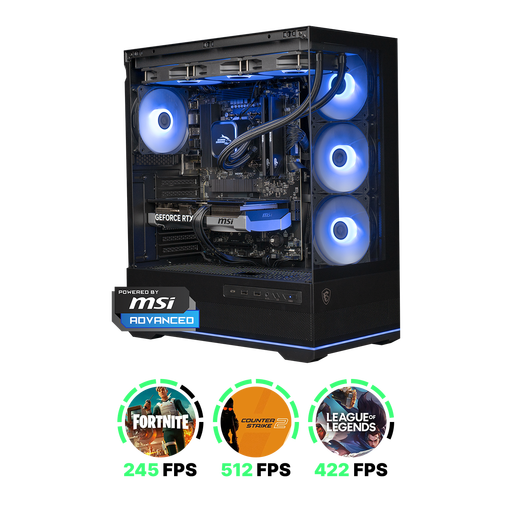
Shark Ultimator R700 Gaming PC RTX5070/R7, 16 GB/1 TB
Consider this standalone desktop only if the listed configuration meets your actual software and storage needs; the gaming label says nothing about catalogue search performance.
The product name lists RTX5070/R7, 16 GB and 1 TB; the configuration description specifies 16 GB DDR5 and a 1 TB NVMe SSD. Check the full specification and software compatibility.
Shop at Joybuy
 No image available
NVIDIA DGX Spark Founders Edition, NVIDIA GB10, 128 GB RAM, 4 TB SSD
Consider this compact computer only if the stated storage capacity and system suit your specific needs; the specifications alone don’t indicate an advantage for catalogue searches.
The product name lists NVIDIA DGX OS, 128 GB RAM and a 4 TB SSD. Check that your cataloguing software and file sharing work with this system.
Shop at Joybuy
 No image available
FIREBAT R3 Mini PC, AMD Ryzen 5 7430U, 16 GB RAM, 512 GB SSD
Could suit a compact computer setup; check software compatibility in advance and make sure the storage can accommodate your catalogue and photos.
The product name lists an AMD Ryzen 5 7430U, 16 GB RAM, a 512 GB SSD, Wi-Fi 6 and Bluetooth 5.2.
Shop at Joybuy
 No image available
MSI CUBI NUC AI 1UMG-005EU, Intel Core Ultra 7 155H, 16 GB DDR5, 1 TB SSD
Could suit anyone looking for a compact Windows desktop with local storage; check that it’s compatible with your chosen catalogue software.
The product name lists Windows 11 Pro, 16 GB DDR5 and a 1 TB SSD. Also check the connections for your monitor and any photo-transfer equipment.
Shop at Joybuy
Frequently asked questions
Can a more powerful PC add advanced search to my catalogue?
No. Search functions come from your cataloguing software and how you record object details. Test the searches you need using sample records. LibreOffice describes tables and queries in Base, but that doesn’t prove your existing catalogue already has these features.
How do I transfer an existing list of objects?
First, check which import formats the new software supports and match object numbers to the right fields. Then try a small import. Netwerk Digitaal Erfgoed recommends making a current backup beforehand, so you can restore your data if anything goes wrong.
Is the internal SSD enough to keep my collection safe?
No. Treat internal storage and backups as separate things. Regularly copy both your catalogue and photo files to an external drive or the cloud.
How can I check whether catalogue software works on my desktop?
Check the software’s system requirements against the operating system on the exact configuration you’re considering. Also test whether you can export files and import them again later.
What warranty applies to a personal purchase in the Netherlands?
According to ACM ConsuWijzer, in addition to any manufacturer’s warranty, you have a statutory guarantee if the product doesn’t do what you could reasonably expect under normal use. The seller is responsible for providing an appropriate solution; there isn’t one fixed statutory warranty period for every PC.


