
Cataloguer who needs larger text
You enter details about objects and want to be able to see where photos and input fields are when the display is enlarged. Try your own cataloguing process on screen, using the level of magnification you plan to use.


First, choose catalogue software that suits the way you work, then try enlarging the text in it. Check that you can still use the input fields and object photos at the same time. Windows, macOS and ChromeOS offer magnification features, but that does not guarantee that a particular catalogue will scale comfortably. Microsoft Support, Apple Support and Google Chromebook Help describe features for each operating system, while the pottery catalogue software we found for local installation lists Windows as its platform.
You enter details about objects and want to be able to see where photos and input fields are when the display is enlarged. Try your own cataloguing process on screen, using the level of magnification you plan to use.
You manage photos alongside descriptions. Your choice of storage and file transfer will partly depend on where you keep your files.
You don’t always work at the same table, so you’ll need to balance portability with having enough working space when the display is enlarged.
| What to consider | What to look for | Who is it important for? |
|---|---|---|
| Easy-to-read input fields | Try the catalogue with your preferred text size, display scaling and any zoom settings. Check that buttons, navigation and photos remain usable. | When I enter details, I want to enlarge the text without losing sight of the photos and input fields. Around 36% of consumers say readability is their top priority. |
| Managing photos | Check whether the catalogue stores photos locally or online, and what storage space and connections your workflow requires. | When I link photos to object descriptions, I want to be able to store and find those files easily. Around 29% of consumers prioritise photo management. |
| A suitable configuration | Choose memory and storage to suit your catalogue software and the number of programmes and photos you use at the same time. | I want to use the catalogue and the magnification I need smoothly, without paying for features my workflow doesn’t require. Around 21% of consumers say getting the right purchase price is their top priority. |
| Workspace and portability | Compare the available screen space at your chosen magnification with the laptop’s dimensions. Also check the connections for an external monitor. | When I catalogue in different places, I want to be able to take my laptop with me and still work comfortably. Around 14% of consumers prioritise portability. |
Magnification can mean that less of an input form is visible at once. Screen size alone doesn’t tell you whether your catalogue will be comfortable to use.
Try an object record with a photo on the screen size you’re considering, using the magnification you need.
The pottery software we found for local installation is described as being for Windows; a web-based catalogue may offer a different way of working.
Before buying, check which systems and browsers the application supports and how it stores data.
If your preferred software doesn’t work with the operating system you choose, you may need a different application or workflow.
According to Microsoft Support, standard support for Windows 10 ended on 14 October 2025. Your computer won’t stop working straight away, but regular security updates have ended.
Check which version of Windows is supplied and whether a supported upgrade or security update route is available for the exact device.
Connections can vary between versions. For the HP OmniBook X 17-de0605ndx we looked at, HP states that the charger is sold separately.
Check what’s included in the box and the connections on the exact version before ordering.
Some versions may require a separately purchased charger or a compatible adapter.
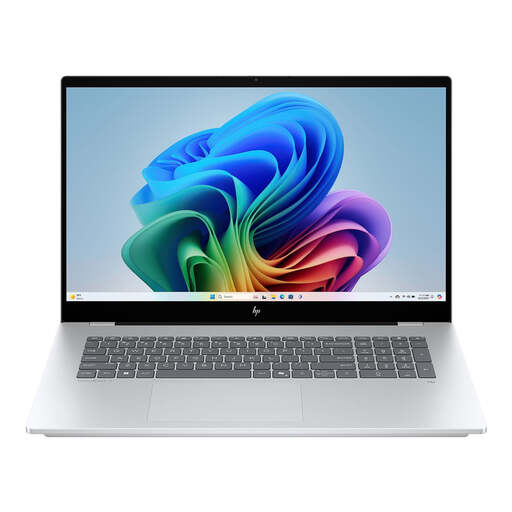
The HP Store Netherlands lists a 17.3-inch FHD touchscreen, Windows 11 Home, 16 GB RAM and a 512 GB SSD for the OmniBook X 17-de0605ndx. This version may be worth considering if you want to try working with plenty of physical screen space.
ASUS Netherlands lists a 16-inch WUXGA screen with an anti-glare finish and Windows 11 Home for the Vivobook 16 M1607KA.
The 15-inch MacBook Air with M5 is a macOS option if you use a compatible web-based catalogue or a confirmed Mac app. Apple Support explains how to enlarge text and zoom the screen in macOS.
The IdeaPad Slim 3 16IRH10 is a 16-inch Windows range to consider if you’re looking for screen space and possibly an external monitor. Lenovo lists HDMI as a connection.
The Acer Aspire 5 A515-45, manufacturer number NX.A83EH.005, is an example of a version with a 15.6-inch IPS screen, HDMI and a 512 GB SSD.
This selection focuses on Windows laptops for catalogue software that supports Windows. For each model, try the magnification and check whether the input fields and photos remain visible enough for your workflow.
 No image available
A Windows option for trying your catalogue at your preferred magnification on a large built-in screen.
The power adapter must be purchased separately.
 No image available
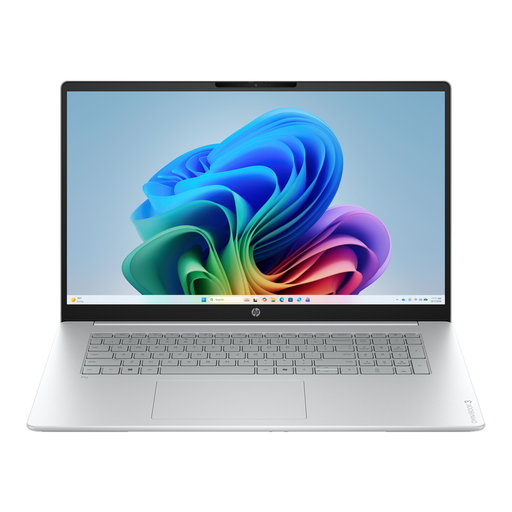
This Windows 11 Home version is an option for trying Windows catalogue software at your preferred magnification.
17.3-inch Full HD IPS screen with anti-glare finish; Intel Core 3 310; 12 GB RAM; 512 GB SSD.
The power adapter must be purchased separately.
 No image available
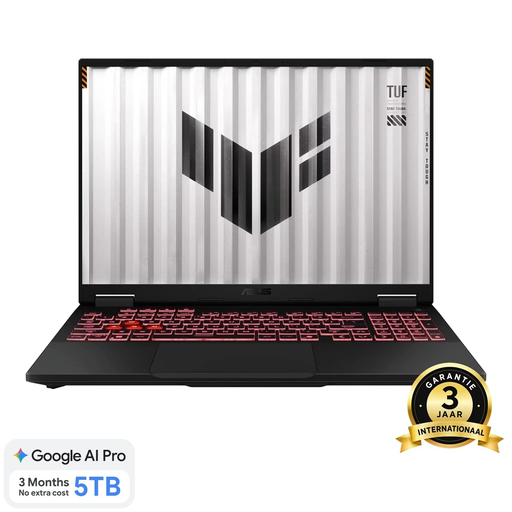
A Windows 11 Home laptop with an 18-inch screen for assessing how your catalogue looks when enlarged.
WUXGA screen with a 16:10 aspect ratio; AMD Ryzen 7 260; 16 GB DDR5; 512 GB SSD.
 No image available
A Windows 11 Home version to try if you want plenty of built-in screen space for an enlarged catalogue view.
18.4-inch WUXGA screen with anti-glare finish; Ryzen 7 260; 16 GB; 512 GB SSD.
The power adapter is not included and must be purchased separately.
 No image available
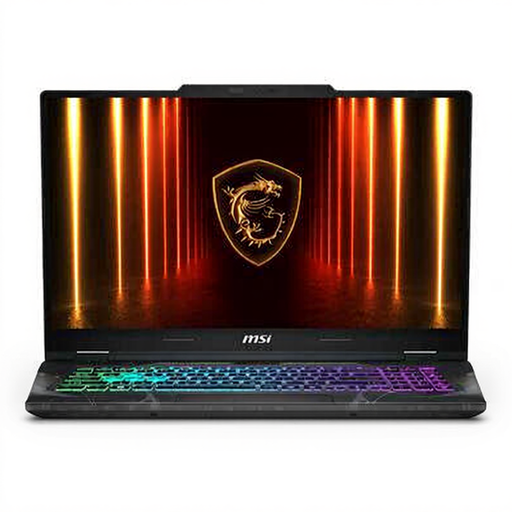
This Windows 11 Home version is an option for trying magnification in your catalogue software.
17.3-inch Full HD IPS screen with anti-glare finish; Intel Core 7 240H; 16 GB DDR5; 512 GB SSD.
The power adapter must be purchased separately.
No, a 17-inch screen isn’t essential. Windows, macOS and ChromeOS offer magnification settings. The key is to check whether the catalogue form remains visible and easy to use at your preferred magnification. A larger screen doesn’t guarantee that a particular application will scale well.
In Windows, you can change the text size and scale apps and other items; Magnifier lets you zoom in on the screen. Microsoft Support describes these options under Accessibility and Display. Also try the zoom setting in your catalogue application.
That depends on the software you choose. A web-based catalogue may work if it runs well in the browser on your chosen device; the pottery catalogue software we found for local installation lists Windows as its platform. Check your application’s requirements and try the enlarged input view before buying.
First, find out whether your data is stored locally or with an online service. The Consumers’ Association recommends storing local files externally and online too. If you use an online service, check how you can access and export your data.
For online consumer purchases, you generally have a statutory 14-day cooling-off period after delivery, subject to legal exceptions; ACM ConsuWijzer explains the rules. A product must also meet what you can reasonably expect from it. If a product is faulty, contact the seller; a commercial guarantee does not replace your statutory rights.