
Portrait retoucher working for print
Wants to assess skin tones and tonal transitions before printing a restored portrait. Adobe notes that factors including the monitor profile, paper choice and lighting affect colour management.


For a portrait you intend to print with accurate colours, suitable colour modes and a practical calibration workflow are important. If your work is mainly for digital use, a versatile screen with enough room for detail may be sufficient. Adobe recommends using an up-to-date monitor profile, as inaccurate colour reproduction can lead to unnecessary adjustments. Also consider reflections, adjustability and the connections different users need.
Wants to assess skin tones and tonal transitions before printing a restored portrait. Adobe notes that factors including the monitor profile, paper choice and lighting affect colour management.
Works on small scratches, creases and facial details, and wants enough screen space to assess both the image and editing tools. Adobe describes retouching details and reducing scratches as part of restoring old photos.
Shares a monitor or desk with colleagues and wants to account for reflections, screen position and connections for different users. Arboportaal discusses adjustable screen height and avoiding reflections when working with screens.
When retouching portraits at a shared desk, the main considerations depend on your intended output, office lighting and the computers you connect to the screen.
| What to consider | What to look for | Who should prioritise this? |
|---|---|---|
| Colour and greyscale | Check the colour modes and calibration options, and find out how to use an up-to-date monitor profile. Adobe recommends calibration and profiling for colour management. | If I want to print the portrait, I want to assess skin tones and greyscale carefully. Around 28% of consumers prioritise colour checking for print. |
| Small imperfections | Compare resolution and screen size, and check that the image and editing tools remain easy to see on your computer. | If you want to assess fine scratches and facial details, you need sufficient detail and space for tools. Around 22% of consumers prioritise this detailed work. |
| Reflections and lighting | Check the screen finish and whether it has a hood, and consider its position in relation to windows and lamps. | At a shared desk, I want to minimise distracting reflections and changing light as much as possible. Around 22% of consumers say lighting conditions are their main purchasing concern. |
| Connections and set-up | Check the video connections, the laptop charging power you need and how adjustable the monitor is. | If colleagues swap computers, I want to be able to connect the screen quickly and readjust it to eye level. Around 17% of consumers prioritise connections and set-up at a shared desk. |
| Features and running costs | Weigh up extra features against your own workflow, and check the EU energy label for the exact model. | If you mainly work digitally, you don’t want to choose features that don’t suit your work. Around 11% of consumers prioritise a suitable monitor without unnecessary specialist features. |
A wide colour gamut and an up-to-date monitor profile are not the same thing. Adobe warns that inaccurate screen reproduction can lead to unnecessary image adjustments.
First decide on your intended output, then check how to calibrate and profile the screen.
Bear in mind that profiling takes time, and some workflows may require a calibration device.
The screen’s position in relation to windows and lamps also affects how much light falls on it. A coating or hood is no substitute for a suitable set-up.
Consider the screen finish alongside its position, window coverings and lighting in the shared workspace.
USB-C monitors can offer different charging power levels. The presence of a USB-C port alone doesn’t tell you whether it will suit every laptop.
Compare the video and power requirements of the computers you use with the specifications of the exact monitor.
If the monitor doesn’t provide the laptop charging power you need, you may need a separate power supply.
BenQ positions the PhotoVue SW272Q as a photography monitor with colour modes, hardware calibration and a shading hood.
According to the manufacturer, EIZO designed the ColorEdge CS2740 for photography, image editing and retouching, with a colour-focused workflow.
ASUS positions the ProArt PA279CRV as a 27-inch 4K monitor for creative work and a mixed retouching and office workspace.
With the UltraSharp U2725QE, Dell focuses on a 27-inch 4K screen and a Thunderbolt hub for a shared laptop workspace.
LG presents the 27UP850K-W as a 27-inch 4K IPS monitor with USB-C and an adjustable stand.
These Joybuy products are aimed at portrait editing and shared laptop workspaces. They differ in resolution, colour information, adjustability and connections, so choose the features that suit your intended output and the computers you use.
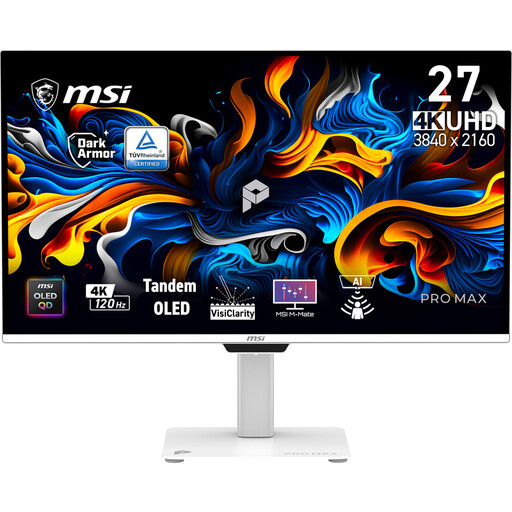 Image unavailable
Could suit you if you’re looking for a 4K screen and an adjustable workspace for retouching.
The product description lists a 3840 × 2160 resolution, 97.5% Adobe RGB, USB-C with up to 98 W Power Delivery, and height, tilt, swivel and pivot adjustment.
The description warns against displaying static images for extended periods because of the risk of image retention.
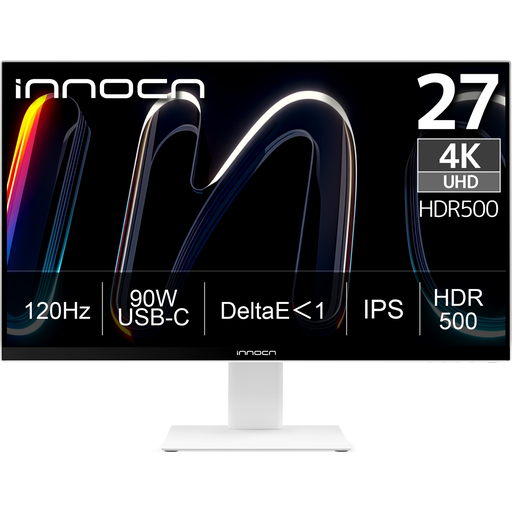 Image unavailable
An option to compare if you’re weighing up detail work, reflections and connections for a shared laptop workspace.
The product details list a 3840 × 2160 IPS panel, 99% Adobe RGB, an anti-glare surface and USB-C with 90 W Power Delivery.
According to the product details, the stand offers 150 mm of height adjustment.
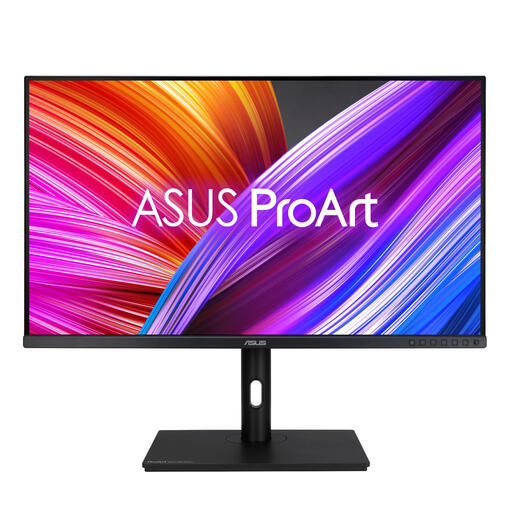 Image unavailable
Could be worth comparing if you want to assess portrait tones and adjust the screen for different users.
The product description lists 2560 × 1440 resolution, 100% sRGB and factory calibration with ΔE < 2.
According to the product details, the stand offers height, tilt, swivel and pivot adjustment; an anti-glare surface is also listed.
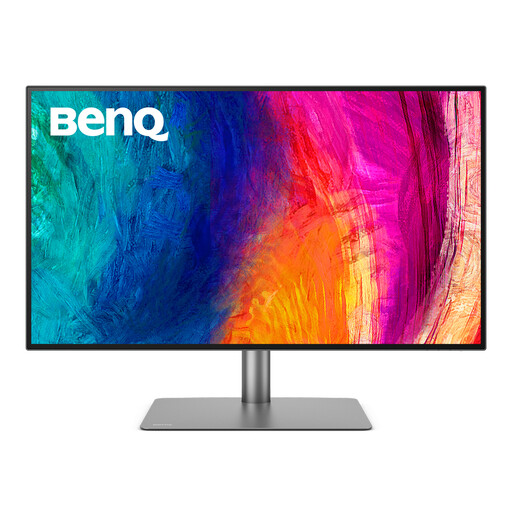 Image unavailable
A model to compare if you combine portrait editing with using several computers at one workspace.
The product description lists a 3840 × 2160 resolution, Thunderbolt 3 with 85 W power delivery and a KVM switch.
The product description mentions Calman verification and Pantone SkinTone validation.
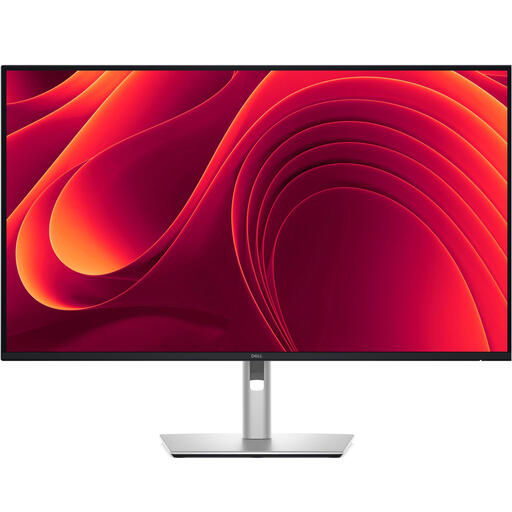 Image unavailable
Could be worth comparing if an adjustable monitor and a laptop connection are important at a shared desk.
The product details list a 3840 × 2160 IPS panel, a USB-C hub with up to 90 W Power Delivery and an RJ45 port.
According to the product description, actual charging performance depends on the connected device.
For colour-critical retouching, Adobe recommends calibration and an up-to-date monitor profile. Work in lighting that is as consistent as possible; a stated factory figure is no substitute for this workflow.
Look for adjustable screen height and minimise reflections and distracting light. Arboportaal outlines Dutch regulations for working with screens and sets out specific requirements for laptop use when working with a screen for more than two hours a day.
The European Commission states that computer monitors are covered by the EU energy label for electronic displays. Check the label for the exact version; the energy class alone won’t tell you whether a monitor suits your retouching workflow.
In the Netherlands, online purchases generally come with a 14-day cooling-off period after delivery, subject to statutory exceptions, according to ACM ConsuWijzer. Your statutory guarantee is separate from any manufacturer’s warranty: if a product does not perform as you could reasonably expect under normal use, the seller is responsible for providing a solution.