Who is this buying guide for?

Portrait editor preparing images for print

Assesses skin tones and colour differences, with print as a possible end use. A colour-managed workflow and suitable calibration are important here. Adobe describes colour management for work intended for both print and online use.

Version comparer

Places edits or reference images side by side and wants room for editing panels. Consider both the resolution and how readable everything will be at your chosen display scaling.

Laptop-based image editor

Would like to manage the video signal, peripherals and laptop power through a single desk setup. Check that your laptop and monitor together support the required video connection and charging capacity.

What should you look for when buying?

Colour-focused monitor

A good fit if: you assess portrait colours critically, for example when preparing images for print, and want to use colour management.

Consider: check what measuring equipment and laptop power delivery are required. A stated wide colour gamut doesn’t guarantee how your screen will display colours.

4K workspace for comparing versions

A good fit if: you regularly want to view versions and tool panels at the same time. Adobe explains how to display images side by side in Photoshop.

Consider: 4K provides pixels for your layout, but doesn’t determine how much will remain readable at your chosen display scaling and viewing distance.

General-purpose 4K monitor for screen use

A good fit if: you mainly create digital images and an adjustable workspace is important to you.

Consider: DCI-P3 and Adobe RGB coverage are different specifications. Match the colour mode to the intended use of your images.

Consideration What should you check? Who is this important for?
Portrait colour Check the stated colour gamut and calibration options for the exact model. Take into account the equipment you’ll need and your working environment. If I’m assessing skin tones critically, I want to be able to use colour management rather than relying on a colour gamut percentage alone. Around 36% of consumers prioritise colour assessment.
Space for versions Compare screen size and resolution, and check readability at your usual viewing distance and display scaling. When I have versions and panels open at the same time, I want to compare them without constantly switching between windows. Around 29% of consumers prioritise workspace for comparing multiple versions.
Intended output Decide whether you mainly work for screen use or also prepare images for print. Check the available colour modes and use suitable profiles and soft proofing. If my portrait will appear both digitally and possibly on paper, I want to match my colour assessment to its intended use. Around 21% of consumers prioritise matching their monitor to the intended output.
Laptop connection Check that your laptop supports video through the USB-C port you plan to use, and compare the required charging power with the monitor’s output. When I connect my laptop at my desk, I want to know whether the combination provides both a video signal and enough power. Around 14% of consumers prioritise connectivity and laptop power delivery.

Common buying mistakes

  • Assuming a colour gamut percentage guarantees accurate skin tones

    Colour gamut coverage and colour reproduction in your own lighting conditions aren’t the same thing. EIZO lists a measuring instrument for hardware calibration as an optional accessory for the ColorEdge CS2740.

    Compare the colour mode of the exact model and decide how you’ll profile and calibrate the screen for colour-critical work.

    Calibration may require a colorimeter or other suitable measuring equipment.

  • Comparing DCI-P3 and Adobe RGB directly

    These are different colour spaces. A percentage for one doesn’t tell you how much coverage a screen offers in the other.

    Compare coverage for the same colour space and match it to the output you’ll use the monitor for.

  • Assuming USB-C provides video and enough power with every laptop

    The monitors listed differ in their maximum USB-C power delivery, and the laptop itself must support the required video connection.

    Check the video output, charging requirements and cables for the exact combination. You may still need a separate laptop charger.

Relevant brands for this monitor setup

BenQ

The PhotoVue SW272U is a colour-focused 27-inch 4K model for anyone who wants to assess portrait colours and use different colour modes.

  • BenQ lists 99% Adobe RGB, hardware calibration and 90 W USB-C power delivery for the SW272U.
  • Check what calibration equipment you’ll need. Manufacturer specifications aren’t an independent measurement of the particular unit you buy.

EIZO

The ColorEdge CS2740 is a 27-inch 4K option for a colour-managed workflow, with print assessment in mind.

  • EIZO lists 99% Adobe RGB, hardware calibration and up to 60 W USB-C power delivery for this model.
  • The data sheet lists a measuring instrument for hardware calibration as an optional accessory. Check what you’ll need for your workflow.

ASUS

According to ASUS, the ProArt PA279CRV combines a 27-inch 4K workspace with separate colour modes and connectivity options.

  • The Dutch specifications list 99% Adobe RGB, 100% sRGB, 96 W USB-C power delivery and picture-in-picture.
  • The stated colour coverage and accuracy are manufacturer specifications, not an independent measurement of the individual screen.

LG

The UltraFine 27UP850K-W is an adjustable 27-inch 4K option with USB-C, particularly for those who don’t require Adobe RGB as a separate buying criterion.

  • LG lists 95% typical DCI-P3 coverage and up to 96 W power delivery for this model.
  • DCI-P3 isn’t a measure of Adobe RGB coverage. LG also notes that Calibration Studio software isn’t included in the box.

Dell

The UltraSharp U2725QE is a 27-inch 4K hub monitor for setups where workspace and connectivity are key priorities.

  • Dell lists IPS Black, 120 Hz and 90 W USB-C power delivery for this model.
  • The stated contrast improvement is a manufacturer claim. Assess colour suitability for your intended output separately.

Joybuy products for workspace and comparing versions

These Joybuy products are 4K monitors for anyone who wants to view versions and editing panels on a single workspace; screen sizes vary.
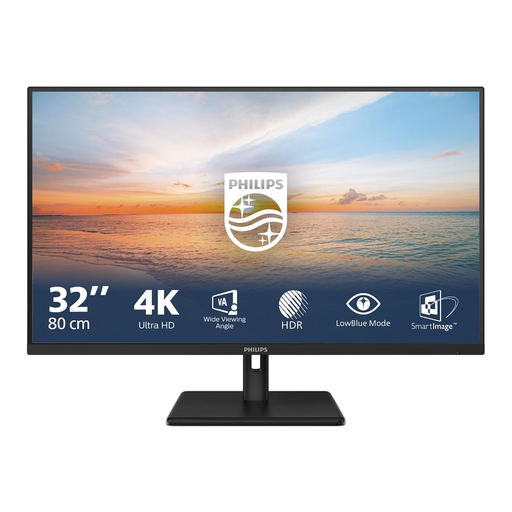
Philips 32E1N1800LA 32-inch VA 4K UHD monitor

Philips 32E1N1800LA 32-inch VA 4K UHD monitor

The 32-inch size suits anyone who wants a spacious workspace for comparing versions.

3840 × 2160 pixels, 60 Hz, 300 cd/m², 2 HDMI ports and DisplayPort.

Joybuy
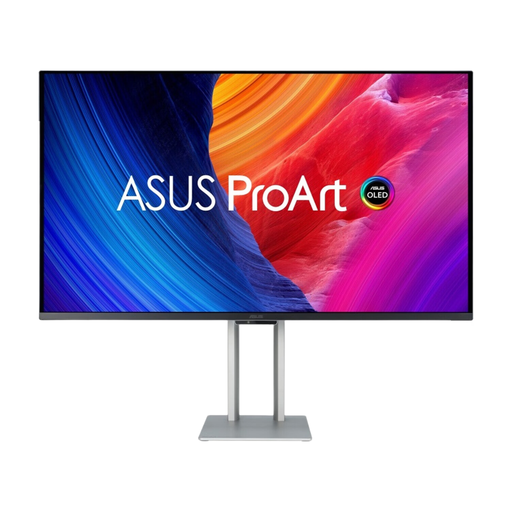
ASUS ProArt OLED PA32UCDM 31.5-inch 4K QD-OLED monitor

ASUS ProArt OLED PA32UCDM 31.5-inch 4K QD-OLED monitor

The 31.5-inch 4K workspace is an option for anyone who wants to view multiple versions and panels side by side.

The product description warns that the QD-OLED panel may be susceptible to burn-in. Use a screen saver and vary the on-screen content.

Joybuy
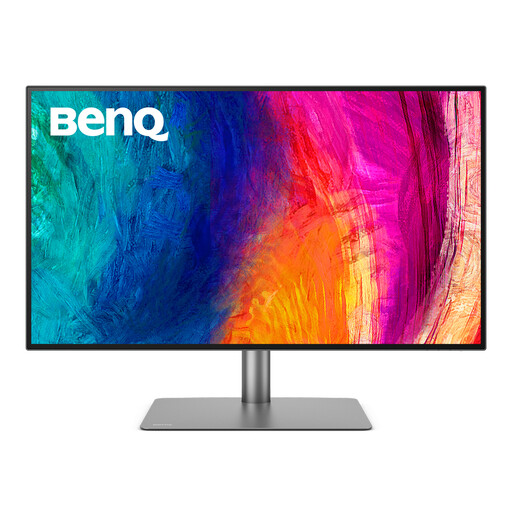
BenQ PD3225U 32-inch 4K UHD monitor

BenQ PD3225U 32-inch 4K UHD monitor

The 32-inch 4K format gives you room to view versions and editing panels together.

The stated USB-C and Thunderbolt power delivery is up to 85 W. A separate power supply may be needed for a laptop with higher charging requirements.

Joybuy
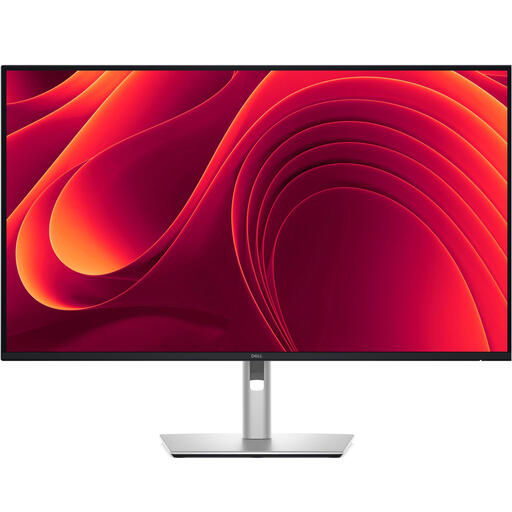
Dell Pro Plus P3225QE 31.5-inch 4K UHD monitor

Dell Pro Plus P3225QE 31.5-inch 4K UHD monitor

The 31.5-inch 4K screen is aimed at anyone who wants to view multiple project versions on a large workspace.

USB-C power delivery is listed at up to 90 W. Check that this meets your laptop’s charging requirements.

Joybuy
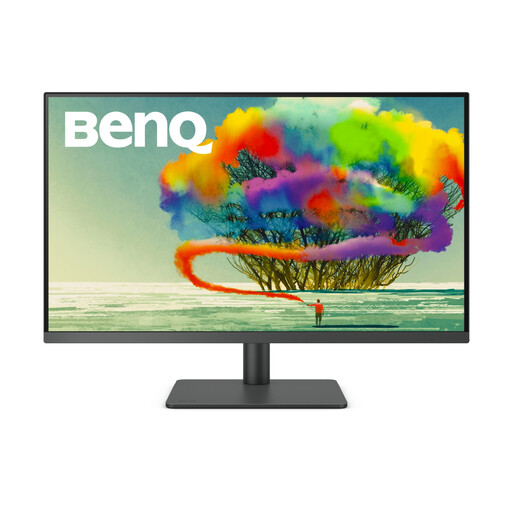
BenQ PD3205U 31.5-inch 4K UHD monitor

BenQ PD3205U 31.5-inch 4K UHD monitor

The 31.5-inch 4K format suits anyone who wants to view versions and tool panels side by side.

The product title lists 3840 × 2160 pixels; the described connections include HDMI, DisplayPort and USB-C.

Joybuy

Frequently asked questions

Is a 4K monitor enough for comparing multiple project versions clearly?

4K gives you pixels for windows and panels, but also check that both versions remain readable at your display scaling. Photoshop can show images side by side; resolution alone won’t make colour differences reliable.

Should you calibrate a new monitor?

If you assess portrait colours critically, Adobe describes a colorimeter and screen profile as tools for objective colour checking. Try to keep the ambient lighting as consistent as possible while assessing images, too; a manufacturer’s specification doesn’t automatically describe your setup.

What should you consider when connecting a monitor to a laptop?

Match your laptop’s video output to the monitor’s input, and check the required charging power separately. The models listed differ in their stated USB-C power delivery. A USB-C port alone doesn’t confirm that your laptop will receive both a video signal and enough power through a single cable.

What warranty and cooling-off period apply to an online purchase in the Netherlands?

ACM ConsuWijzer distinguishes between statutory consumer rights and a manufacturer’s or seller’s warranty. If a product becomes faulty sooner than you could reasonably expect under normal use, the seller is responsible for providing an appropriate remedy free of charge. For online purchases, you usually have a 14-day cooling-off period after delivery, subject to statutory exceptions. This is not a general 14-day warranty period.

Does an energy label matter when buying a monitor?

Yes. The European Commission states that computer monitors are covered by energy labelling for electronic displays, with an A–G rating. Compare the label for the exact model; an energy rating says nothing about colour accuracy.
