Start with the intended output: for a portrait that will mainly be shared online, accurate sRGB rendering matters more than extra Adobe RGB coverage; Adobe recommends sRGB for web display. If you’re also printing, match your monitor and calibration to the printer, ink and paper profiles. For reviewing work together, also consider desk space, reflections and laptop connections: a wide colour gamut alone won’t guarantee a match with a print.
Who is this guide for?
Digital portrait creator
You retouch a portrait of a market trader and share it mainly online or on other screens. Look for accurate sRGB rendering, a suitable workspace and a well-managed colour-profile workflow. Adobe recommends sRGB for consistent web display.
Workshop print creator
You also want to review the portrait on paper. Consider the intended output and the profile for the specific printer, ink and paper combination; monitor calibration doesn’t replace that output profile. Adobe explains this colour-management chain.
Shared-workspace facilitator
You discuss edits with others around a table or connect a laptop. Consider viewing positions, reflections, available space, and the video and power connections your computer actually supports.
What should you consider when choosing?
Mainly for digital sharing
When: If you’ll mainly show the portrait online or on other screens, Adobe recommends sRGB for web display.
Trade-off: A wider Adobe RGB gamut isn’t automatically necessary for this; the display settings and colour-profile workflow still matter.
Printing the portrait too
When: If you’re preparing a print, first check the required file and output profile.
Trade-off: Adobe recommends sRGB for many online print services; calibration doesn’t replace the profile for your chosen printer, ink and paper.
Reviewing work together
When: If workshop participants will be viewing from different positions, consider viewing angles and ambient light.
Trade-off: A larger screen or a hood may take up more desk space, and an anti-glare coating won’t make a poor lighting setup suitable by itself.
| Concern |
What to check before buying |
Who this matters most to |
| Colour for digital sharing |
Check sRGB support, available colour modes and how you can profile the display; don’t judge colour accuracy by coverage percentage alone. |
I mainly share the portrait online and want to assess colour choices on other screens. Around 31% of consumers prioritise digital colour display above all else. |
| Detail and workspace |
Compare the resolution and dimensions, including the stand, with the space available; also check whether your computer’s scaling settings work comfortably. |
When retouching, I want to see the portrait and tools clearly. Around 25% of consumers prioritise editing detail and workspace. |
| Matching a print |
Ask the print service which file profile it requires; consider Adobe RGB, hardware calibration and soft proofing only in the context of that workflow. |
If I’m having the portrait printed, I want to know in advance which profile is needed and whether calibration is suitable. For around 19% of consumers, the print workflow is their top priority. |
| Viewing together |
Consider the position relative to windows, the screen coating, adjustability, viewing positions and the overall depth of the setup. |
During the workshop, I want others to be able to view the screen without distracting glare. This is the main reason for prioritising a shared viewing space for around 13% of consumers. |
| Connecting a laptop |
Check video output through the laptop port, the power required, the cable, and the HDMI, DisplayPort or USB-C inputs on the exact model. |
I want to connect my workshop laptop without overlooking a required video or power connection. Around 12% of consumers start by considering the laptop connection. |
What to look out for when buying
-
Assuming a wide colour gamut guarantees an accurate print
Colour-space coverage, the display settings and the output profile each describe a different part of colour management.
Decide on the output first, then check the monitor profile and the print profiles you need. Calibration and proof prints require additional preparation.
-
Comparing DCI-P3 percentages as if they were Adobe RGB
LG lists typical 95% DCI-P3 coverage for the 27UP850K-W; ASUS lists 99% Adobe RGB for the PA279CRV. These percentages refer to different colour spaces and aren’t directly comparable.
Compare the same colour space on the exact model and consider it alongside your digital output or intended print workflow.
-
Assuming every USB-C port supports video and provides enough power
The laptop port, cable and monitor must support both the video connection and the power required. ASUS lists 96 W via USB-C for the PA279CRV; EIZO lists up to 60 W for the CS2740.
Before buying, check your laptop’s port capabilities and charging requirements. You may also need a separate video cable or laptop power supply.
-
Forgetting how much space the monitor setup takes up
The stand and any hood also take up space; screen position and ambient lighting affect how participants see the image.
Measure the available width and depth, including the stand, and assess the planned setup under the lighting in the workshop space.
Brands to compare
BenQ
The PhotoVue SW models are worth comparing if you may also edit the portrait for printing.
- BenQ lists a 27-inch screen, 3840 × 2160 pixels, 99% Adobe RGB, hardware calibration and an included hood for the SW272U.
- These are manufacturer specifications, not an independent assessment of your workspace. Check whether the extra colour and calibration features suit your output.
EIZO
The ColorEdge CS2740 is worth considering if you want a consistent calibration process and may prepare prints.
- EIZO specifies a 27-inch-class display, 4K UHD, over 99% Adobe RGB, hardware calibration and up to 60 W via USB-C for the CS2740.
- Calibration requires a suitable workflow and doesn’t replace the profile for the specific printer, ink and paper combination. Compare 60 W with your laptop’s requirements.
ASUS
According to ASUS, the ProArt PA279CRV combines a 27-inch 4K workspace with colour modes and laptop connectivity.
- ASUS lists 100% sRGB, 99% Adobe RGB, an anti-glare surface and 96 W USB-C Power Delivery for this model.
- Manufacturer specifications and colour claims don’t confirm how an individual screen is set up. Also check that your laptop supports the connection you want.
LG
The UltraFine 27UP850K-W is a 4K option for detailed work and a laptop setup if a specialist print monitor isn’t your priority.
- LG lists 27 inches, 3840 × 2160 pixels, typical 95% DCI-P3 and up to 96 W via USB-C.
- DCI-P3 isn’t an Adobe RGB percentage. LG also states that Calibration Studio software isn’t included.
Dell
The UltraSharp U2725QE is an alternative to compare if a 4K workspace and everyday connectivity are important.
- Dell describes this exact model as a 27-inch 4K Thunderbolt hub monitor.
- Connectivity alone doesn’t determine whether a monitor is suitable for colour-critical printing. Assess that workflow separately.
Joybuy monitors for portrait editing
This Joybuy selection includes 4K monitors for portrait editing, including models for digital output and shared viewing. Check that the colour workflow, desk space and laptop connection are suitable for each exact model.
 Image unavailable
Philips 32E1N1800LA 32-inch VA 4K UHD monitor
A 32-inch 4K screen could suit you if you want plenty of room to view the portrait and editing windows.
The product name lists 3840 × 2160 pixels, 60 Hz, 300 cd/m², two HDMI connections and DisplayPort.
View at Joybuy
 Image unavailable
MSI MAG 322UP QD-OLED E16 31.5-inch
This could suit a workspace where you’re considering a large 4K screen and a print workflow; check that the colour settings and connection meet your needs.
The product name lists QD-OLED, 4K UHD, 165 Hz and USB-C. The product information advises against displaying static images at high brightness for long periods and recommends using the OLED care features.
View at Joybuy
 Image unavailable
CRUA CR320QB 32-inch curved 4K monitor
The stated sRGB coverage may be relevant if you’re editing the portrait mainly for digital display; also check the screen settings.
The product name lists 3000R curvature, a VA screen, 3840 × 2160 pixels, HDR10, Adaptive Sync and 100% sRGB.
View at Joybuy
 Image unavailable
Philips 27E1N1800AE/00 27-inch IPS monitor
A 27-inch 4K format could suit you if you want to combine detailed work with a more compact screen size.
The product name lists 3840 × 2160 pixels, 60 Hz, 4 ms, HDMI, DisplayPort and a height-adjustable stand.
View at Joybuy
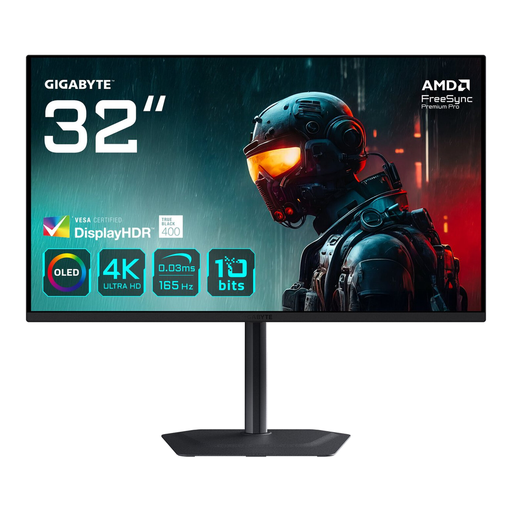 Image unavailable
GIGABYTE MO32U 31.5-inch 4K UHD OLED monitor
This large screen could suit portrait editing and shared viewing; check in advance that its size will fit your workshop table.
The product name lists OLED and 3840 × 2160 pixels.
View at Joybuy
Frequently asked questions
Do you need Adobe RGB if you’re having the portrait printed?
Not necessarily. Adobe also recommends sRGB for many online print services, and Adobe RGB for certain print workflows. Follow the file and output profile requirements of your chosen print service.
Why might a proof print look different from the screen?
The screen, printer, ink, paper and ambient light all affect how colours appear. Adobe describes colour management using suitable monitor and output profiles; you may also want to review a soft proof or proof print.
Can you connect a laptop with a single USB-C cable?
Only if the chosen laptop port supports video output and the cable and power supply meet your needs. ASUS lists 96 W via USB-C for the PA279CRV; EIZO lists up to 60 W for the CS2740. Check your own laptop’s specifications.
Is the energy label relevant for a computer monitor?
Yes. The European Commission lists computer monitors among the electronic displays for which energy labels are relevant. For a specific model, check its label and product information; colour and resolution specifications don’t tell you how much power it uses.
What should you consider if participants will work at the screen for longer periods?
Set up the screen position and lighting carefully. For employees who work with display screens for more than two hours a day, Arboportaal sets out specific workplace requirements; these employment rules don’t necessarily apply to every volunteer workshop participant.


