
People who often change their workspace
You regularly take your laptop and research materials to another room and want to be able to set up a second screen there.


Choose a portable second screen if you regularly take your laptop and research materials to another room. Compare how easy your own documents are to read at your preferred text size with the screen’s weight, stand and power requirements. If you usually work in one place, a larger, adjustable desktop monitor may be more suitable, although it will be less convenient to move. Before you buy, check that the video connection and power supply are compatible with your laptop.
You regularly take your laptop and research materials to another room and want to be able to set up a second screen there.
You want to review text, tables or charts alongside your notes, and your main consideration is the usable reading space at your preferred text size.
You often work at the same screen for extended periods. Even when working in different places, you also consider adjustability, reflections and your posture.
| What to consider | What should you check? | Who is this important for? |
|---|---|---|
| Reading space for sources and tables | Open a representative PDF and table at the screen size you’re considering. Compare the screen’s diagonal measurement, aspect ratio and text scaling to find what works for you. | If I want to review documents and tables side by side, the text needs to remain readable at my preferred scale. Around 31% of consumers prioritise reading space. |
| Portability and set-up | Compare the stated weights on a like-for-like basis and check the dimensions and stand. Also think about the cables you’ll need to take with you. | When I often move between rooms, I want to be able to carry the screen easily and set it up securely. Around 31% of consumers prioritise portability. |
| Connectivity and power | Check the exact ports on your laptop and monitor, and the cable you’ll need. Make sure video output and power delivery work, and check whether an alternative connection requires a driver. | If I want to use my existing laptop, it needs to provide the right video connection and enough power. Around 23% of consumers consider connectivity and power their top priority. |
| Adjustability for extended reading | Check the height and tilt adjustments, viewing angle and position relative to windows. Assess your entire workspace set-up. | When I read for long periods, I want to be able to adjust the screen properly at my workspace, even after moving to another room. Around 15% of consumers prioritise workspace adjustability. |
USB-C ports can have different functions. Dell specifies that the USB-C port on the P2425 is a downstream data port, not a video input or laptop charger. DisplayLink may also require a driver.
Before choosing how to connect, check the functions of the exact ports on both your laptop and monitor.
Depending on the connection, you may need a different cable or adapter.
Resolution doesn’t tell you how much physical screen space you have. Screen size and text scaling also affect how easy your documents are to read.
Before comparing models, view one of your own PDFs and tables at the screen size and text scale you’re considering.
Lenovo lists touch control and active stylus support for the ThinkVision M14t Gen 2, but specifies that a passive pen is included in the box.
If you want to annotate digitally, check separately that the pen, computer and annotation software support the input you need.
You may need to buy a compatible active stylus separately.
A portable stand doesn’t automatically offer the same adjustment options as a fixed monitor. For employees who work at a screen for more than two hours a day, the Dutch Arboportaal sets out additional requirements for laptop use.
Wherever you work, check the screen height, viewing angle and reflections, and assess your entire set-up.
Lenovo offers several portable ThinkVision screens, as well as the larger L16, giving you options to compare for weight, reading space and touch control.
The Dell P2425 is an example of a larger monitor for a workspace that’s mainly used in one place.
The portable Philips 16B1P3302/01 is worth considering if the ports available on your laptop will determine your choice of second screen.
The ZenScreen MB16ACV is a portable screen with a hybrid USB-C connection.
The portable AOC 16T3EA is worth comparing if you’re considering an integrated stand and portrait orientation.
This selection focuses on portable second screens for anyone who takes research documents from room to room.
 No image available
A portable second screen for anyone who wants to take a larger display with them when moving between rooms.
16 inch, FHD IPS, 16:10 and 144 Hz.
Built-in stand, two USB-C ports and Mini HDMI.
 No image available
A portable screen for anyone who wants to view documents and tables on a second display.
16 inch, 2.5K IPS, 16:10 and 144 Hz.
Built-in stand, two USB-C ports and Mini HDMI.
 No image available
A portable screen for anyone who wants to use an integrated stand when moving between rooms.
16 inch and 16:10 aspect ratio.
The product name mentions a retractable, rotating magnetic stand and support for 100 W reverse charging.
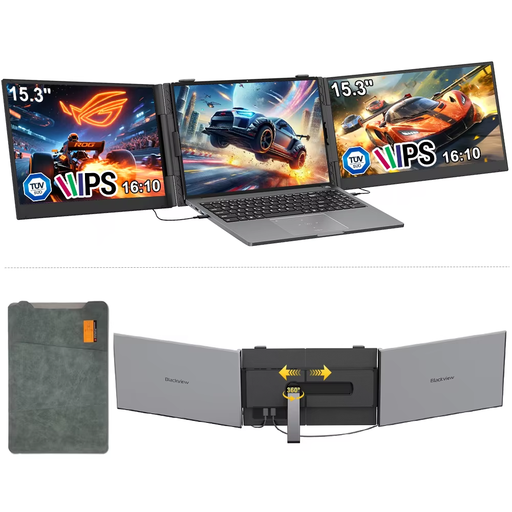 No image available
A portable option for anyone who values a 16:10 screen when comparing documents.
15.3 inch, IPS, 16:10, 1920 × 1200 and 60 Hz.
The product name lists compatibility with Windows, Mac, Chrome OS and mobile devices.
 No image available
A portable second screen for anyone who moves between rooms and wants more screen space.
16 inch, WUXGA IPS, USB-C and 65 W Power Delivery.
Video and charging via USB-C depend on compatibility with your laptop.
No. Check whether that particular port supports video using the connection required by the screen, and whether it supplies enough power. USB-C video for the Philips 16B1P3302/01 requires DP Alt Mode; DisplayLink via USB-A is a different connection. ASUS says DisplayLink requires a driver.
Position the screen securely and check the viewing angle, reflections and lighting. A portable screen on its own doesn’t guarantee a well-arranged workspace. For employees who work at a screen for more than two hours a day, the Dutch Arboportaal sets out additional workspace requirements.
The Dutch Arboportaal describes this rule for employees who work at a screen for more than two hours a day: when using a laptop, they must be able to use a separate screen or keyboard. Whether the rule applies to you depends on your employment and circumstances; it isn’t a general purchase requirement for every reader.
Not necessarily. For consumer purchases in the Netherlands, the statutory guarantee is separate from any voluntary manufacturer’s or retailer’s guarantee. According to ACM ConsuWijzer, the retailer is responsible for providing an appropriate solution if the product doesn’t perform as you could reasonably expect under normal use. Compare any additional cover on its own terms, for example, whether it covers accidental damage.
EU energy labelling and ecodesign rules cover computer monitors, with exceptions for certain screens. Check the applicable label information for the exact model; don’t estimate power consumption from the screen size or USB-C connection alone.