Start by checking your laptop’s video output and the power supply the screen needs: a USB-C connection alone doesn’t guarantee a picture. Then decide whether you’d prefer more screen space for floor plans, a more compact setup that’s easy to move, or touch for making notes. Touch is only useful if your computer and software support it.
Who might find a portable monitor for floor plans useful?
Student who often moves between rooms
You want a second screen that’s quick to set up on another table and easy to take with you. So compare the screen, case or stand, and connection to your laptop as one complete setup. Lenovo, ASUS and AOC describe a range of portable screens and setup options.
Reader of detailed floor plans
You want to view small labels and measurements alongside other property documents. Screen size, aspect ratio and resolution help you compare your options, but readability also depends on the text scaling. Lenovo and ASUS publish specifications for models with a range of screen sizes and resolutions.
Floor plan annotator
You want to mark up plans or add notes on the second screen. As well as checking for touch, make sure your computer and the application you plan to use support this way of working. Lenovo lists ten-point touch for the ThinkVision M14t Gen 2.
What should you look for when choosing a portable monitor?
| What to consider |
What to look for |
Who should prioritise it? |
| Video connection and power |
Check that your laptop port supports video, and check the monitor input and power requirements. Also see which cables are included. |
If I connect the screen in a different place each time, I want to know that my laptop, cable and power supply will work together. Around 33% of consumers who mainly want a simple connection consider this their top priority. |
| Floor plan readability |
Compare screen size, aspect ratio and resolution, and view your own floor plan at the text size you want to use. |
If I want to read small measurements and labels alongside property information, I consider both the physical screen space and how the image is displayed. Around 27% of consumers prioritise floor plan detail. |
| Portability and setup |
Compare dimensions and weight using the same method of measurement. Include the case and stand in your assessment, and consider how much table space you have. |
If I often move between rooms, I want to be able to pack the screen away easily and set it up securely on different tables. Around 27% of consumers who consider portability their main priority fall into this group. |
| Making notes on screen |
Check touch and any pen support for the exact model, your computer and the application you use. |
If I want to point things out or write directly on a floor plan, touch is only useful if my software and computer support it. Around 13% of consumers name annotation as their main consideration. |
Common mistakes when buying a portable monitor
-
Assuming a USB-C connector means video is supported
A USB-C connector doesn’t automatically mean your laptop can send video through that port. Philips says the 16B1P3302D/00 needs a source device with USB-C and DisplayPort Alt Mode for video.
Check the video specifications for your laptop port and compare them with the manual for the exact monitor. Also check how the monitor is powered.
-
Comparing weights measured in different ways
The weight without a stand isn’t the same as the weight of a complete setup. For the PM161Q UM.ZP1EE.001, Acer distinguishes between the weight of the screen and the weight including the stand.
Check exactly what’s included in the stated weight, and take account of the items you’ll actually carry, such as a case or stand.
-
Assuming touch will work in every study app
A touch specification describes a screen feature, but it doesn’t prove that the computer, pen and application you want to use support your chosen way of annotating.
Check that the exact model works with your setup before choosing touch as a deciding feature.
-
Confusing the manufacturer’s guarantee with your statutory rights
A manufacturer’s guarantee isn’t the same as your statutory rights if a product is faulty. According to the Dutch government, the retailer is your point of contact if a product isn’t as it should be.
If you’re considering an additional guarantee, compare the extra rights or cover it offers. If a product is faulty, contact the retailer.
Brands to compare
Lenovo
According to Lenovo, the ThinkVision M14t Gen 2 combines a compact 14-inch screen with higher resolution and touch.
- Lenovo lists 2240 × 1400 pixels, ten-point touch, two USB-C ports with DisplayPort and a weight of around 0,7 kg.
- A smaller screen offers less physical space than a larger model. The specifications don’t prove that touch will work in every application.
ASUS
The ZenScreen MB16AHV is a 15,6-inch Full HD model with USB-C and mini-HDMI; the MB16AHP is a separate model with a battery.
- ASUS lists two USB-C ports, mini-HDMI and a kickstand for the MB16AHV.
- Don’t assume the MB16AHP’s battery is included with the MB16AHV. Check the connections and power requirements for each version; HDMI doesn’t provide power by itself.
AOC
The 16T20E2 is a 15,6-inch Full HD model to consider if you want mini-HDMI as well as USB-C.
- AOC lists USB-C for video and power, and a magnetic case that doubles as a stand.
- If you use HDMI, check the power requirements separately. A USB-C port on your laptop doesn’t guarantee that it supports video output.
Philips
According to Philips, the Business Monitor 16B1P3302D/00 has a 15,6-inch Full HD screen and an adjustable stand.
- Philips lists two USB-C ports and a continuously tilting stand.
- According to Philips, this model needs DisplayPort Alt Mode on the source device to display video via USB-C. Power also depends on the device’s specifications.
Acer
The PM161Q UM.ZP1EE.001 is a 15,6-inch Full HD model without a touchscreen.
- For this version, Acer lists one USB-C port and gives separate weights for the screen and the screen with its stand.
- The product specifications say this model doesn’t have touch. When comparing weights, check whether the stand is included.
Portable monitors at Joybuy
This selection includes portable monitors for viewing floor plans at different workstations, with a range of screen sizes, stands and input options.
 No image available
TECLAST V16H 16-inch portable monitor
The built-in stand and 16-inch screen could suit reading at different workstations.
FHD, 16:10, 144 Hz, two USB-C ports, mini-HDMI and stereo speakers.
Joybuy
 No image available
TECLAST V16Q 16-inch portable monitor
The 16-inch screen and kickstand could be a good fit for viewing floor plans at a temporary workstation.
2,5K, 16:10, 144 Hz, IPS, two USB-C ports, mini-HDMI and speakers.
Joybuy
 No image available
Blackview TABLE 9 16-inch portable monitor
The telescopic, rotating stand is worth considering if you’ll be using the monitor on different tables.
16:10, 1920 × 1200 pixels, two USB-C ports and mini-HDMI. The stated weight of 650 g excludes the stand.
Joybuy
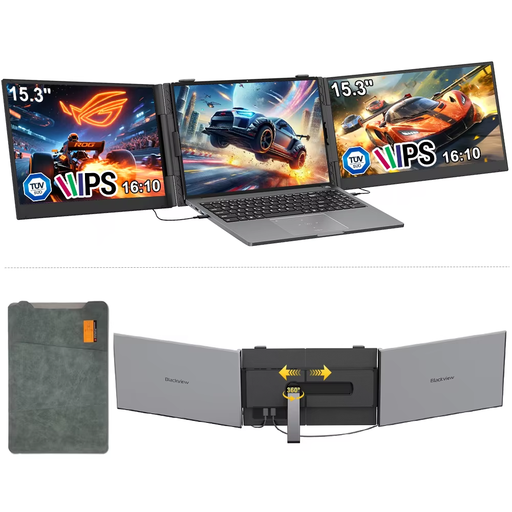 No image available
Blackview DCM8 15,3-inch portable monitor
The 16:10 screen is an option for viewing floor plans and related documents on one screen.
IPS, 1920 × 1200 pixels, 60 Hz. The stated weight is 1,2 kg.
Joybuy
 No image available
UPERFECT 15,6-inch touchscreen monitor
Touch could be useful if you want to make notes on the second screen; check that your computer and software support it first.
1080p resolution and touchscreen. The product title lists USB-C and mini-HDTV connections.
Joybuy
Frequently asked questions about portable monitors for floor plans
Does every USB-C port on your laptop send video to a portable monitor?
No, not every USB-C port carries a video signal. If a monitor uses USB-C video via DisplayPort Alt Mode, your laptop port must support this feature. Check the power specifications too, and always check the exact monitor against your own laptop.
What should you take with you when moving the monitor between rooms?
Check which stand or case, video cable and power supply you need for your chosen model. ASUS lists a USB-C cable, power adapter and mini-HDMI-to-HDMI adapter among the accessories for the MB16AHV; check which accessories are included with the version you’re looking at.
Are you only entitled to a two-year legal guarantee in the Netherlands?
No. According to the Dutch government, the Netherlands doesn’t have a fixed statutory guarantee period: you can expect a product to work properly for a reasonable length of time. If a product is faulty, contact the retailer; a manufacturer’s guarantee is additional.
What safety and disposal information is relevant to a monitor?
According to guidance from the European Union, CE rules may apply to electrical and electronic equipment where applicable harmonised EU rules require them. Milieu Centraal sets a 25 cm size limit for collection bins for small electrical appliances. A monitor may therefore need to be disposed of another way, such as returning it when you buy a similar appliance or taking it to a recycling centre.


