
Reading floor plans alongside a laptop
You want to open a downloaded file on a second screen while keeping property details visible on your laptop. A working video connection is the first requirement.


First, choose a portable monitor whose video connection and power requirements are compatible with your laptop; USB-C alone does not guarantee a picture. Then compare the screen size and resolution with the details on your floor plan, and weigh these against what you want to carry. Treat the models mentioned as points of comparison, and check the product documentation for the exact model before buying.
You want to open a downloaded file on a second screen while keeping property details visible on your laptop. A working video connection is the first requirement.
You look at measurements, room names and notes side by side. So consider the combination of screen size, resolution and display scaling, not just the diagonal measurement.
You take your workspace with you and need to weigh the available screen space against the screen, protection and desk space you need.
First check that your laptop connection supports both video and power. Then compare the space available for reading, the size and any touch controls with the way you study.
| What to consider | What should you check? | Who is this most important for? |
|---|---|---|
| Video connection and power | Check for video via USB-C or a suitable HDMI connection, as well as the power supply and cable required. | If I want to open a floor plan alongside property details, my laptop must support the chosen video connection and power supply; around 36% of consumers prioritise connectivity and power. |
| Space to read details | Compare screen size, resolution and aspect ratio. Also check whether the scaling setting keeps labels easy to read. | When I want to read small floor-plan labels and compare details, the combination of screen size and resolution matters; around 29% of consumers prioritise readability above all else. |
| Carrying and setting up | Measure your bag and desk space, and check the weight, included case and stand. | If I often study in different places, I want to know how much space the screen and laptop will take up together; around 21% of consumers prioritise portability and a compact workspace. |
| Touch and annotation | Check compatibility with your computer and annotation software, and find out which pen features your chosen setup supports. | If I want to point things out or make notes directly on the floor plan, touch functionality needs to suit the way I work; around 14% of consumers prioritise annotation above all else. |
Dell distinguishes between USB-C ports with video output and those that only support data or power. Without suitable video output, the monitor will not display a picture.
Check the documentation for the specific laptop port and the monitor's video input before choosing how to connect them.
If USB-C does not output video, you may need a different suitable connection or cable.
The 14-, 15.6- and 16-inch models mentioned also differ in resolution and aspect ratio. So screen diagonal alone does not tell you how much of the floor plan and accompanying information you can comfortably view at once.
Compare the diagonal measurement, resolution and scaling setting, and, if possible, view a sample of your own file.
Lenovo lists a passive pen with the ThinkVision M14t Gen 2. A compatible active stylus is required for the pressure levels mentioned.
Decide whether you only want to point things out or annotate using pen features, then check which pen is compatible with your computer and software.
Some pen features may require a compatible active stylus, sold separately.
The ZenScreen MB16FC is a reference point for a 16:10 screen with USB-C and mini-HDMI.
The P1425 is a compact 14-inch reference point for a second workspace.
The ThinkVision M14t Gen 2 is a reference point for a compact touchscreen.
The I1601FWUX is a 15.6-inch Full HD reference point for a suitable USB-C setup.
Portable monitors for viewing downloaded property floor plans on a second screen. Before buying, check that the connection is compatible with your laptop, and consult the product documentation for the exact model and applicable product requirements.
 No image available
An option to compare if you are looking for a larger second screen with more than one video connection listed.
16 inches; 2.5K; 16:10; 144Hz IPS; 2 USB-C ports and mini-HDMI.
 No image available
Compare this model if a 16:10 screen with an adjustable stand suits your study space.
16 inches; 16:10; adjustable, rotating magnetic stand; supports 100 W reverse charging.
 No image available
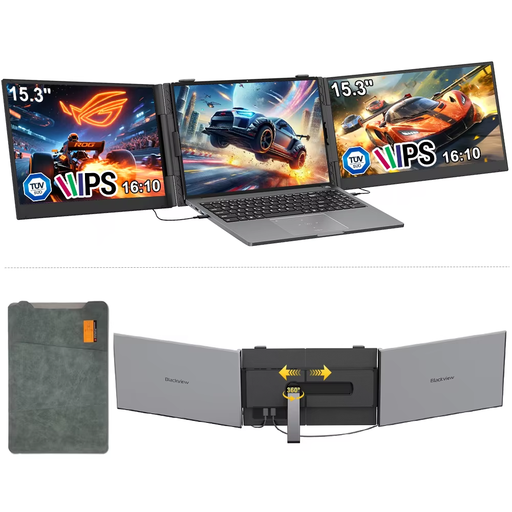
An option to compare if you want to view floor plans and property details on a 16:10 screen.
15.3 inches; IPS; 16:10; 1920 × 1200 pixels; 60 Hz.
 No image available
Compare this option if you are looking for a 16:10 screen with the stated resolution and two types of connection.
16 inches; 2560 × 1600 pixels; 16:10; 144Hz; mini-HDMI and Type-C.
 No image available
An option to compare if a built-in stand and portable second screen suit the way you work.
16 inches; 2560 × 1600 pixels; IPS; built-in stand; USB-C and HDMI.
Yes, if your computer supports an external display. Microsoft Support explains that in Windows you can arrange detected displays separately. Open the files on your computer and position the windows on the screens you want. The extra screen does not replace your computer or document software.
A USB-C port that only supports data or power will not provide a video signal for a monitor. Dell cites DisplayPort Alt Mode and Thunderbolt as examples of video support for the connection options described. Check the documentation for your laptop port.
First connect the right cable, then check that your computer detects the screen and arranges it correctly. Follow the instructions for your chosen model when cleaning and carrying it, as guidance can vary between models.
According to ACM ConsuWijzer, when you buy a monitor online you generally have up to 14 days from delivery to change your mind, subject to applicable exceptions. The Dutch government also describes your right to a product that is fit for purpose; in the Netherlands, there is no fixed general warranty period.
Applicable European safety requirements apply to electrical and electronic equipment placed on the market in the Netherlands. The Dutch government’s Ondernemersplein explains that, after assessing a product as compliant, the manufacturer affixes the CE mark and draws up and signs an EU Declaration of Conformity. A product listing alone does not prove that a specific model meets these requirements.