Choose a monitor with a built-in battery if you don’t want the screen to draw power from your laptop; a model powered by your laptop may suit you if the laptop has the right video output and can supply enough power. Then compare the screen space, weight and any touch controls with the way you study. A monitor’s stated operating time doesn’t tell you how long the complete setup will last.
Who is a portable monitor suitable for?
Students studying without a mains socket
If you’re making flashcards for an extended period somewhere without mains power, check whether the screen has its own battery and under what conditions it will last. ASUS lists a built-in battery for the ZenScreen Go MB16AHP; HP says the E14 G4 is powered by the laptop via USB-C.
Students using different devices
If you use different laptops or connections, check whether the port you’ve chosen carries video and how the screen is powered. ASUS states that the connected device must support DisplayPort Alternate Mode for the MB16AHP.
Students viewing reference material alongside flashcards
If you want to see reference material and flashcards at the same time, compare the screen size and orientation. Touch controls are mainly relevant if your device and flashcard software support the input you need.
What should you look for in a portable monitor?
Start by checking the power source and compatible video connection. Then compare the screen space and weight for carrying around.
| Concern |
What to look for when buying |
Who is this important for? |
| Power without a mains socket |
Check whether the exact model has a built-in battery, under what conditions its stated operating time applies and how else you can power the screen. |
If I study without a mains socket, I want to know whether the screen needs its own power or power from my laptop. Power autonomy is a top priority for around 33% of consumers. |
| Video signal and connections |
Check that your laptop’s video output is compatible with the monitor; with HDMI, also check separately how the screen gets power. |
I want to know in advance whether my device can send video to the screen and how the connection works. Video signal and cable compatibility are the main buying concern for around 27% of consumers. |
| Space for reference material and flashcards |
Compare screen size, resolution, aspect ratio and any portrait mode; for touch, check that your device and software support the input. |
If I want to view reference material alongside my flashcards, the screen needs to suit the way I work. Reading and working space is the main consideration for around 20% of consumers. |
| Weight when travelling |
Compare the monitor’s stated weight and also allow for cables, protection and any separate power supply. |
I want to be able to take my study setup with me easily, without the screen and accessories becoming too heavy together. Portability is the main buying concern for around 20% of consumers. |
Common mistakes when choosing
-
Assuming USB-C always carries both video and power
A USB-C port alone doesn’t confirm that the laptop supports the right video signal mode. ASUS states that the connected device must support DisplayPort Alternate Mode to display video via USB-C on the MB16AHP.
Compare the laptop port’s specifications with the input on the exact monitor model, and check the power supply separately.
Depending on the connection you choose, you may need to arrange a different connection solution or a separate power supply.
-
Assuming the screen’s battery life applies to the whole setup
ASUS’s stated battery operating time for the ZenScreen Go MB16AHP applies to the screen under a specific usage condition, not to the connected laptop.
Plan power for the screen and computer separately, and check what conditions the stated operating time is based on.
When you’re out and about, you may need an additional way to charge your devices if you’re also using your laptop without a mains socket.
-
Choosing touch or a higher resolution without considering how you work
According to Lenovo, the ThinkVision M14t Gen 2 has 10-point touch and a resolution of 2240 × 1400 pixels. How useful these features are will also depend on your device and flashcard software.
Decide in advance whether you’ll mainly be reading, entering information directly or doing both, and check that your software supports the touch or pen input you need.
Brands and models to consider
ASUS
The ZenScreen MB16AHP and MB16AHV models offer different power and connection options.
- ASUS lists a 7800 mAh battery for the ZenScreen Go MB16AHP, with up to 4 hours of screen use in DP Alt Mode at 100% brightness.
- The operating time applies to the screen under the stated conditions; the connected device must support DisplayPort Alternate Mode for video over USB-C. The Dutch specification for the MB16AHV does not list a built-in battery, so check what power supply you’ll need.
Lenovo
The ThinkVision M14t Gen 2 is a compact touchscreen option for anyone reading reference material and considering on-screen input.
- Lenovo specifies a 14-inch screen, 2240 × 1400 pixels, 10-point touch and a weight of 700 g for this model.
- These specifications don’t confirm that your flashcard software supports touch or pen input, or that the screen has its own battery.
MSI
According to MSI, the PRO MP165 E6 combines USB-C video with an HDMI input.
- MSI lists two USB-C connections with DP Alt Mode and an HDMI 2.0b input.
- This model uses an external USB power supply, so don’t expect to use the screen independently without a power source. MSI notes that specifications may vary by country.
HP
The E14 G4 is a 14-inch USB-C model for anyone looking for a straightforward laptop connection.
- HP describes video and power via a single USB-C cable from the laptop, as well as an anti-glare FHD screen.
- This setup draws power from the laptop, so bear that in mind if you’re working without a mains socket.
Portable monitors at Joybuy
These portable monitors are options for a mobile study space. Check how video and power work for each model, and whether the connections are compatible with your laptop.
 Image unavailable
TECLAST V16H 16-inch monitor
The 16:10 aspect ratio may suit anyone who wants to view reference material alongside flashcards.
16 inches, FHD, 144 Hz and 16:10; two USB-C ports and Mini HDMI.
View at Joybuy
 Image unavailable
UPERFECT 15.6-inch touchscreen monitor
A touchscreen may be useful if your flashcard software and device support the touch controls you need.
15.6 inches, 1080P and touchscreen; Mini HDMI and USB-C.
View at Joybuy
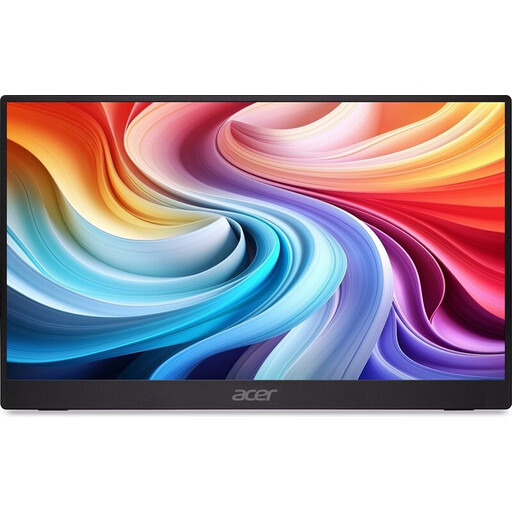 Image unavailable
Acer PM161QB1 15.6-inch monitor
A portable 15.6-inch model to take with you to a mobile study space.
15.6 inches and 60 Hz. Bear in mind that this model needs a separate charger, which isn’t included as standard.
View at Joybuy
 Image unavailable
UPERFECT 16-inch 2K monitor
The 16:10 aspect ratio may suit anyone who wants to view reference material and flashcards on the same screen.
16 inches, 2560 × 1600 pixels, 16:10 and 144 Hz; Mini HDMI and Type-C.
View at Joybuy
 Image unavailable
ASUS ZenScreen MB166CR 15.6-inch Full HD
A portable 15.6-inch Full HD screen for a mobile study space.
15.6 inches, 1920 × 1080 pixels, Full HD and LCD. This model doesn’t have a built-in battery, so check in advance how you’ll power it when you’re out and about.
View at Joybuy
Frequently asked questions
Will a portable monitor automatically run on its own battery without a mains socket?
No, it depends on the model. ASUS lists a built-in battery for the ZenScreen Go MB16AHP; HP says the E14 G4 gets power from the laptop via USB-C. Check the power source for the exact model.
How do I connect a USB-C monitor to make flashcards?
First, check that your device’s video output is compatible with the monitor. To display video via USB-C on the ASUS MB16AHP, the connected device must also support DisplayPort Alternate Mode. Then choose on your computer whether to extend or mirror the screen.
Can I use touch to write flashcards?
According to Lenovo, the ThinkVision M14t Gen 2 has 10-point touch. Also check that your computer and flashcard software support the input you need; the monitor specifications alone don’t confirm this.
What returns and warranty rights apply to an online purchase in the Netherlands?
According to ACM ConsuWijzer, when you buy a standard product online, you generally have a statutory cooling-off period of up to 14 days after delivery, subject to legal exceptions. In addition, under the statutory guarantee, the seller must put right at no cost any product that doesn’t meet what you could reasonably expect, for example by repairing or replacing it, or issuing a refund. The seller is your point of contact; a manufacturer’s warranty doesn’t replace your statutory rights.


