What should you look for when buying?
Start by considering the viewing distance and the workshop computer’s video output. Then check whether the screen can be positioned securely at the right viewing angle, and how it will be powered.
| What to consider |
What should you check? |
Who is this important for? |
| Readability |
View an actual instruction slide from the furthest seat. Consider screen size, reflections and font size; resolution alone doesn’t determine the viewing distance. |
If I want everyone at the table to follow the steps, I’ll test the screen in the actual setup. Around 36% of consumers put readability first. |
| Video signal |
Check whether the laptop’s USB-C port supports video, for example via DP Alt Mode. Otherwise, compare the video output with the monitor input and the cable you’ll need. |
If I use different laptops, I want to know in advance whether they can output a video signal. Around 29% of consumers prioritise a compatible connection. |
| Setup and portability |
Check whether the stand is adjustable, whether it offers the viewing angle you need, and whether you’ll need a tripod mount or suitable mounting equipment. |
If I move the screen between rooms, I want to be able to position it securely at a practical height. Around 21% of consumers focus mainly on setup and portability. |
| Power supply |
Check whether the laptop can power the monitor, whether you’ll need an adapter and whether there’s a plug socket near the chosen location. If you choose a model with a battery, consider how long it will last in your setup. |
If there’s no suitable plug socket where the workshop is taking place, I want to know in advance what power supply will work. Around 14% of consumers prioritise power without a fixed plug socket. |
Portable monitors at Joybuy
These product picks are portable monitors for workshop instructions, including models with USB-C and HDMI and a built-in stand. For each model, check that the connections and setup suit your workshop computer and room.
 Image unavailable
Blackview DCM6 PRO 14-inch portable monitor
Could be worth considering if you’re looking for a portable screen described as a laptop extender; check whether that setup suits how you want to show workshop instructions.
14-inch Full HD screen with 1920 × 1080 pixels. The product description lists a USB-C cable and HDMI cable as included. The title states compatibility with 13–17.3-inch laptops.
View at Joybuy
 Image unavailable
TECLAST V16H 16-inch portable monitor
Could be a good fit if you’re considering a portable screen with a built-in stand and both USB-C and mini-HDMI; check which connection your computer supports.
The title lists a 16-inch FHD IPS screen in a 16:10 format, two USB-C ports, mini-HDMI and a built-in stand.
View at Joybuy
 Image unavailable
TECLAST V16Q portable monitor
Could be worth considering if you’re looking for a portable screen with USB-C, mini-HDMI and a built-in stand; check the workshop computer’s video output.
The product title lists an IPS screen with 2.5K resolution, 144 Hz, two USB-C ports, mini-HDMI and a stand. The product description specifies 2560 × 1600 pixels and a 16:10 aspect ratio.
View at Joybuy
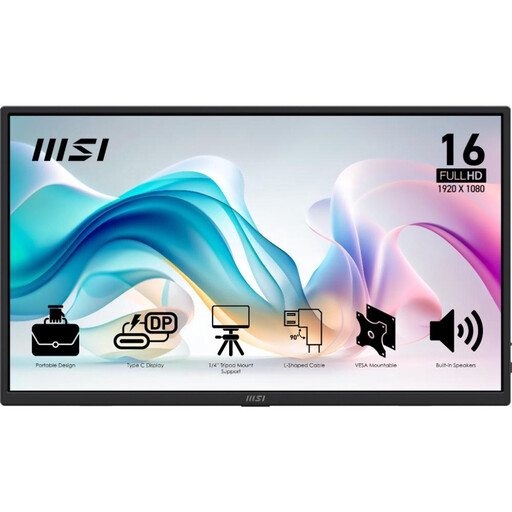 Image unavailable
MSI PRO MP165 E6 15.6-inch portable monitor
Could suit a table setup if you’re looking for a 15.6-inch screen with a tilting stand; check the available video connection and positioning options.
15.6-inch Full HD IPS screen. The product description lists HDMI 2.0b, USB-C with DP Alt Mode, an anti-glare coating and a stand that tilts up to 90°.
View at Joybuy
 Image unavailable
ARZOPA Z1RC 16-inch portable monitor
Could be worth considering if you’re looking for a portable screen with a built-in stand and USB-C and HDMI connections. Check the screen from the participants’ seats.
16-inch IPS screen with 2560 × 1600 pixels. The product description lists USB-C, HDMI, a built-in stand and a weight of 810 g.
View at Joybuy
Frequently asked questions
Can every USB-C port send workshop visuals to a monitor?
No. Check whether the computer’s USB-C port supports video. Philips requires USB-C with DP Alt Mode to send video to the 16B1P3302D/00; ASUS also distinguishes between USB-C ports with and without video support.
How should I set up a portable monitor before participants arrive?
Connect the computer using the chosen cable, check the picture and power supply, then position the screen securely at a practical viewing angle. Next, view an actual instruction slide from the furthest participant’s seat. Philips says the stand on the 16B1P3302D/00 tilts from 0 to 90 degrees; other models may have different setup options.
What can I do if the monitor is faulty, and what does an extended warranty mean?
For a consumer purchase in the Netherlands, the seller must offer a solution if the product doesn’t meet expectations. According to the Dutch government, the Netherlands has no fixed statutory warranty period; a manufacturer’s warranty or an additional warranty you’ve bought comes on top of your statutory right to a product that is fit for purpose.
Can I return a monitor bought online if it doesn’t suit the workshop setup?
For an eligible online consumer purchase, you generally have 14 days from delivery to change your mind. Check the terms and any return costs. This consumer right doesn’t automatically apply in the same way when a library buys the monitor for business use.
What rules apply to electrical monitors sold in the Netherlands?
According to Business.gov.nl, sellers of electrical and electronic equipment must ensure that products comply with the relevant European rules. The manufacturer arranges the applicable CE marking and EU declaration of conformity once the technical and administrative requirements have been met. Business.gov.nl stresses that a CE marking isn’t a quality mark for picture quality.


