What should you look for when buying?
First, decide where participants will be sitting so they can read the screen. Then check the connection, power supply and space available on the table.
| Key consideration |
What should you check? |
Who is this most important for? |
| Readability for the group |
Compare screen size and anti-glare features. Test your actual instructions from the intended seats and in the café’s lighting. |
If I’m sharing the screen with a small group sitting in different places, I want text and images to be readable from the planned distance. Around 28% of consumers prioritise readability for a group. |
| Power without a socket |
Check whether the monitor has a battery and test it for the planned session length at your chosen brightness and connection settings. |
If there’s no usable socket near my table, I want to know in advance how both the monitor and source device will be powered. Around 22% of consumers prioritise freedom from a mains socket. |
| Connection to your device |
Check whether USB-C supports video. If you’re using HDMI, also check the separate power connection and the cables you’ll need. |
If I’m using my own laptop or tablet, I want to avoid finding that there’s no picture during the workshop. Around 22% of consumers prioritise connection reliability. |
| Setting it up and carrying it |
Check the stand, tilt adjustment, size and any case. Make sure the screen and cables will fit on the café table. |
If I’m often carrying the monitor and setting it up on different tables, I want to make sure it’ll fit the available space. Around 17% of consumers prioritise portability and set-up. |
| Direct screen control |
Check whether touch works with your source device and whether you can position the monitor within easy reach while explaining. |
If I want to point out or control steps beside the screen, touch is more relevant than when participants are simply watching from further away. Around 11% of consumers prioritise direct control. |
Portable monitors for sharing instructions at the table
These Joybuy products are portable monitors for use on a table. Compare screen size, connections and how you’ll position the monitor.
 No image available
TECLAST V16H 16-inch portable monitor
The 16-inch screen and built-in stand could be a good fit for instructions shared around a table.
The title lists Full HD, IPS, 16:10, 144 Hz, two USB-C ports and mini-HDMI. Check which connection supports video and what power your set-up will need.
View at Joybuy
 No image available
TECLAST V16Q 16-inch portable monitor
The 16-inch size and built-in stand are worth considering if you want to display instructions on a shared screen.
The product information lists 2.5K, 2560 × 1600 pixels, IPS, 16:10, 144 Hz, two USB-C ports and mini-HDMI. Check your source device’s video and power capabilities.
View at Joybuy
 No image available
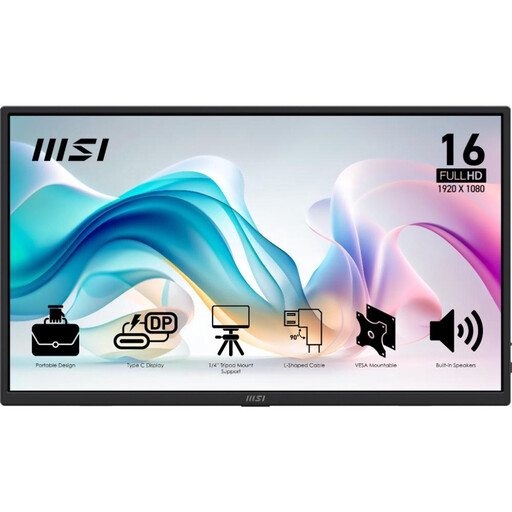
MSI PRO MP165 E6 15.6-inch portable monitor
This could be a good option if you want a choice of connections and an adjustable set-up for your workshop.
The product information lists Full HD, IPS, anti-reflection, two USB-C ports with DP Alt Mode and HDMI. The stand tilts up to 90°; the stated weight is 0.78 kg, and a protective case is listed.
View at Joybuy
 No image available
ARZOPA Z1RC 16-inch portable monitor
The 16-inch screen and built-in stand are worth considering for a portable table set-up with shared instructions.
The product information lists 2560 × 1600 pixels, IPS, USB-C, HDMI and a stated brightness of 350 cd/m². Check the connections and power requirements of your own devices.
View at Joybuy
 No image available
ASUS ZenScreen MB166CR 15.6-inch portable monitor
The 15.6-inch screen and integrated stand could suit a set-up that you move around a café table.
The product information lists Full HD, IPS, a matte anti-glare screen and one USB-C video input. No built-in battery is listed; also check the power requirements and compatibility with your source device.
View at Joybuy
Frequently asked questions
Is USB-C on my laptop enough for video and power?
Not always. For video over a single USB-C cable, ASUS requires DisplayPort Alt Mode on the laptop for the ZenScreen MB16FC. For HDMI, ASUS also lists USB-C as a power input, so check both connection options on your devices.
How can I make the set-up work for a session in a café?
Show the actual instructions in advance and check them from the intended seats in the lighting conditions at the time. Test the connections and any battery, and agree with the café on the monitor’s position, power supply and cable routing.
How should I transport and care for the monitor?
Use a case if one is supplied with your chosen model, and follow the instructions for that exact model when cleaning and transporting it. Lenovo, for example, lists a case with the ThinkVision M14t Gen 2; don’t assume every model comes with the same accessories or care instructions.
When buying online, do I have 14 days to change my mind and a statutory guarantee?
For a qualifying distance purchase by a consumer in the Netherlands, you’ll generally have up to 14 days after delivery to change your mind. ACM ConsuWijzer also states that statutory consumer rights apply alongside any seller’s guarantee. If you use an agreement mainly or exclusively for business, you may not be covered by consumer protection. So check in what capacity you’re buying and which terms apply to your order.


