
On-location transcript editor
You want to edit a transcript while keeping the source material visible on another screen. Look for enough usable space for text and a stand that sits securely on the table available to you.


Start by checking whether your laptop can send a video signal to your chosen monitor, and how you’ll power both devices when you’re out and about. For long transcripts, a 16:10 screen or a supported portrait orientation can be useful. If there’s no mains socket nearby, a monitor with its own battery could be the answer, but remember to check its weight and battery life too.
You want to edit a transcript while keeping the source material visible on another screen. Look for enough usable space for text and a stand that sits securely on the table available to you.
You often change where you work and want to know how much weight, which case and which cables you’ll need to carry. So compare more than just screen size: check what you’ll need to connect it too.
You sometimes work in places without mains power. Decide in advance how you’ll power both your laptop and the extra monitor.
First check the connection and power supply; then compare the space available for text and how easy the screen is to carry.
A good fit if: you mainly want to place your transcript alongside source material and your laptop supports USB-C video via DP Alt Mode.
Bear in mind: check the power supply too. A screen without its own battery still needs a power source.
A good fit if: you want to be able to use different video outputs. According to the Dutch specifications, the ASUS ZenScreen MB16AHV has USB-C with DP Alt Mode and mini-HDMI.
Bear in mind: HDMI doesn’t power the monitor by itself, so plan for the video signal and power supply separately.
A good fit if: you regularly work without access to a mains socket. ASUS lists a built-in 7800 mAh battery for the ZenScreen Go MB16AHP.
Bear in mind: battery capacity doesn’t tell you how long it will last. Charge the monitor and check the battery life for the settings you’ll use.
| What to consider | What to look for | Who should pay particular attention? |
|---|---|---|
| Connection | Check the video mode supported by the exact laptop port and the inputs on the monitor version you’re considering. | If I don’t want to waste time on location with a screen that won’t display an image, I check the connection first. Around 36% of consumers put compatibility and connectivity first. |
| Space for text | Compare the screen size, resolution and aspect ratio, and check whether the setup you choose supports portrait orientation. | If I want to refer to the transcript and source material at the same time, I look for a layout that works well for long passages of text. Around 29% of consumers give space for text their highest priority. |
| Portability and setup | Compare the stated weight of the exact version and check what’s included. Also make sure the stand will fit your workspace. | When I move between workspaces between interviews, the weight in my bag and the space on the table both matter. Around 21% of consumers put portability and setup first. |
| Power supply | Check whether you can power the laptop and monitor at the same time, and what battery life the manufacturer quotes for the relevant settings. | If I’m working without a mains socket, I want to know in advance how I’ll power the screen and my laptop. Around 14% of consumers give power without a fixed connection their highest priority. |
The shape of the connector alone doesn’t mean that a laptop can output video through that port. Philips says DP Alt Mode is required for USB-C video on the 16B1P3302D/00.
Check the specifications for the exact laptop port and monitor version before choosing how to connect them.
The 16B1P3302/00 is described as using a DisplayLink connection; the 16B1P3302D/00 has different product information about USB-C.
Compare the full model code and check which connection and software your laptop needs.
For the ASUS ZenScreen MB16AHV, mini-HDMI for video and USB-C power are listed separately.
Check the video connection and power supply separately, especially if you won’t have access to a mains socket.
The ZenScreen range includes a variety of portable screens, including models with USB-C and mini-HDMI, as well as a model with a built-in battery.
The ThinkVision M14d is a 14-inch portable screen with a 16:10 aspect ratio; the M14t Gen 2 is a separate model with touch controls.
The portable Business Monitor range includes the 16B1P3302D/00 and the separate 16B1P3302/00.
HP describes the E14 G4 as a 14-inch Full HD portable screen designed to work with a single USB-C cable.
These portable screens can be used alongside a laptop screen when editing transcripts on the go. Before buying, check that the connection, power supply and setup will work with your laptop and workspace.
 No image available
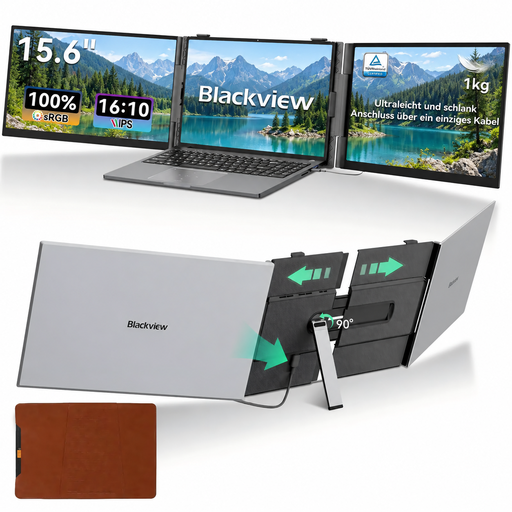
The product description presents this screen as a laptop extender, designed for anyone who wants to view a transcript and source material side by side.
14-inch Full HD resolution of 1920 × 1080; the description mentions a single USB-C cable and compatibility with laptops from 13 to 17.3 inches.
 No image available
The built-in stand could be useful if you set the screen up in different workspaces; check how much desk space you’ll have available first.
16-inch screen with a 16:10 aspect ratio and FHD resolution; the product title lists two USB-C ports, mini-HDMI and a built-in stand.
 No image available
If you want to see a transcript and source material at the same time, the stated 16:10 aspect ratio gives you a different screen layout from a 16:9 model.
16-inch screen with a 16:10 aspect ratio and 2560 × 1600 resolution; the product title lists USB-C, mini-HDMI and a built-in stand.
 No image available
The product description mentions a protective case, which could be useful if you often carry the screen between workspaces.
14-inch screen with a 16:10 aspect ratio and 1920 × 1200 resolution; the product title lists USB-C and mini-HDMI. The description gives a weight of 1.18 kg.
 No image available
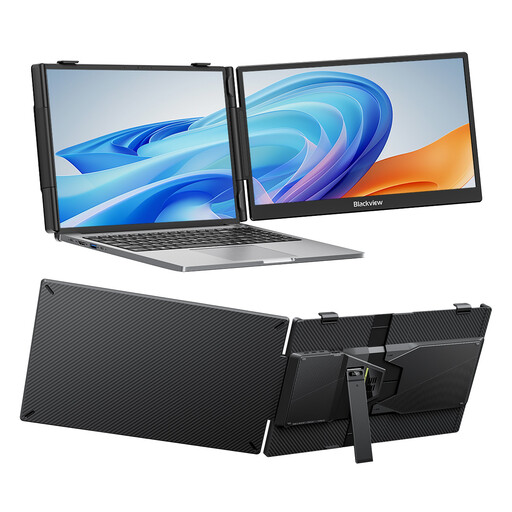
The product description mentions an adjustable stand, worth considering if the table or your working position varies from one location to another.
14-inch FHD IPS screen; the product title lists compatibility with laptops from 13 to 17.3 inches.
No. Not every USB-C port outputs video. For USB-C video on the Philips 16B1P3302D/00, for example, the source device must support DP Alt Mode. Check the specifications for the exact laptop port and assess the power supply separately.
Try extending your display rather than duplicating it, and see whether portrait orientation works with your monitor and software. Lenovo lists mirroring and extending for the M14t Gen 2; for automatic rotation on the ASUS MB16AHV, ASUS lists DisplayWidget Center.
Yes. Check the video connection and power supply separately: HDMI doesn’t power the monitor by itself. The ASUS MB16AHV has mini-HDMI as well as USB-C, and ASUS lists a power adapter among the accessories. Check what’s included with the version on offer.
For eligible consumer purchases made at a distance, there is generally a 14-day cooling-off period from the date of delivery. The European Union’s Your Europe website says conditions may apply to return postage costs; check these before buying. This is separate from your rights if a product is faulty.