What should you look for when choosing one?
First, check your laptop’s video output and power supply. Then choose the screen space and extra features that suit your preparation between appointments.
| What to consider |
What should you check? |
Who is this important for? |
| Connection and power |
Check that your laptop port supports the required video mode, and find out which cables and power supply you’ll need. |
If I work in different locations with different laptops, I want to know in advance whether video and power will work together. Around 31% of consumers give connection and power the highest priority. |
| Portability and setup |
Compare the dimensions and weight of the model, and check whether a stand and case are included. |
If I take the monitor to back-to-back client visits, I want to be able to get it out and set it up quickly. Around 25% of consumers prioritise portability. |
| Workspace for documents |
Check the screen size, aspect ratio and resolution, and make sure text is readable at your preferred display scaling. |
If I want to view my schedule and training materials side by side, I look for enough usable space for both. Around 19% of consumers give viewing documents side by side the highest priority. |
| Working without a power socket |
Check whether the exact model has a battery and the conditions under which its stated battery life applies. Also consider how your laptop is powered. |
If I can’t use a power socket at a temporary workspace, I want to know whether the monitor has its own power source. Around 13% of consumers prioritise power without a socket. |
| Making notes on the screen |
Check that touch is supported by your device and software, and find out what connection is needed with your chosen video input. |
If I want to point things out or make notes during preparation, I want to know whether touch will work with my equipment. Around 12% of consumers give direct on-screen control the highest priority. |
Portable monitors at Joybuy
These models are portable second screens for preparing training materials. The selection includes single screens with USB-C and HDMI, as well as a touchscreen.
 No image available
UPERFECT 15.6-inch portable touchscreen monitor
A touchscreen for anyone who wants to write or point things out directly on the monitor while preparing.
Full HD; USB-C for video and power, plus mini-HDMI. Your laptop must support USB-C video mode.
View at Joybuy
 No image available
ARZOPA Z1RC 16-inch portable monitor
A single second screen for viewing documents alongside your schedule, with a built-in stand.
16:10, 2560 × 1600, 810 g, USB-C and HDMI. Check that your laptop supports video through your chosen connection.
View at Joybuy
 No image available
ASUS ZenScreen MB166CR 15.6-inch monitor
A Full HD screen for anyone who wants to use a portable second screen with their laptop.
1920 × 1080 pixels.
View at Joybuy
 No image available
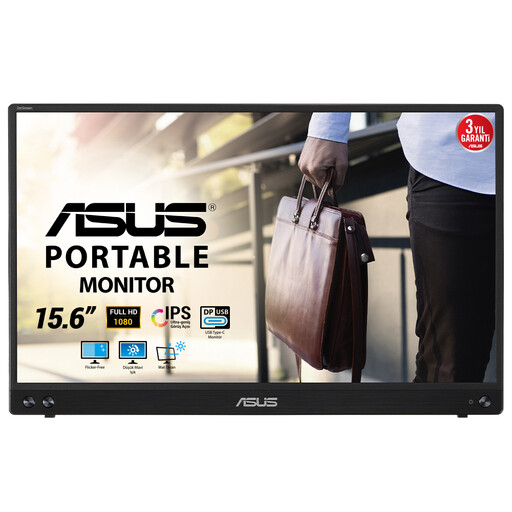
ASUS MB16ACV 15.6-inch portable monitor
A single portable second screen for viewing documents alongside other materials while on the go.
Full HD IPS, 0.83 kg and USB-C for video and power. Video over USB-C requires a compatible laptop port.
View at Joybuy
 No image available
ARZOPA A1S 14-inch portable monitor
A lightweight second screen for anyone who carries their monitor often and needs to switch between documents.
Full HD, 600 g, built-in stand, USB-C and mini-HDMI. Video over USB-C requires a compatible laptop port.
View at Joybuy
Frequently asked questions
Can you use any USB-C port to connect a portable monitor?
No. Check that your laptop’s video output supports the mode required by the monitor. For example, Lenovo lists DP 1.2 Alt Mode and PD 2.0 for the ThinkVision M14. These requirements apply to that model and don’t automatically apply to all monitors.
How can you set up the screen between two appointments?
Check in advance which cable, power supply and stand you need for your model. ASUS describes the MB16AHV as having a kickstand for landscape or portrait use; Lenovo lists a stand, USB-C cable and protective case for the M14t Gen 2.
How can you protect a portable monitor while travelling?
Use the case supplied with your model and follow the manufacturer’s cleaning instructions. A case is listed for the Lenovo M14t Gen 2 and AOC 16T2, among others, but it can’t prevent every risk of damage in transit.
Are you automatically entitled to exactly two years’ statutory guarantee in the Netherlands?
No. According to the Dutch government, there is no fixed statutory guarantee period in the Netherlands. You’re entitled to a product that works properly, and the seller is your point of contact if it’s faulty. An additional manufacturer’s guarantee doesn’t affect your statutory rights.
Can you return a monitor bought online if it isn’t compatible with your laptop?
For eligible consumer purchases made at a distance, the Dutch government says you’ll often have a 14-day cooling-off period. Check the terms for your purchase. Business purchases and purchases from private sellers aren’t necessarily covered by the same rules.


