
Trainer with limited workspace
You want to refer to your lesson plan alongside your laptop, but need to set up and put away the screen in a limited train workspace.


For a cramped train table, a single 14-inch screen is a practical size to consider. Choose a 15.6-inch model only if your laptop, monitor and stand will all fit together. Also check whether your specific laptop port supports video output and how the monitor is powered. NS recommends taking your devices fully charged, as charging on the train may not always be possible. A monitor with its own battery could be an alternative, but you’ll need to charge and carry it yourself.
You want to refer to your lesson plan alongside your laptop, but need to set up and put away the screen in a limited train workspace.
You want to keep planning on the move without assuming there’ll be a usable power socket. NS recommends charging your laptop and phone sufficiently in advance.
You might want to view a programme, reference materials and notes side by side, and weigh up whether the extra workspace is worth the weight and space taken up by the setup.
Start by checking the space beside your laptop and whether your laptop can output a video signal. Then decide which power option and extra screen features will suit your train journey.
| What to consider | What to look for | Who is this most relevant to? |
|---|---|---|
| Space and portability | Compare the overall dimensions and weight of the complete setup, including the stand and accessories, with your laptop and the available table space. | If I want to put my lesson plan beside my laptop, the monitor needs to fit on the table and in my bag. Around 31% of consumers focus primarily on finding a suitable, portable setup. |
| Video connection | Check that the specific laptop port supports video, and that the port, cable and any power supply are compatible with the monitor. | If I want to connect my laptop to the screen, I want to know in advance that the port I choose can output video. Around 31% of consumers prioritise a working laptop connection. |
| Power on the move | Check how the monitor is powered, and test the complete setup using the power source you’ll have available during your journey. | If I don’t want to rely on a power socket during a long journey, I look for a power solution that suits my plans. Around 25% of consumers prioritise being able to work independently of a train power socket. |
| Screen space and controls | Decide which windows you want to view at the same time, and check whether the screen’s aspect ratio, resolution and any touch controls will work with your equipment. | If I want to view or interact with training materials and notes at the same time, I consider the screen layout and controls. Around 13% of consumers prioritise viewing or interacting with materials simultaneously. |
A USB-C port may be present without supporting the required video function. If you choose a monitor based only on the shape of the connector, it may not work as expected.
Check the specifications for the exact laptop port, and make sure the monitor, cable and power supply support the connection you need.
The screen’s weight isn’t always the weight of the full setup you’ll be carrying. For example, Acer lists the PM161Q B at around 670 g for the screen and around 1.09 kg with the stand.
Compare the weight and dimensions of the complete setup, including the stand and accessories you’ll need on the move.
The ASUS ZenScreen Duo MB14FCD has two panels, but weighs 1.2 kg according to ASUS and needs more setup space than a single-screen monitor.
Try setting it up with your laptop in advance, using the dimensions of the unfolded monitor. Choose two panels only if you’ll genuinely use them both at the same time while planning.
The features listed below apply to the specific models mentioned; they aren’t general features of every monitor from the same brand.
The ZenScreen models in this comparison range from a single-screen monitor to a model with a battery or two panels.
The ThinkVision M14t Gen 2 is a 14-inch model to consider if you’re looking at a 16:10 display and touch controls.
The Pro 14 Plus P1425 is a single 14-inch screen to consider for a compact second workspace.
The E14 G4 is a 14-inch portable USB-C monitor to include when comparing single-screen models.
The PM161Q B is a 15.6-inch option with USB-C and HDMI, making it useful for comparing different video connections.
These Joybuy products are portable monitors for use with a laptop. The range includes several 14-inch options and one 15.6-inch model; some are described as dual-screen extensions.
 No image available
An option for viewing training materials alongside your laptop. Check in advance that your laptop supports the video connection you need.
The product information lists 1920 × 1080 and a USB-C cable connection. The title states that it’s compatible with laptops from 13–17.3 inches.
 No image available
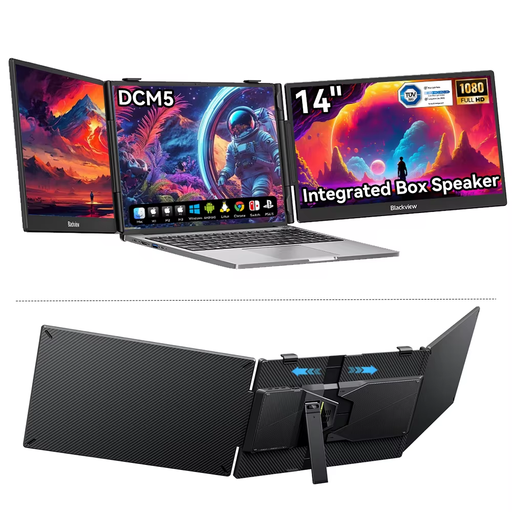
A 14-inch option for anyone who wants to use an extra screen alongside their laptop. Check that your device supports the connection you’ve chosen.
The title lists 1920 × 1200, IPS, 16:10, Type-C and mini-HDMI. The product description states a weight of 1.18 kg and mentions a protective case.
 No image available
A single 14-inch screen to consider if you’re looking for a compact workspace alongside your laptop.
The product information lists an IPS panel and a 16:9 aspect ratio. The title states that it’s compatible with laptops from 13–17 inches.
 No image available
A portable option for planning training alongside a laptop. Check which port on your device outputs video.
The product information lists 1920 × 1080, two USB-C ports, mini-HDMI, a built-in stand and a weight of 600 g.
 No image available
A larger screen to consider if you want more screen space while planning and have room for the monitor beside your laptop.
The product title lists IPS, HDR and 1920 × 1080; the description mentions USB-C and mini-HDMI. For video over USB-C, your laptop port must support video.
No. Check that the specific laptop port supports video, for example through DisplayPort Alt Mode. Also check that the cable and any power supply are suitable for the connection you want to use.
Not always. NS recommends charging your laptop in advance, as it may not be possible to charge it during every journey. At home, test how long your laptop and monitor work together using the power source you expect to use on your journey.
At home, measure your laptop and the monitor stand when unfolded, and arrange the cables so you can pack everything away easily. NS states in its house rules that hand luggage must not occupy a seat that another passenger could use.
For a standard online consumer purchase, you’re generally entitled to a statutory cooling-off period. ACM ConsuWijzer states that this usually ends 14 days after delivery, although exceptions apply. You’re also entitled to a statutory warranty if a product doesn’t meet what you could reasonably expect under normal use; a manufacturer’s warranty doesn’t replace this legal right.
Check that the product being offered carries the required CE marking. The Dutch government explains that many consumer products placed on the EU market must meet the relevant legal requirements; a model name alone doesn’t show that the specific item being offered meets them.