
Commuter with limited table space
You want to view code and documentation at the same time, but need to fit your laptop and monitor into a small workspace. Compare the overall dimensions and how much room the stand takes up.


For viewing code alongside documentation on the train, a compact 14-inch screen with a 16:10 aspect ratio is a sensible choice when space is limited. A 15.6-inch model gives you more physical screen space if the whole setup will fit. Next, check whether your laptop’s USB-C port supports video and supplies enough power, or deliberately choose a monitor with a built-in battery. Lenovo, Dell and ASUS offer models in these different sizes, with a range of connection and power options.
You want to view code and documentation at the same time, but need to fit your laptop and monitor into a small workspace. Compare the overall dimensions and how much room the stand takes up.
You may want to use a single cable, but first check whether your laptop’s USB-C port supports video and can supply enough power.
Decide in advance whether the monitor will draw power from your laptop or has a built-in battery. Don’t assume you’ll have access to a charging point during your journey.
First, measure how much space is available beside your laptop. Then check the video connection and power requirements. Finally, compare the screen aspect ratio and text display with the way you work.
| Buying concern | What should you check? | Who is this important for? |
|---|---|---|
| Space and portability | Measure the available width and compare it with the monitor’s full dimensions, including the stand and cable. Also consider the weight of the complete setup. | If you want to use your laptop and screen together on a cramped train table, the overall setup is the priority; around 27% of consumers share this main concern. |
| Connection to your laptop | Check whether your laptop’s port supports video, for example via DisplayPort Alt Mode. Also check which cable and power supply the monitor model requires. | If you want to be sure your laptop and monitor will work together with the cable you choose, prioritise the connection; around 27% of consumers say this is their main buying concern. |
| Readable code and documentation | Compare screen size, resolution and aspect ratio. Lenovo lists 2240 × 1400 pixels on a 14-inch screen for the M14t Gen 2; Dell lists 1920 × 1200 pixels on a 14-inch screen for the P1425. | If you want to read several lines of code and documentation side by side comfortably, focus on how clearly text is displayed; around 26% of consumers put this first. |
| Power during your journey | Check whether the screen needs power from your laptop or has a built-in battery, and how your chosen configuration is charged. NS lists charging points on many trains, but they are not something every passenger can rely on. | If you’d rather not rely on your laptop’s power or a charging point during your journey, first look at alternative power options; around 20% of consumers say power is their main concern. |
The shape of the connector alone doesn’t confirm that your laptop supports video over USB-C. As a result, the cable connection you choose may not work as expected.
Check the specifications for your laptop’s port and the monitor before relying on a single cable.
You may need a different cable or connection solution.
Battery capacity in mAh doesn’t, on its own, tell you how long the screen will last with your settings and connection.
Compare the details for the exact model, and don’t base your plans on the stated capacity alone.
The width of the whole setup, the stand and the cable all affect whether the screen will fit beside your laptop. A dual-screen setup won’t necessarily take up less space.
Measure the available workspace and compare the chosen model’s full dimensions and setup requirements.
The ThinkVision M14t Gen 2 is a 14-inch model with a 16:10 screen and touchscreen functionality.
The Pro 14 Plus P1425 is a 14-inch alternative with a 16:10 aspect ratio.
ZenScreen models come in a range of configurations, including USB-C with mini-HDMI, a built-in battery or two panels.
The E14 G4 is a 14-inch Full HD model that HP describes as a lightweight portable monitor.
The VA1655 is a 16-inch portable Full HD monitor with USB-C.
These portable monitors and laptop extenders are for anyone who wants to view code or documentation on an extra screen. Compare each model’s dimensions, connections and stand with your laptop and the space you’ll have while travelling.
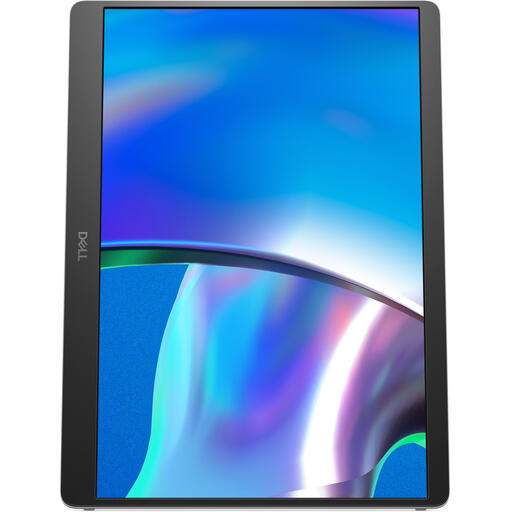 Image unavailable
Suitable if you’re looking for a compact screen for code and documentation beside your laptop.
14 inches; 1920 × 1200 pixels (WUXGA); 16:10; USB-C for video and power; adjustable stand.
Place the monitor on a stable surface.
 Image unavailable
An option to compare if you’re looking for a portable screen to use beside your laptop’s display.
14 inches; 1920 × 1080 pixels; the product title states compatibility with 13–17.3-inch laptops. Place the screen on a stable, flat surface.
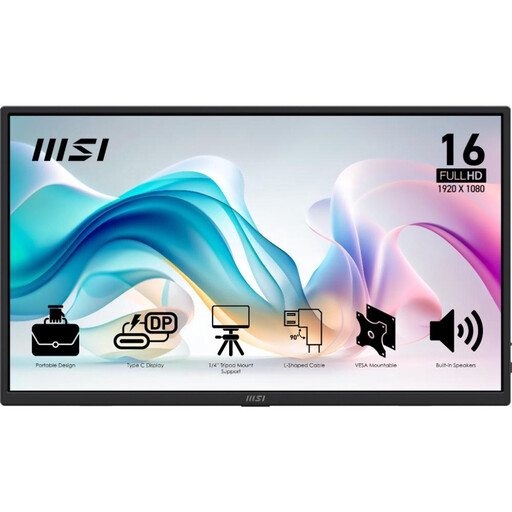 Image unavailable
Suitable if you want more physical screen space and have checked in advance that there’s room for a 15.6-inch monitor.
15.6 inches; Full HD IPS; anti-glare; USB-C with DisplayPort Alt Mode and HDMI; stated weight 0.78 kg; stand tilts up to 90°.
 Image unavailable
A 15.6-inch option if you want an extra Full HD screen and can make room for the setup in advance.
15.6 inches; 1920 × 1080 pixels; Full HD. The product description lists an anti-glare surface, a stand with 360° rotation and automatic orientation detection.
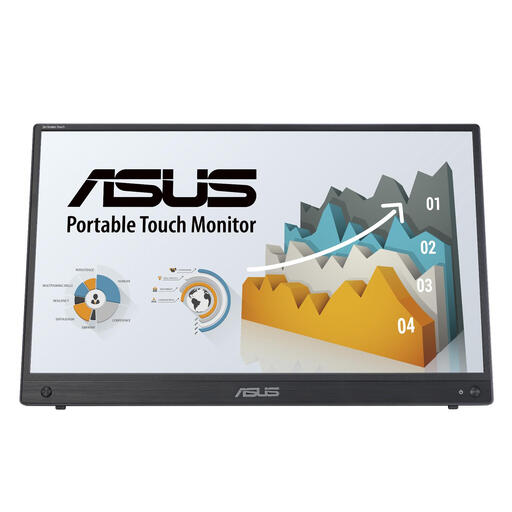 Image unavailable
An option if you want a portable second screen with touch controls and have room for a 15.6-inch model.
15.6 inches; 1920 × 1080 pixels; Full HD touchscreen; HDMI and USB-C. Place the monitor on a flat surface.
No. Check whether that specific laptop port supports video, for example via DisplayPort Alt Mode, and whether the laptop, cable and monitor can supply the power required. The connector’s shape alone doesn’t confirm this. DisplayPort explains how DisplayPort works over USB-C with Alternate Mode.
No. NS lists power sockets or USB charging points on many trains, but that doesn’t mean one will be available on every journey or at every seat. Plan your monitor’s power needs without assuming you’ll be able to charge it while travelling.
Check that the stand, cable and laptop will all fit on your available workspace. HP lists a soft sleeve and adjustable stand for the E14 G4; check which accessories are included with the exact model in the offer.
For distance purchases, the seller must provide information about matters including the cancellation period, which is usually 14 days. Faults are covered by separate consumer rights. The Dutch government explains these rules; also check who the seller is and which terms and conditions apply to your purchase.
According to the Dutch government, electronic devices sold on the EU market must carry a CE marking. Check the marking and product information for the specific offer; a brand name alone doesn’t show whether an individual offer meets this requirement.