
Event planner with limited space on the train
You want to use the schedule and your notes side by side, but the extra screen and its stand need to fit alongside your laptop in a confined workspace.


Start with your laptop’s video output and the space available beside it: a USB-C connector alone doesn’t prove that it can transmit video. A compact 14-inch screen suits a small workspace, while a larger screen or a model with its own battery is worth considering if more room to read or less reliance on train power matters more to you. Check the power requirements and space for the stand before working with attendee data.
You want to use the schedule and your notes side by side, but the extra screen and its stand need to fit alongside your laptop in a confined workspace.
You switch between schedules, tasks and communications, and mainly want extra workspace that’s easy to read. Screen size and resolution matter more than having the most compact setup possible.
You want to keep working on the move without assuming there’ll be a plug socket available, and are comparing power from your laptop with a monitor that has its own battery.
Choose this if: you mainly want to keep a schedule next to your main window and have little space.
Keep in mind: there’s less screen space and it may put extra strain on your laptop battery.
Choose this if: you want to view more planning documents at once and have room for the screen and stand.
Keep in mind: HDMI carries the picture on the MSI model mentioned, but doesn’t power the screen on its own.
Choose this if: you don’t want to depend on there being a plug socket on the train.
Keep in mind: you’ll need to charge the screen’s battery too. ASUS’s stated battery life for the MB16AHP applies under the conditions specified.
| What to consider | What to check when buying | Who is this important for? |
|---|---|---|
| Working video connection | Check the video capabilities of your laptop port, the input on the exact monitor model, the cable and the power required. A USB-C port that only supports data or charging doesn’t prove that it can transmit video. | If I’m not sure about my laptop port, I want to confirm in advance that the screen will receive a picture; around 33% of consumers prioritise a working video connection. |
| Space for the screen and stand | Compare the full dimensions and weight, as well as the space the stand takes up when opened beside your laptop. | When my workspace is small, I want to be able to set up the screen without disturbing other passengers; around 25% of consumers prioritise a suitable size and portable weight. |
| Room to read documents | Compare the resolution, aspect ratio and screen finish of the exact model, and consider them alongside the space available and your text scaling. | If I want to read schedules, tasks and communications side by side, I focus on usable workspace; around 25% of consumers prioritise room to read documents. |
| Power on the move | Check how the exact model is powered, and test the laptop, cable and monitor together for the length of your journey. | If I don’t want to rely on a plug socket on the train, I want to know how long my setup will work without one; around 17% of consumers prioritise power independence. |
Video support depends on the specific laptop port, monitor and connection. A USB-C connector alone doesn’t confirm that the combination supports video.
Check the specifications of your laptop port and the exact monitor model, and test the cable you intend to use before buying.
A screen that’s comfortable to read may take up too much space beside your laptop once the stand is opened.
Consider the panel, full dimensions and stand as one complete setup.
On the MSI PRO MP165 E6, HDMI carries the picture; MSI also specifies that the screen needs external USB power.
Map out the complete video and power connections before you buy.
ASUS states that the ZenScreen Go MB16AHP can run for up to four hours under the described DP Alt Mode conditions at 100% brightness. This isn’t a measured battery life for your travel setup.
Charge your laptop and screen in advance, then test them together with the brightness and documents you’ll be using.
The Pro 14 Plus P1425 is a 14-inch option with 1920 × 1200 pixels, designed for a compact setup.
The ThinkVision M14t Gen 2 combines a 14-inch 16:10 screen with touch controls.
The ZenScreen Go MB16AHP is a 15.6-inch option with a built-in battery.
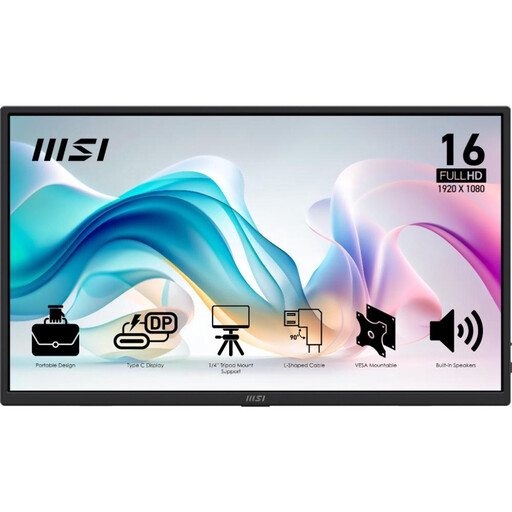
The PRO MP165 E6 is a 15.6-inch Full HD model with HDMI and USB-C connection options.
The E14 G4 is a 14-inch model you can use to compare screen size and stated brightness.
These portable monitors can be used as extra workspace beside a laptop. Check the video connection, power supply and space required for your setup.
 No image available
A 14-inch extra screen to consider if you have little space beside your laptop.
The product title specifies Full HD and compatibility with 13–17.3-inch laptops. The description mentions USB-C; check whether your laptop port supports video.
 No image available
A compact option to consider if you need extra workspace for a small workspace on the train.
The description specifies 1920 × 1080 pixels, an IPS panel, a built-in stand and a weight of 600 g. Connections: USB-C and mini-HDMI.
 No image available
A larger touchscreen to compare if you want more screen space and have room for the setup.
The title specifies a touchscreen; the description mentions 1920 × 1080 pixels and a stand built into the protective cover. Connections: USB-C and mini-HDMI.
 No image available
A larger extra screen for planning documents if you have room for a 15.6-inch panel.
The product description specifies Full HD, IPS, an anti-glare finish, a weight of 0.78 kg and a tilting stand. It has USB-C and HDMI connections; HDMI requires a separate USB power supply.
 No image available
A 16-inch screen to compare if extra screen space matters more than a compact setup.
The description specifies 2560 × 1600 pixels, an IPS panel, a weight of 810 g and a built-in stand. Connections: USB-C and HDMI.
No. Check that the specific laptop port, cable and monitor support video output, for example through DisplayPort Alternate Mode. Also check how the screen is powered.
No. NS advises you to set off with your devices charged and notes that charging on the train isn’t always possible. Test your complete setup in advance without a plug socket.
Position the screen so that other people can’t see personal data unnecessarily, and only display information you need there. According to the Dutch Data Protection Authority, an organisation processing personal data must decide on appropriate security measures based on the risks; a privacy filter isn’t a legal product requirement for every buyer.
When you buy online from a business, you’re often entitled to a 14-day cooling-off period; check the applicable terms and exceptions. You’re also covered by the statutory guarantee that a product must be of satisfactory quality. According to the Dutch government, there’s no fixed statutory guarantee period in the Netherlands; if a product is faulty, contact the seller.